
Nioh 3 Optimization Guide: Best Settings for Maximum Performance
 Vladyslav Shamshurov
Nioh 3 is the latest entry in the popular series, taking a big step forward by blending a mission-based structure with a semi-open world. However, since launch, the community has run into performance issues. In this guide, we'll help you adjust your settings to get the best balance between visuals and smooth gameplay.

Most of the optimization and performance problems in Nioh 3 are tied to the game engine. The Katana Engine behaves in some unique ways depending on your settings. The game is designed to run at fixed frame rates: 30, 60, or 120 FPS. If your frame rate is unstable, you may run into serious issues.
What to Know Before Tweaking Settings
As mentioned, the engine can react strangely to any changes in graphics options. For example, if your frame rate jumps around, you’ll notice uneven camera movement. The engine can even slow down the entire gameplay—if your FPS drops below the standard minimum (30 FPS), your character will move more slowly.
Also, if you unlock the frame rate, shadows from artificial lighting can disappear completely. Oddly enough, capping the game at 120 FPS puts extra load on your CPU, even if you’re only getting 60 FPS.

It’s crucial that your FPS cap matches your monitor’s refresh rate. If you set a 60 FPS cap on a 120 Hz monitor, the game will stutter constantly. But if you switch your monitor to 60 Hz, the image becomes perfectly smooth—this has already been confirmed by the community.
Should You Enable Frame Generation?
In Nioh 3, frame generation works properly only if your graphics card has enough performance headroom. In other words, if your GPU is running at 90-100% load, turning on frame generation won’t keep 120 FPS stable, and input lag will become high and annoying.
There’s another catch: DLSS frame generation activates Reflex, which caps the frame rate at around 116 FPS. This can cause the tearing and stuttering on 120 Hz monitors that we mentioned above. It’s best to use DLSS only on monitors with 144 Hz or higher.
Best Nioh 3 Graphics Settings
Settings You Can Ignore
Some options in the game either don’t work at all or have no visible effect. You can safely set these to max without losing performance.
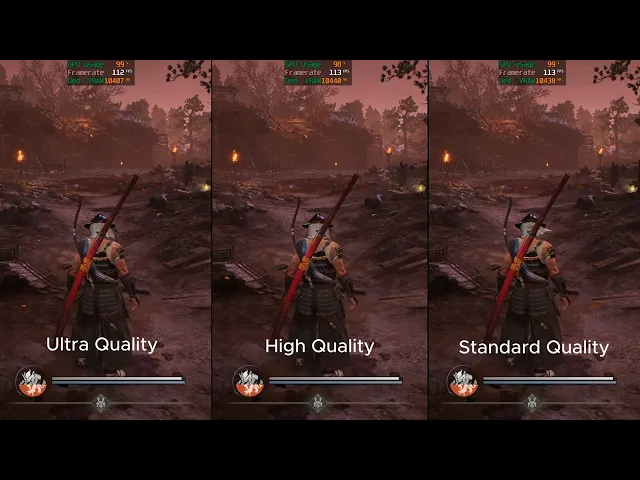
Model Quality doesn’t affect geometry complexity or draw distance—objects appear at the same distance no matter what you choose. The number of displayed models setting also doesn’t work: there’s literally no difference between Low and Max. Wind effects can’t be turned off—plants and clothing still move even if you disable the option. Anisotropic filtering technically doesn’t function, but the game uses high filtering quality by default, so you can safely set this to max.
Settings That Matter a Bit
Texture Quality is the only setting that consistently works and actually affects visuals. Raising it from low to medium improves the look of nearby objects, and Ultra mostly boosts detail in distant objects. Note that this is the only option that really impacts VRAM usage.
Animation Quality controls how smooth distant enemies move. On low, characters in the distance move in a choppy, old-school way. On high, their animations are smooth.
Background Geometry Quality affects the detail of background objects. On low and medium, you’ll notice things popping in right in front of you.
Settings That Affect Performance
Shadow Quality
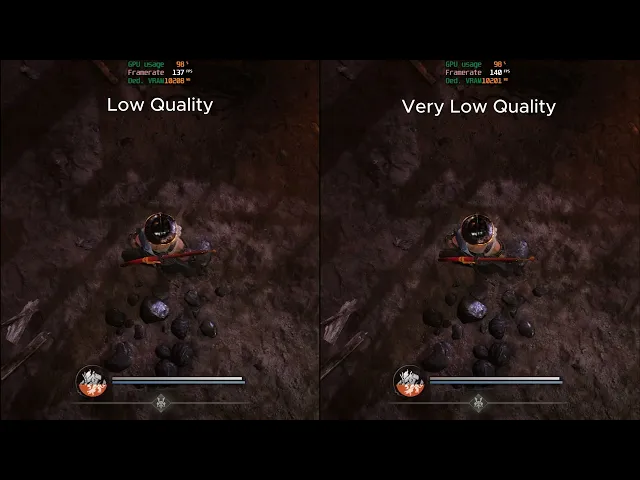
Shadow quality is one of the few settings in Nioh 3 that really impacts both visuals and performance. On minimum, shadows look pixelated and jittery, with lots of flickering. The lowest setting completely disables dynamic lighting shadows, making the visuals flat. Raising it to medium gives a good quality boost with only a moderate performance hit. Going to Ultra gives almost no extra visual benefit but drops FPS a lot. Medium is the recommended setting.
Ambient Occlusion
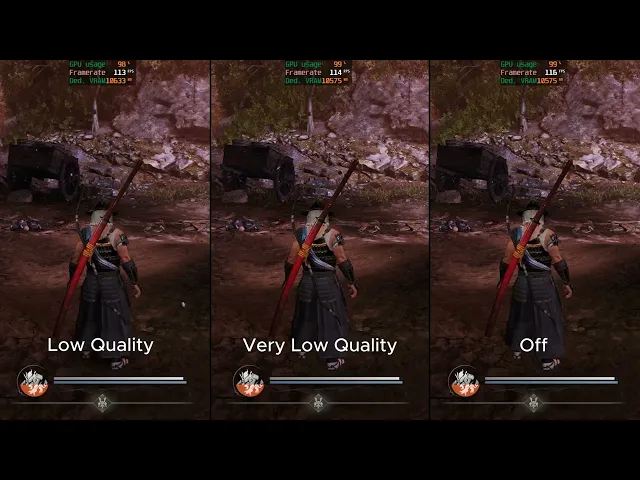
This setting adds depth to scenes by darkening corners and where surfaces meet. If you turn it off, everything looks flat. The problem is, on medium and high, ambient occlusion creates noise in foliage and can over-darken the image, causing black halos around objects. Performance isn’t affected much, so it’s really about how much the noise in plants bothers you. Minimum or medium is usually best.
Effects Quality
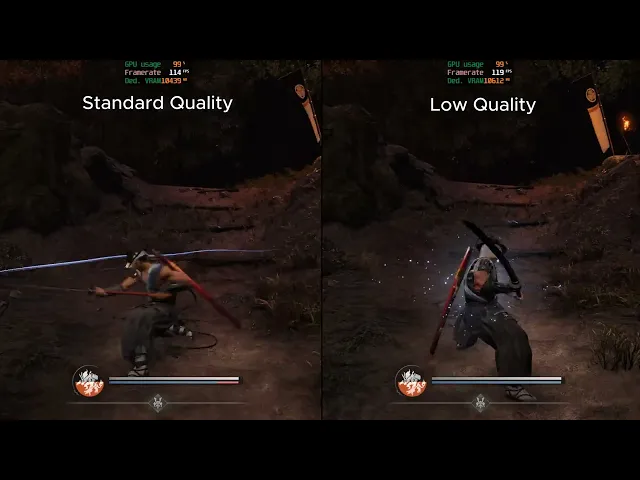
This setting controls the appearance of dust, small debris, and splashes from character attacks or when interacting with water. It does not affect the flashy special effects of abilities. Raising this setting drops performance by about four percent, which is usually unnoticeable. Set this option however you like.
Screen Space Reflections

This option determines which objects appear in reflections on wet surfaces. The higher the quality, the more flickering and noise you’ll see in reflections. For a cleaner image, it’s better to keep this setting on low.
Terrain Quality
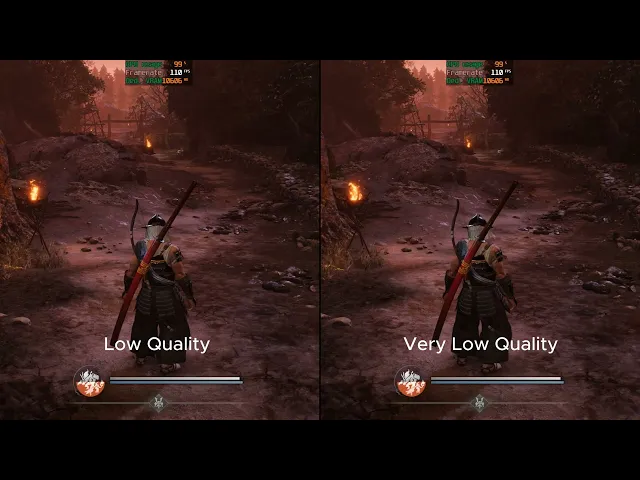
This setting controls the detail of ground surfaces using parallax mapping. It affects how deep and realistic rocky terrain looks, as well as how far away this effect is visible. The performance impact is minimal.
Grass Density
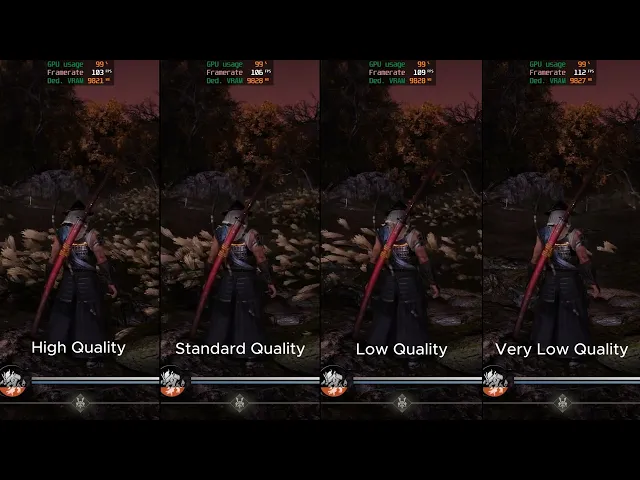
This automatically adjusts the amount of vegetation in the world. Its impact on performance depends on the location: in open fields with lots of grass, FPS drops are more noticeable than in rocky or sparsely vegetated areas. Set this option based on your preference.
Volumetric Clouds Quality
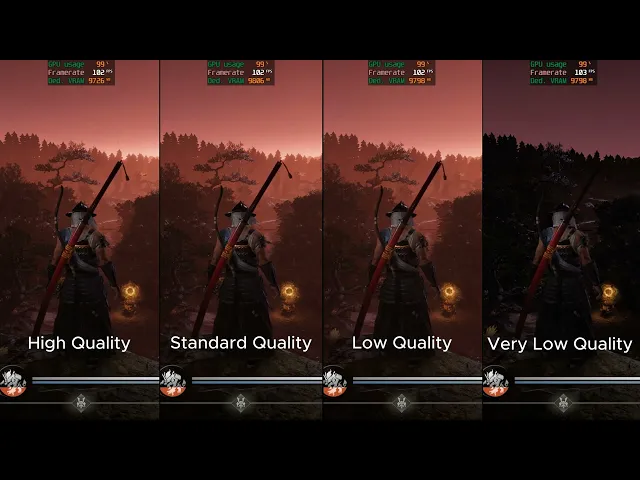
This setting is responsible for volumetric fog and lighting. On low, these effects are completely disabled, making the visuals look simpler. Overall, the performance hit is small, but in areas with dense fog, system load can increase noticeably.
Global Illumination
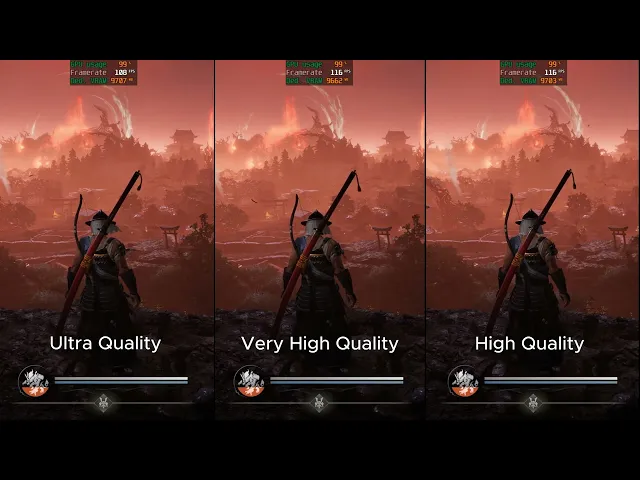
Global illumination is a critical setting that has the biggest impact on both visuals and performance.
On the lowest setting, most indirect lighting is replaced with a simple blue fill. All shadowed surfaces get a cold, unnatural tint. Reflections lose color detail and also look bluish.
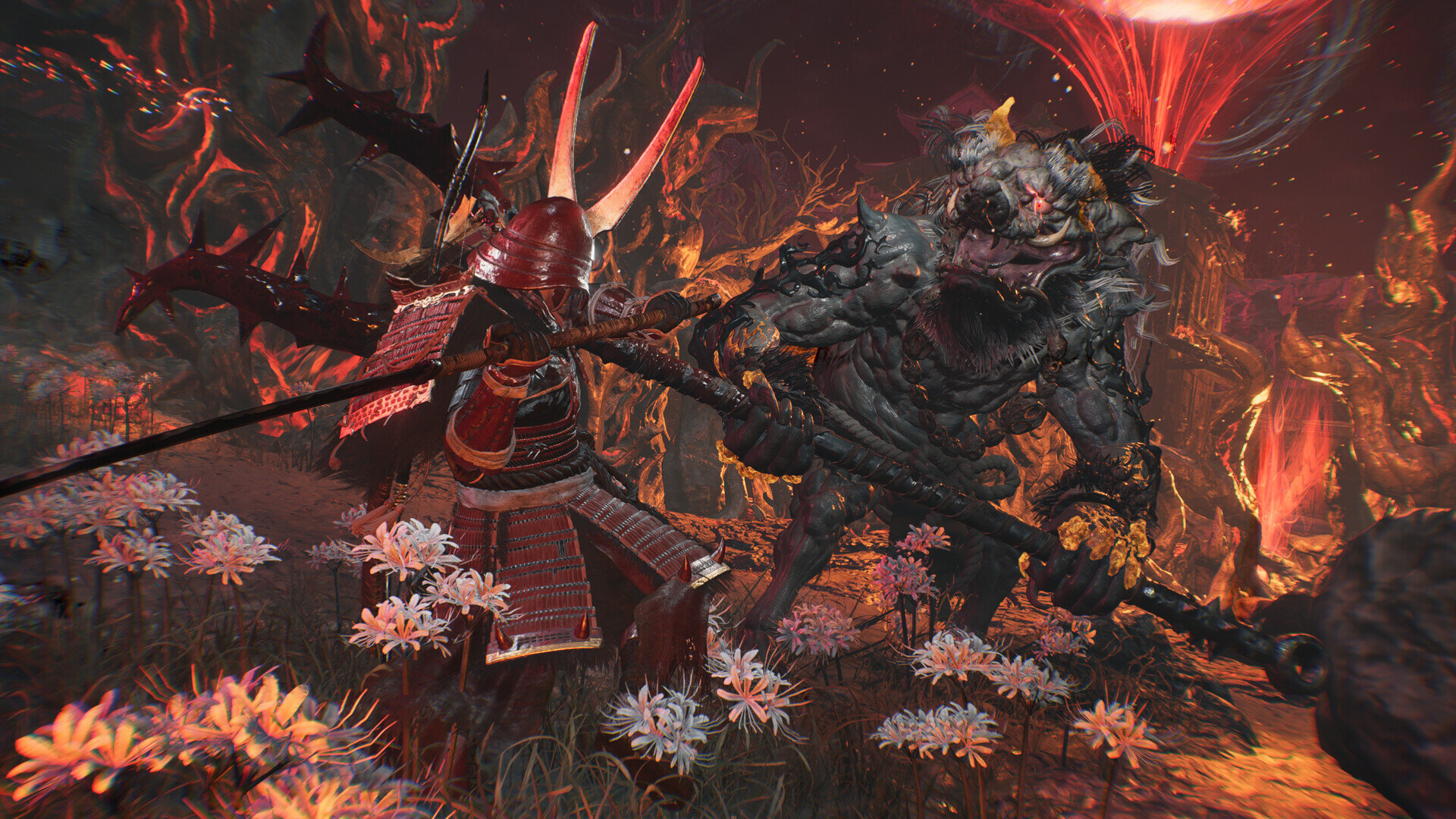
Raising it to medium brings back standard indirect lighting. Increasing it further adds depth and detail to lit surfaces. On very high and ultra, the image becomes much more stable and flickering is almost completely gone.
However, the highest quality setting puts a heavy load on your GPU. Video memory is especially sensitive—on 8 GB cards, even medium can cause stuttering.
Final Recommendations
For Graphics Cards with 8 GB of VRAM
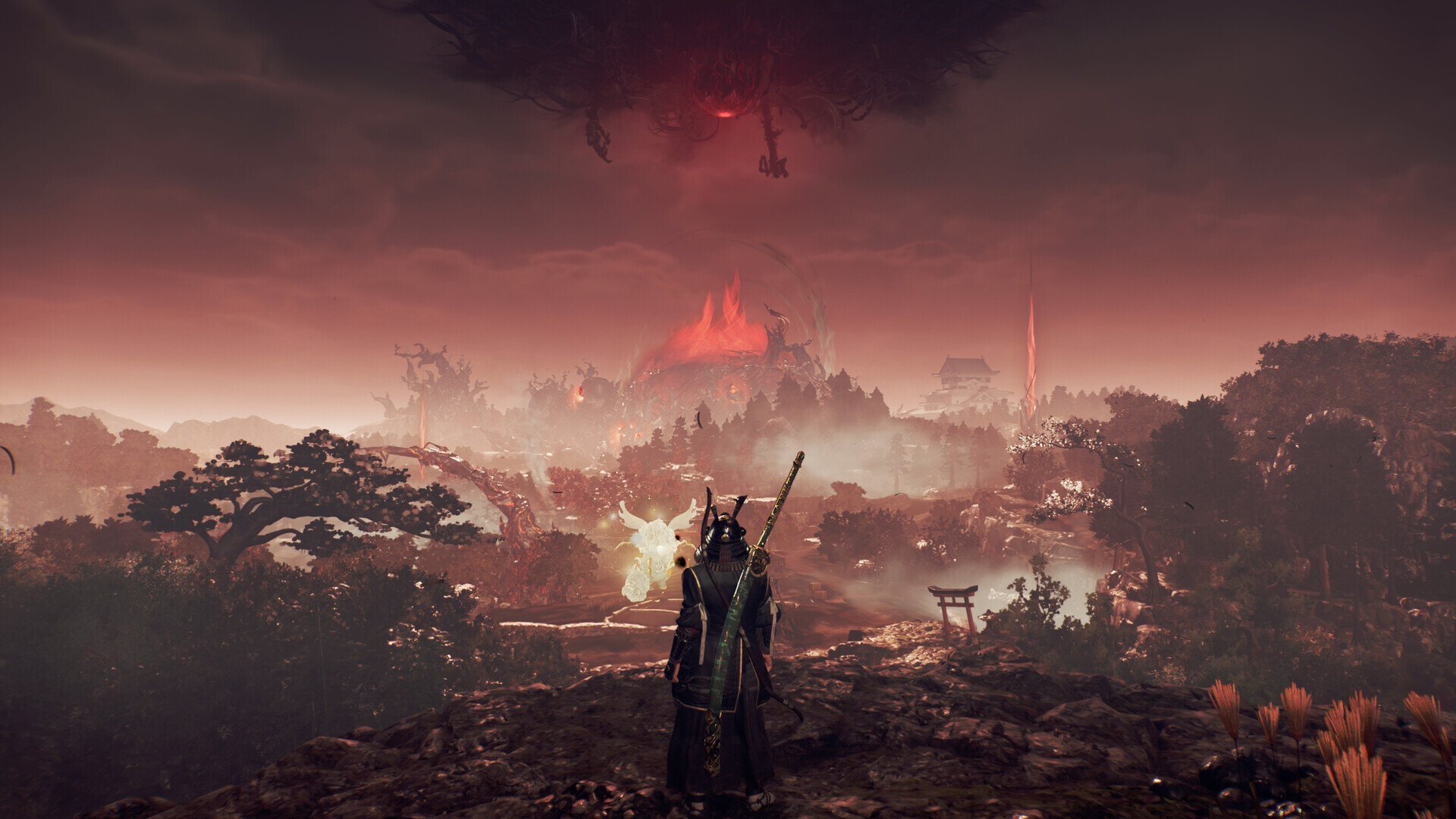
If you have limited video memory, the main setting you’ll need to sacrifice or keep at minimum is global illumination. The lighting will look simpler and less natural, but in a fast-paced game like Nioh 3, that’s a small price to pay compared to constant stuttering from running out of memory.
Set texture quality to medium to free up VRAM. All other settings can safely be maxed out—they either don’t work or use very little resources.
For More Powerful Graphics Cards
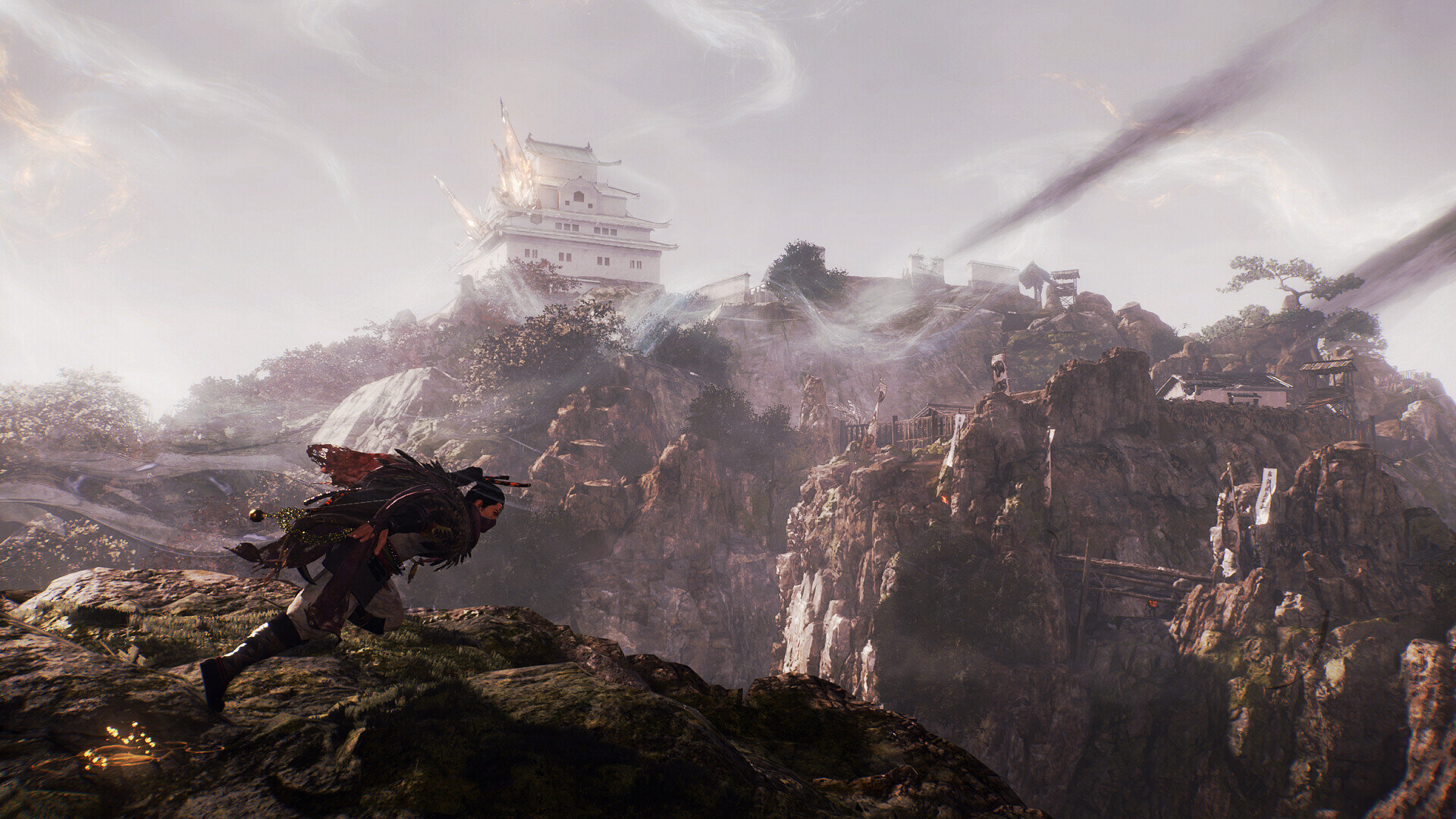
If your graphics card has 12 GB or more of VRAM, you can experiment freely:
- First, set global illumination to high, but not ultra. The highest setting barely improves visuals but kills performance.
- Set shadow quality to medium—there’s no real benefit going higher.
- Ambient occlusion can stay on low to avoid noise at higher settings.
- Grass density should be set to low, since high values noticeably drop FPS in forested areas.
***
Of course, Nioh 3 performance doesn’t depend on your GPU alone. If your processor is weak, the only reliable option is to cap your frame rate at 30 FPS and sync it with a 30 Hz monitor refresh. If you can hold a stable 60 FPS, set your refresh rate to 60 Hz. For 120 FPS, make sure your CPU can handle the base frame rate before enabling frame generation.
In Nioh 3, smoothness and stability are more important than fancy visuals. Because of how the engine works, it’s better to lower global illumination and shadow quality than to sacrifice frame rate for max graphics. The golden rule: keeping your FPS cap matched to your monitor’s refresh rate always matters more than any visual effect.
Other guides
 Nioh 3 Spirit Veins Guide: How to Unlock and Use Them
 Nioh 3 Boss Guide: How to Beat Baba Nobuharu
 Nioh 3 Titles & Prestige Explained: Best Categories and Bonuses to Level Up
 How to Level Up Fast in Nioh 3: Best Tips for Quick Character Progression
 Nioh 3 Jakotsu-Baba Boss Guide: How to Defeat the Swamp Witch Easily
 Nioh 3 Troubleshooting Guide: Won’t Launch, Crashing, Fatal Error, and More


