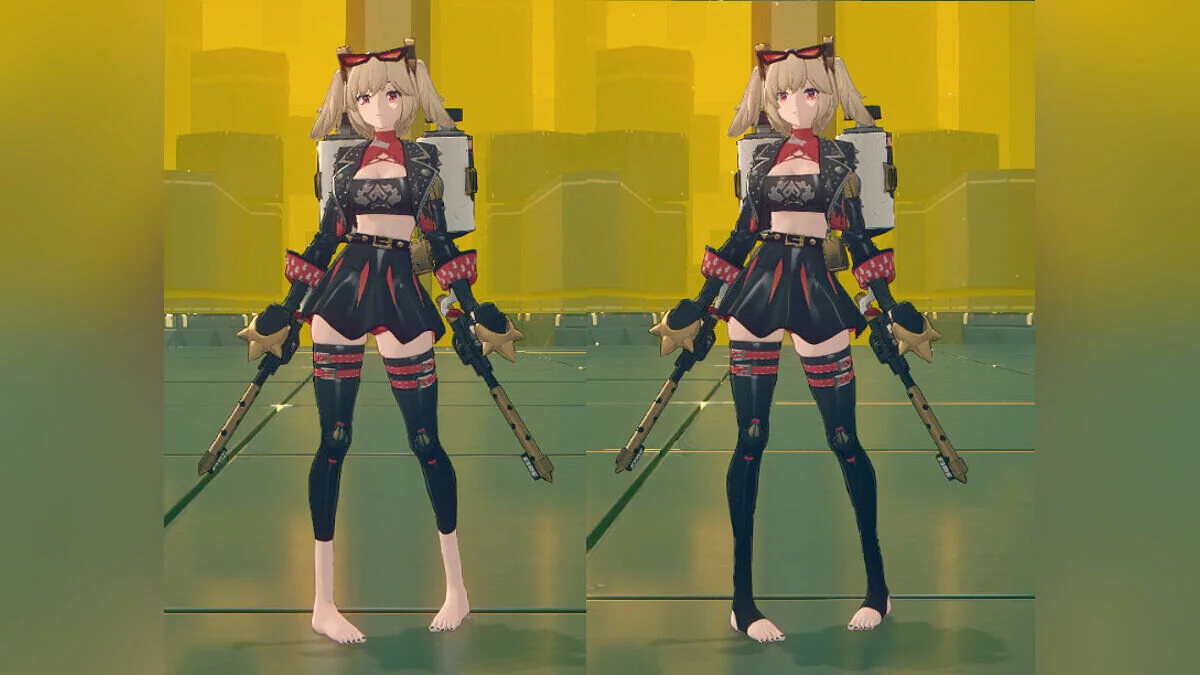
Free role-playing action game from the creators of Genshin Impact and Honkai: Star Rail. In the near future, the world was shaken by a catastrophe: mysterious... Read more
Agent Viewer

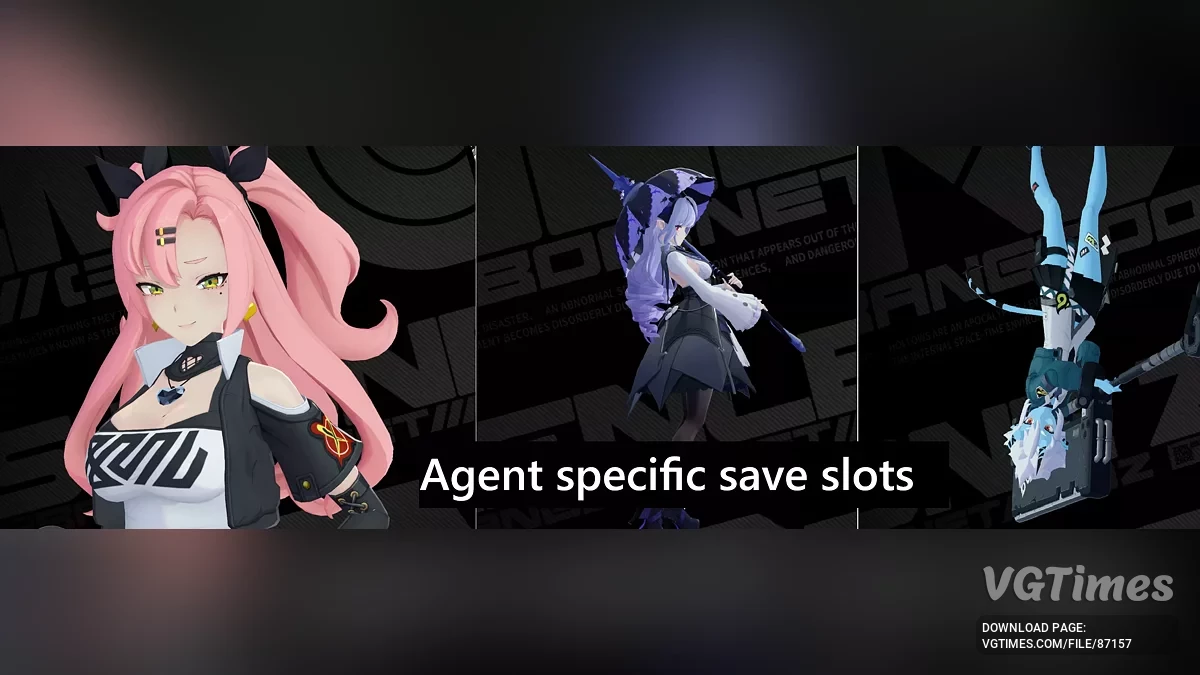
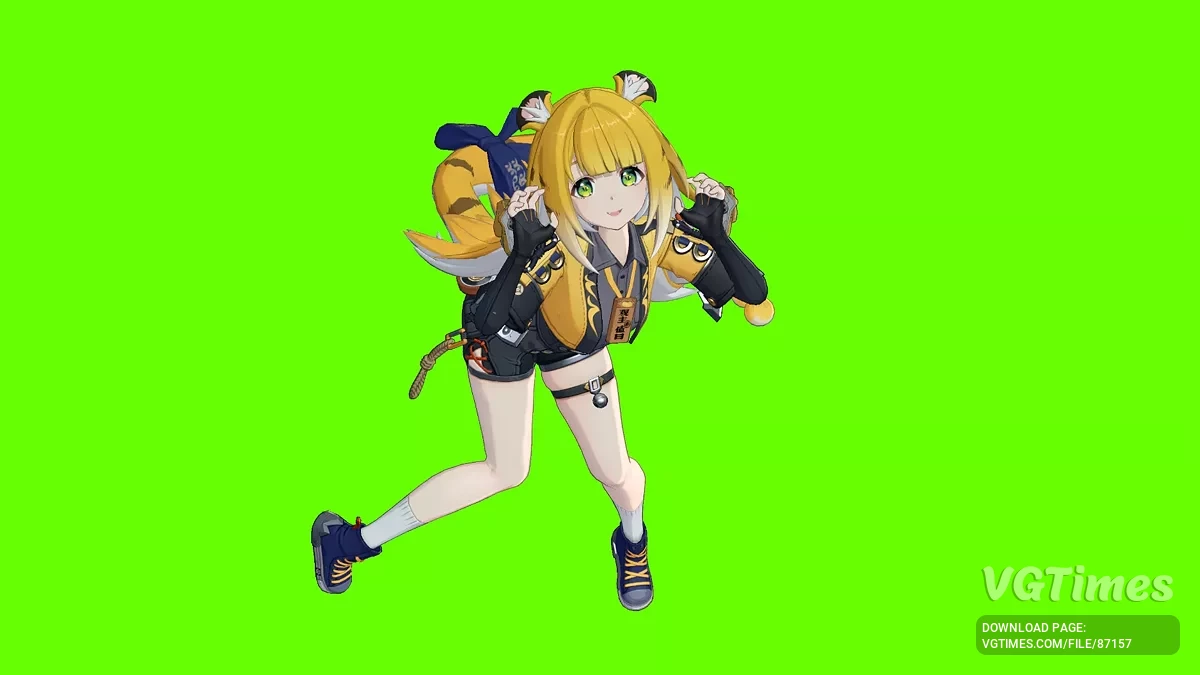


-
Download (170.59 kB)September 18, 2025, 11:48 AM2.2.1prosmotrshhik-agentov_1758185299_501879.zip
-
Download (135.95 kB)October 3, 2025, 03:54 AM2.2.3prosmotrshhik-agentov_1759452885_615690.zip
-
Download (45.30 kB)January 23, 2026, 08:13 AM2.5prosmotrshhik-agentov_1769145216_217120.zip
-
Download (48.04 kB)February 24, 2026, 12:12 PM2.6prosmotrshhik-agentov_1771924367_91772.zip
-
Download (50.80 kB)April 7, 2026, 06:09 AM2.7prosmotrshhik-agentov_1775531364_892524.zip
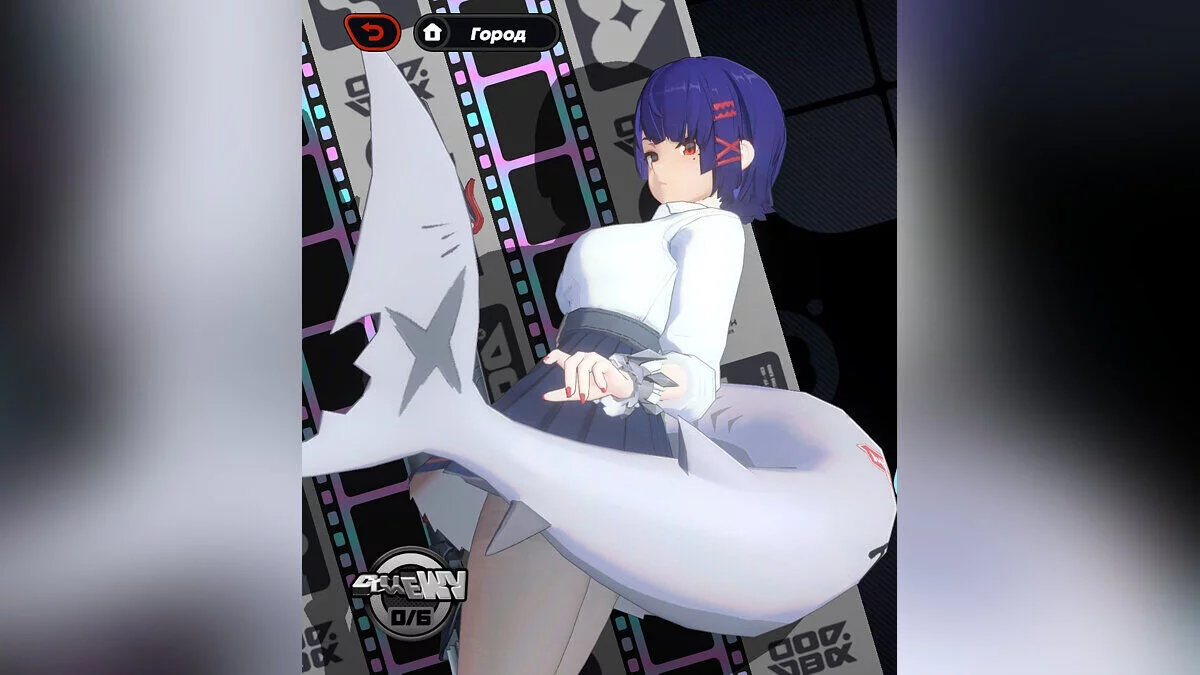
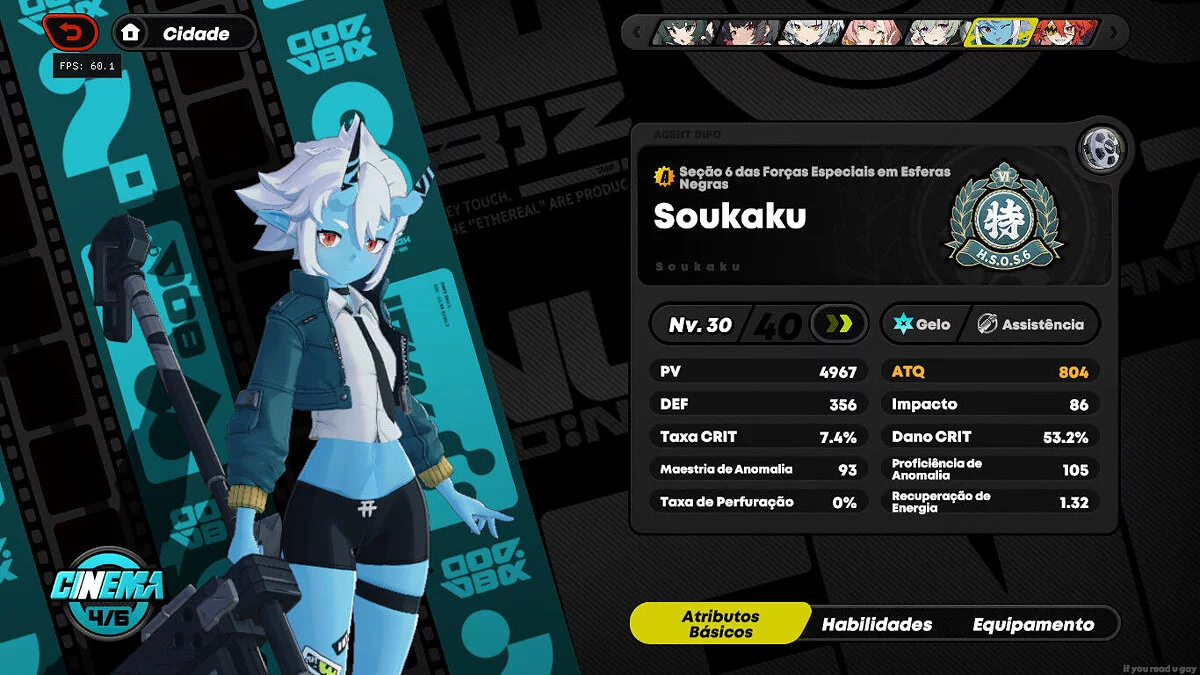
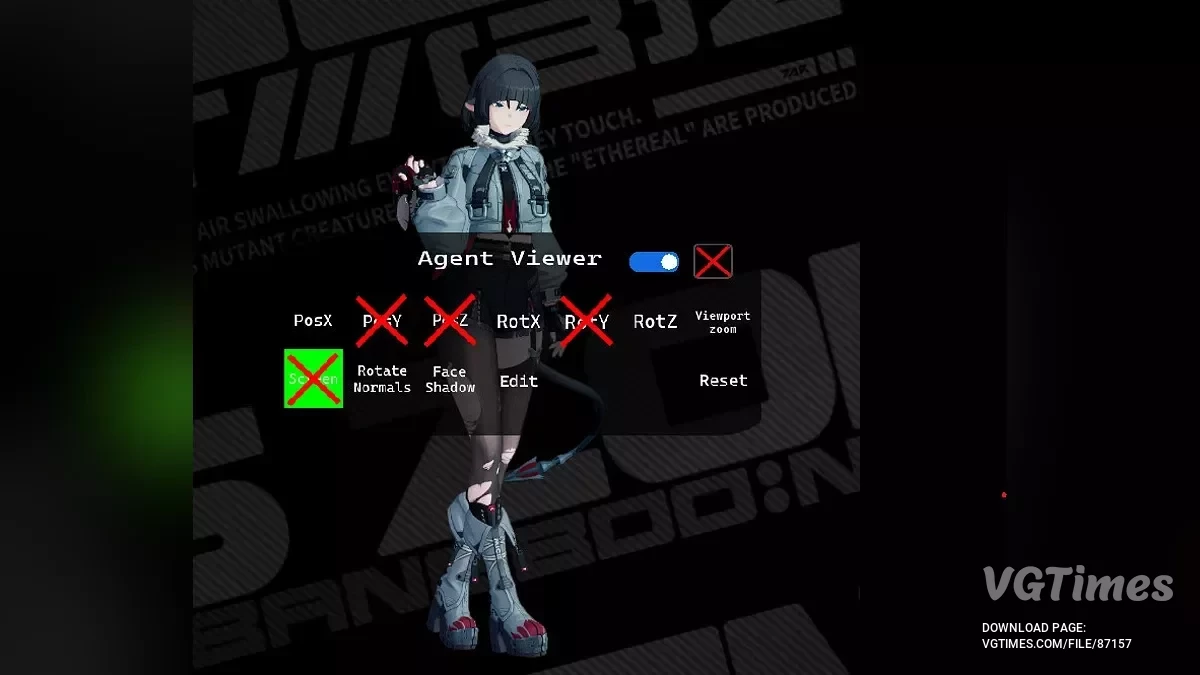
Allows you to move, rotate, and zoom agents in the menu.
Features:
- Move, rotate, and zoom;
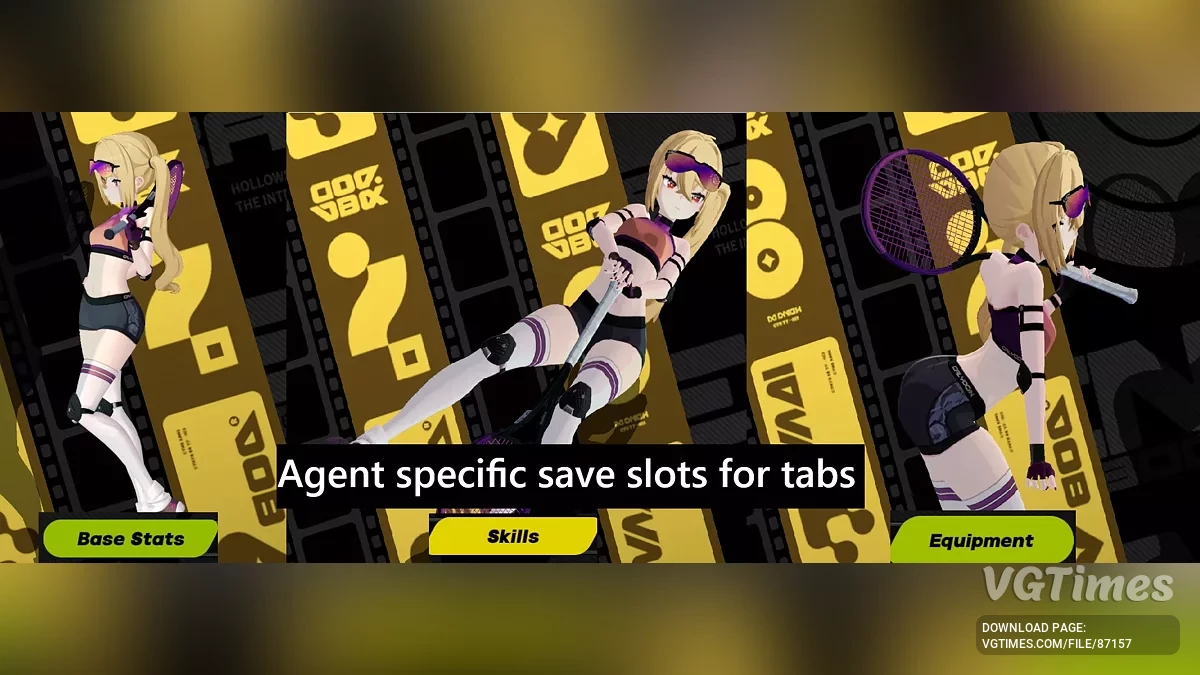
- Each agent's changes are stored separately for each view;
- Green screen.
Controls:
Keyboard
- ←, →, ↑, ↓, +, — — move agent;
- R + ←, →, ↑, ↓, +, — — rotate agent;
- Ctrl + +,- — viewport zoom;
- Ctrl + Alt + R — reset current view;
- Ctrl + F5 — toggle mod on/off;
- Ctrl + E — toggle edit mode on/off;
- Ctrl + S — toggle ground shadow on/off;
- Ctrl + G — toggle green screen on/off;
- Ctrl + T — toggle normal map rotation with rotation;
- Ctrl + F — toggle face shadow on/off;
- L + 1,2,3,4 — lock position X, Y, Z, viewport zoom;
- L + R + 1,2,3 — lock rotation X, Y, Z.
Mouse Drag
- T + Left mouse button — move agent along X & Y axes;
- T + Right mouse button — move agent along Z axis;
- R + Left mouse button — rotate agent along X & Y axes;
- R + Right mouse button — rotate agent along Z axis;
- Y + Left mouse button — viewport zoom.
You can change the controls by editing the KeyBindings.ini file. The green screen color can be changed by editing the $red, $green, and $blue values in the Config.ini file.
Additional steps for installing the mod:
- Close the game or restart it after completing all steps.
- Just in case, remove everything from the ShaderFixes folder (\XXMI Launcher\ZZMI\ShaderFixes).
- Move all -VS-replace.txt files from the "PUT THESE IN ShaderFixes FOLDER" folder to the ShaderFixes folder (\XXMI Launcher\ZZMI\ShaderFixes).
- Move the MoveAgentsInMenu folder from "PUT THIS IN mods FOLDER" to the mods folder (\XXMI Launcher\ZZMI\Mods).
Viewport zooming:
If you want a closer view without texture clipping, first move the agent closer using the + key, then use viewport zoom (CTRL + +) for a small zoom. If you zoom in too much, the model will become blurry, so bring the model as close as possible with + first.
Known issues:
- Some mod skins or toggles might not work right away. If this happens, leave a comment;
- Some FX elements do not move or rotate with the agent (currently Yixuan, possibly others);
- Rarely, mod folders ending with _v1.01 or similar cause issues. Usually, everything works after renaming the folders. Example: MiyabiMod_BackToBasics_ButBetter_v1.01 -> MiyabiMod_BackToBasics_ButBetter. Sometimes Yuzuha Raccoon's position/rotation may get out of sync — this is usually fixed by changing the view or agent.
Updates:
- 2.2.1 — Added mouse controls (see description for keys). Added toggles to lock rotation around the X, Y, Z axes and viewport zoom. Slightly improved rotation consistency between views.
Related files:
Useful links: