
Shenmue 3 is a continuation of the exciting action-adventure game with a third-person view. You will once again take on the role of young Rio Hazuki, who decided to... Read more
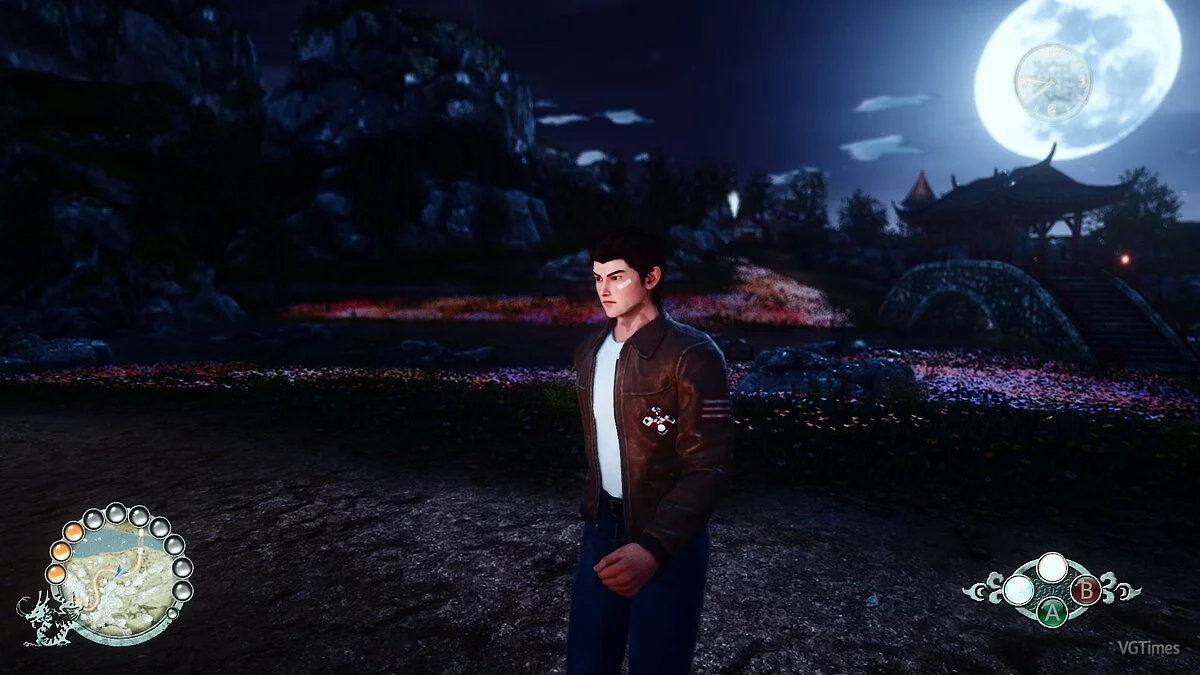
Light Source Brightness Enhancement

-
1574979407_kotus_reshade_preset_1_0_1_1574858872.rarDownload (5.36 kB)
The first graphical preset for Shenmue 3 enhances the brightness emanating from various light sources.
Installation:
1) Extract the archive to the game folder
2) Launch the ReShade installer and select the game's .exe file
3) Choose the game API — this is DX10 +
4) ReShade will prompt to download .fx files, select all and click "OK" to download and install them
5) After successful installation, close the program
6) Start the game and open the ReShade menu by pressing the Home (pos1) key on the keyboard. Then click the dropdown arrow to open the dropdown menu and select the file "LUT.fx" from the list. If you do not see the file in the list, you will need to add it manually by pressing the + key next to the dropdown arrow, then enter the full name of the file, for example: LUT.fx, and press Enter.
To close the ReShade menu, press the Home (pos1) key on the keyboard.
Первый графический пресет для Shenmue 3 усиливает яркость, которая исходит из разных источников света.
Установка:
1) Распакуйте архив в папку с игрой
2) Запустите установщик ReShade и выберите файл .exe игры
3) Выберите API игры — это DX10 +
4) ReShade запросит скачивание .fx файлов, выберите все и нажмите «ОК», чтобы загрузить их и установить
5) После успешной установки закройте программу
6) Запустите игру и откройте меню ReShade, нажав клавишу Home (pos1) на клавиатуре. Далее нажмите стрелку раскрывающегося списка, чтобы открыть раскрывающееся меню, и выберите файл «LUT.fx из списка. Если вы не видите файл в списке, вам придется добавить его вручную, нажав клавишу + рядом со стрелкой раскрывающегося списка, а затем введите полное имя файла, например: LUT.fx, и нажмите Enter.
Чтобы закрыть меню ReShade, нажмите клавишу Home (pos1) на клавиатуре.
Useful links:
![Shenmue 3 — Cheat Engine Table [UPD: 26.11.2020/1.06.00(03111)]](https://files.vgtimes.com/download/posts/2020-11/thumbs/1606472311_gsqovv8khhzbh5zrseb7zm.webp)
![Shenmue 3 — Cheat Engine Table [UPD: 21.11.2019]](https://files.vgtimes.com/download/posts/2019-11/thumbs/1574705830_1574705773_934.webp)
![Shenmue 3 — Trainer (+15) [1.02 - 1.02.1]](https://files.vgtimes.com/download/posts/2019-11/thumbs/1575029721_43ue8s4uvfo7umtjmpwhtw.webp)
![Shenmue 3 — Trainer (+13) [1.02]](https://files.vgtimes.com/download/posts/2019-11/thumbs/1574287963_9ruvos-gj6kg7_ji444kqq.webp)