Life simulator in the spirit of the series The Sims. As you pass, players create characters using a detailed editor. The characters themselves can have a playing... Read more
Anticipation Rating:
Steam:
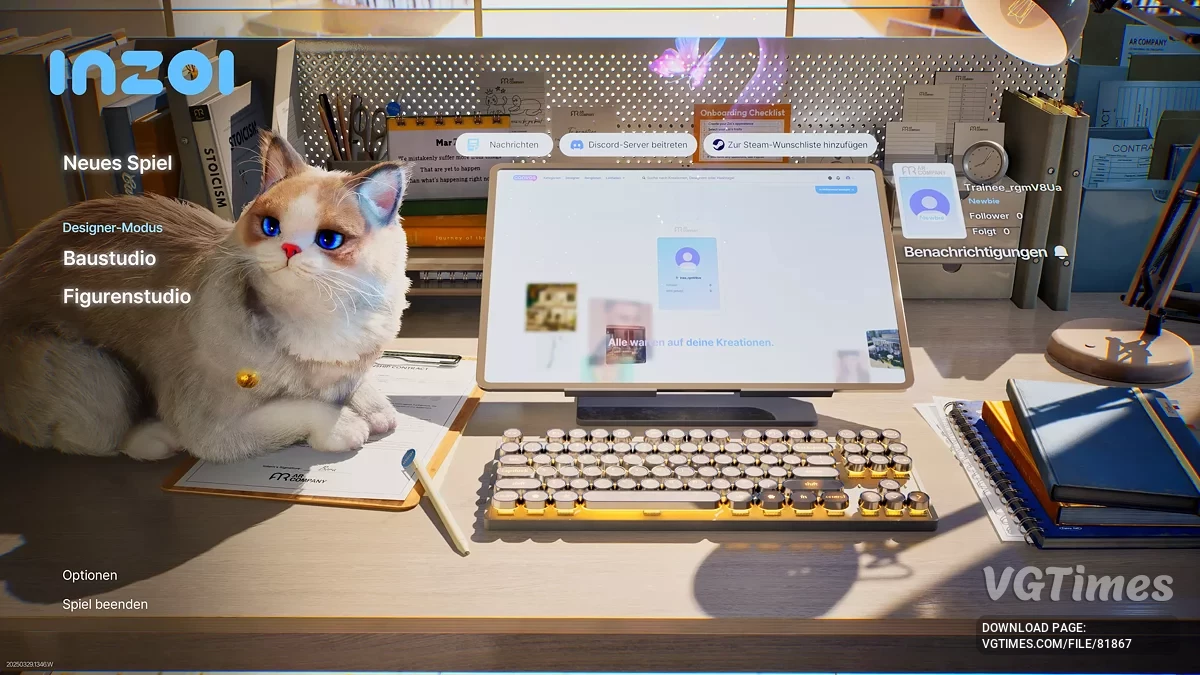
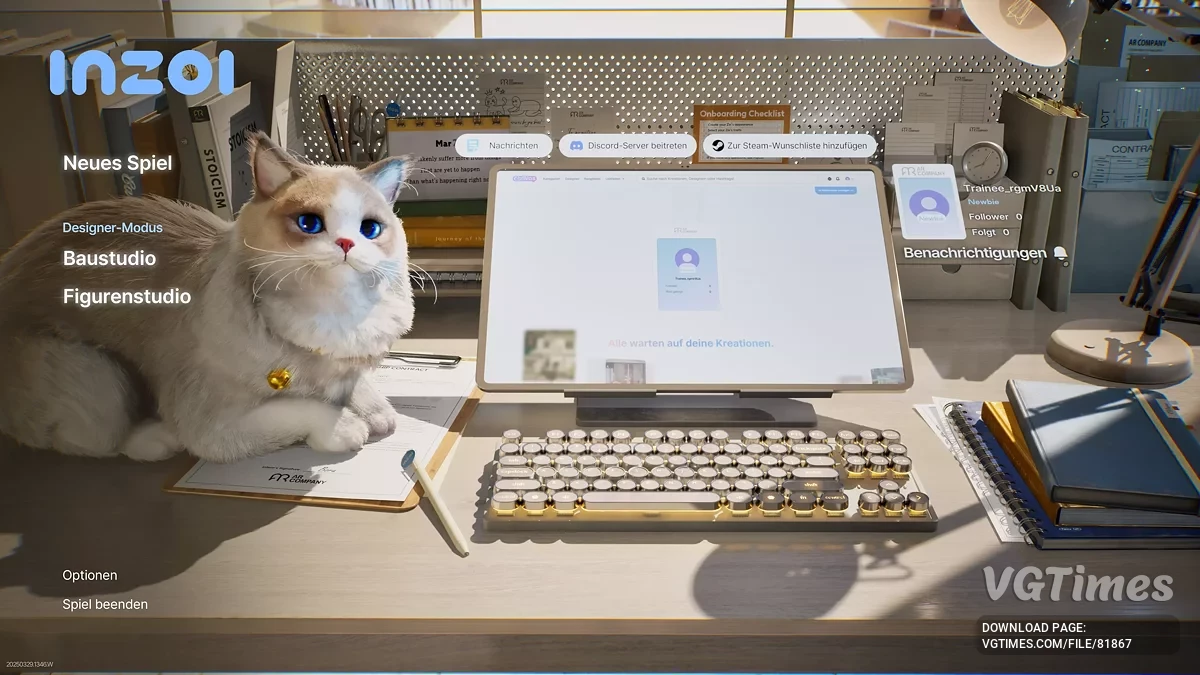
Brighter colors



Author:
Sweethanaa
Uploaded by:

Size:
6.06 kB
Date:
March 30, 2025, 04:51 AM
Downloads:
74
-
Download (6.06 kB)March 30, 2025, 04:51 AMbolee-jarkie-cveta_1743299508_935278.rar
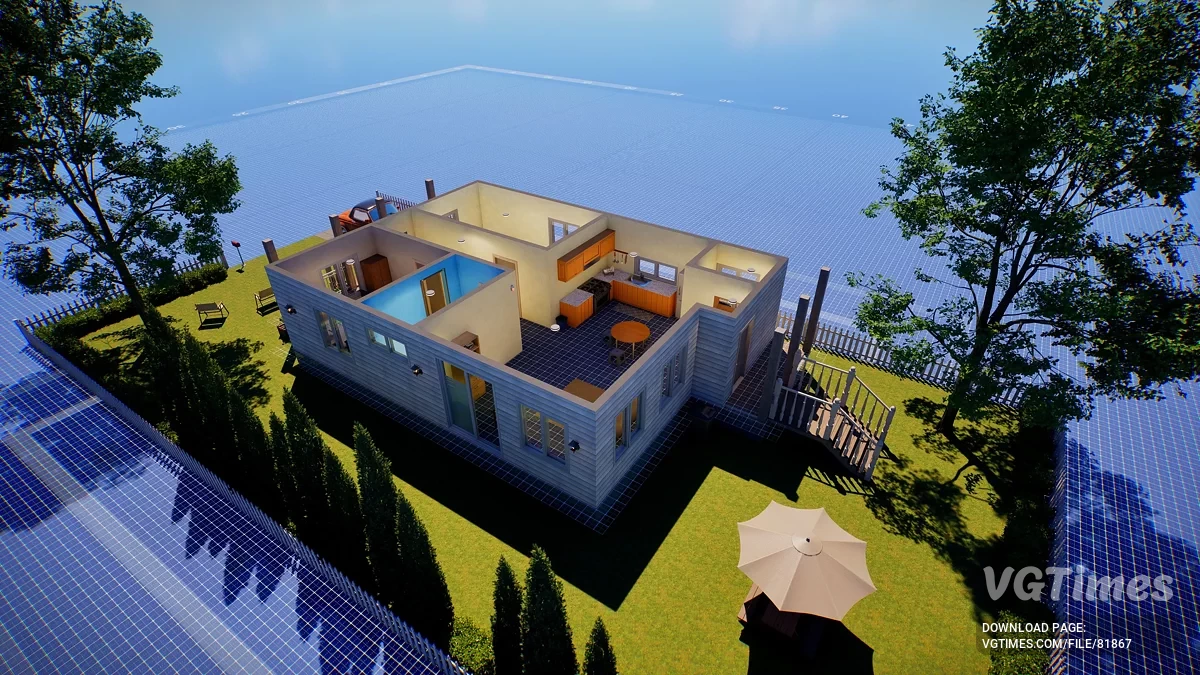
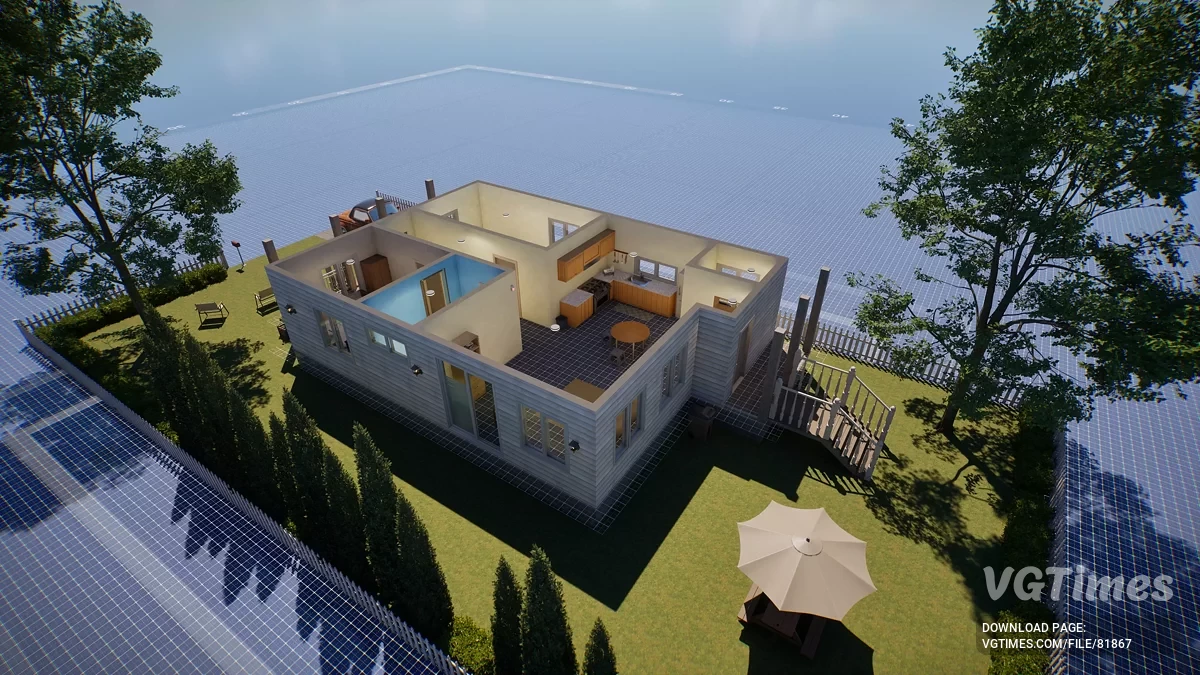
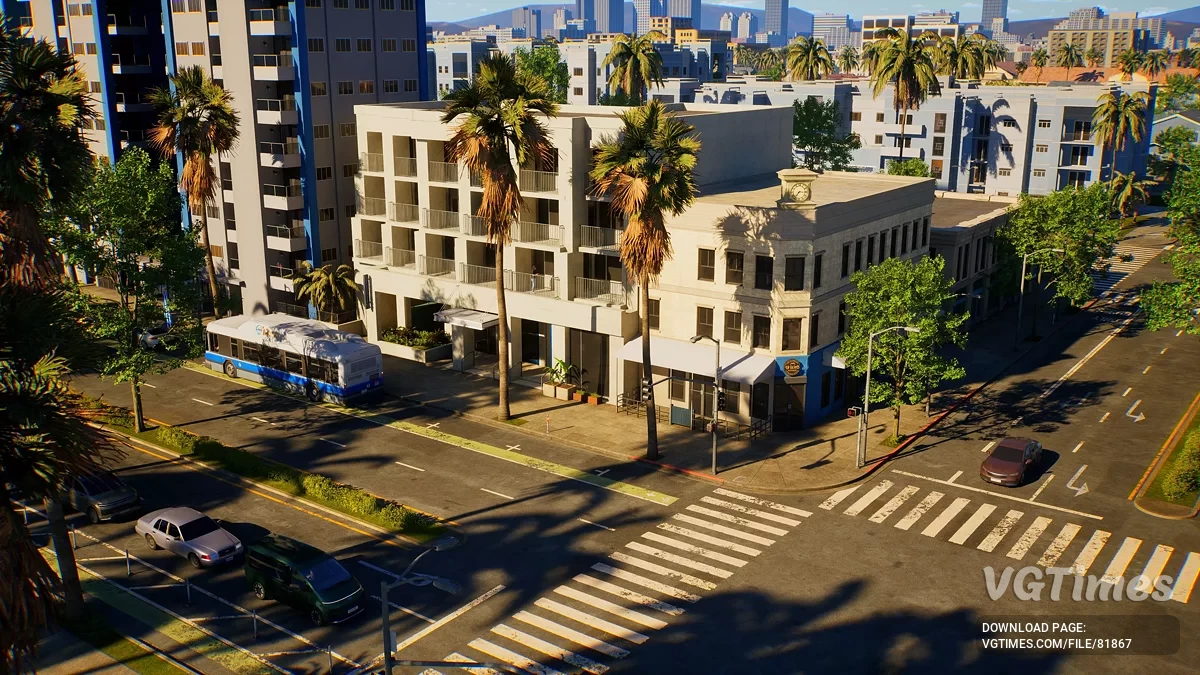
Richer colors and tones for a more vibrant world, sharper and clearer visuals, enhanced clarity without introducing glitches or artifacts.
Performance Impact:
- Estimated Loss: ~7%;
- Example: from 82 FPS ➝ ~77 FPS on the test system.
How to Run:
Download ReShade.
- Run the ReShade installer and select the game's executable (.exe file). If unsure, it's usually found in the game's installation folder;
- When prompted, choose the rendering API DirectX 11 or 12;
- When asked to select effect packages:
- Click Uncheck All, then Check All to install everything (recommended for the easiest setup);
- Click OK to install ReShade and wait for the process to finish.
Download this preset and move the extracted Next Gen — InZoi.ini file into the game's main folder (E:\SteamLibrary\steamapps\common\inZOI\BlueClient\Binaries\Win64).
Enable the preset in ReShade.
- Launch the game;
- When the game starts, a ReShade overlay will appear at the top of the screen;
- Press Home to open the ReShade menu;
- Skip the on-screen tutorial if you're using ReShade for the first time;
- Click the drop-down menu at the top and select the downloaded preset (Next Gen — InZoi.ini);
- ReShade will automatically load the required effects. If any effects are missing, return to the ReShade installer and ensure those shaders are installed.
Useful links: