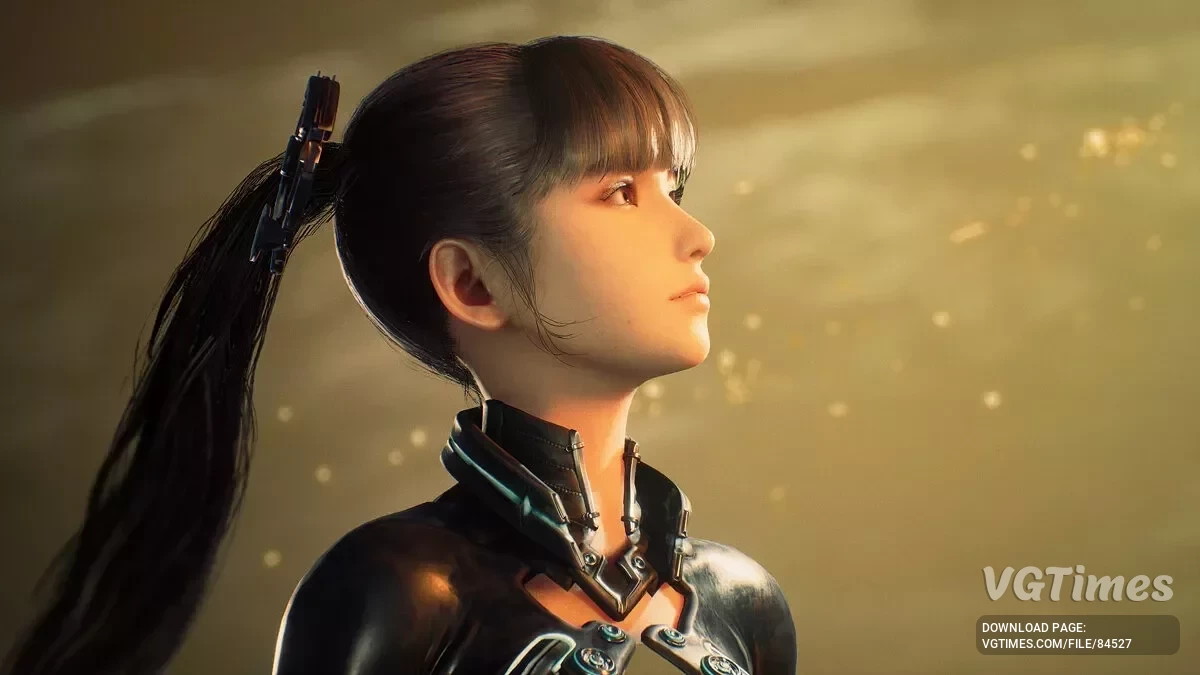
The game takes place in a world where almost all the inhabitants of the Earth were killed by mysterious creatures. The main character is a young... Read more
CPS — Custom Plugin System


-
Download (1.55 MB)November 5, 2026, 11:43 PMcps-sistema-polzovatelskikh-plaginov_1793911433_72569.zip
This CPS (Custom Plugin System) mod adds a built-in menu to Stellar Blade for managing mods created specifically for this system. Plugins are distributed in .cps format and can add custom settings, pages, windows, and hotkeys. All features are available directly in-game.
Features:
- A unified menu for managing all installed plugins;
- View the plugin list, check their status, and load logs;
- Enable and disable plugins without restarting the game;
- Configure hotkeys for the keyboard and controller;
- Display notifications from the system and installed plugins;
- Supports English and Simplified Chinese;
- Add custom language translations;
- Built-in photo mode camera with adjustable position, lighting, and depth of field;
- Hide the game interface and NPCs;
- Adjust brightness and turn off the light from the drone following Eve;
- Built-in logging system for tracking CPS and plugin activity;
- Supports Xbox and PlayStation controllers;
- Compatible with ReShade.
Controls:
- N or F10 — open or close the menu (controller: LB + L3 or L1 + L3);
- Esc — go back (controller: B or Circle);
- U — hide or show the menu (controller: View or Create);
- P — take a screenshot;
- W \/ A \/ S \/ D — move the camera;
- Q — lower the camera;
- E — raise the camera;
- Left mouse button — rotate the camera by moving the mouse;
- Mouse wheel — zoom the camera in and out.
- Ctrl + Shift + F12 — alternative way to open the menu; works independently of assigned hotkeys.
Installation:
- Extract the archive into the Stellar Blade root folder containing the SB folder;
- Launch the game;
- Press N or F10 to open the CPS menu.
Installing plugins:
- Extract the plugin archive into the Stellar Blade root folder, as you would when installing CPS;
- Or copy the .cps file to SB\Binaries\Win64\CPS\Plugins;
- Plugins load automatically when the game starts.
Settings and files:
- All CPS files are located in SB\Binaries\Win64\CPS.
- Settings — Configs;
- Screenshots — Configs\CPS\Screenshots;
- Activity log — CPS.log.
Troubleshooting:
- If a plugin is missing or not working, check its status on the Plugins page or open Logs;
- If a hotkey does not work, check its assignment in Settings → Modify Hotkeys;
- If a key is highlighted in red, it is already in use by another function;
- If the menu does not open, close the game and edit hotkeys.json in the CPS\Configs\CPS folder. A list of available key and button codes can be found in buttons.txt.
Данный мод CPS (Custom Plugin System) добавляет в Stellar Blade встроенное меню для управления модификациями, созданными специально для этой системы. Плагины распространяются в формате .cps и позволяют добавлять собственные настройки, страницы, окна и горячие клавиши. Все функции доступны непосредственно во время игры.
Особенности:
- Единое меню для управления всеми установленными плагинами;
- Просмотр списка плагинов, проверка их состояния и загрузка журналов;
- Возможность включать и отключать плагины без перезапуска игры;
- Настройка горячих клавиш для клавиатуры и контроллера;
- Отображение уведомлений от системы и установленных плагинов;
- Поддержка английского и упрощённого китайского языков;
- Возможность добавлять собственные языковые переводы;
- Встроенная фоторежимная камера с настройкой положения, освещения и глубины резкости;
- Возможность скрывать интерфейс игры и NPC;
- Настройка яркости и отключение света дрона, следующего за Евой;
- Встроенная система журналов для отслеживания работы CPS и плагинов;
- Поддержка контроллеров Xbox и PlayStation;
- Совместимость с ReShade.
Управление:
- N или F10 — открыть или закрыть меню (контроллер: LB + L3 или L1 + L3);
- Esc — вернуться назад (контроллер: B или Circle);
- U — скрыть или показать меню (контроллер: View или Create);
- P — сделать скриншот;
- W / A / S / D — перемещение камеры;
- Q — опустить камеру;
- E — поднять камеру;
- Левая кнопка мыши — вращение камеры при перемещении мыши;
- Колёсико мыши — приближение и отдаление камеры.
- Ctrl + Shift + F12 — альтернативное открытие меню, работает независимо от назначенных клавиш.
Установка:
- Распаковать архив в корневую папку Stellar Blade, содержащую папку SB;
- Запустить игру;
- Нажать N или F10 для открытия меню CPS.
Установка плагинов:
- Распаковать архив плагина в корневую папку Stellar Blade по аналогии с установкой CPS;
- Либо скопировать файл .cps в папку SB\Binaries\Win64\CPS\Plugins;
- Плагины загружаются автоматически при запуске игры.
Настройки и файлы:
- Все файлы CPS находятся в папке SB\Binaries\Win64\CPS.
- Настройки — Configs;
- Скриншоты — Configs\CPS\Screenshots;
- Журнал работы — CPS.log.
Решение проблем:
- Если плагин отсутствует или не работает, проверить его состояние на странице Plugins или открыть Logs;
- Если горячая клавиша не работает, проверить её назначение в Settings → Modify Hotkeys;
- Если клавиша выделена красным цветом, она уже используется другой функцией;
- Если меню не открывается, закрыть игру и отредактировать файл hotkeys.json в папке CPS\Configs\CPS. Список доступных кодов клавиш и кнопок находится в файле buttons.txt.
Useful links: