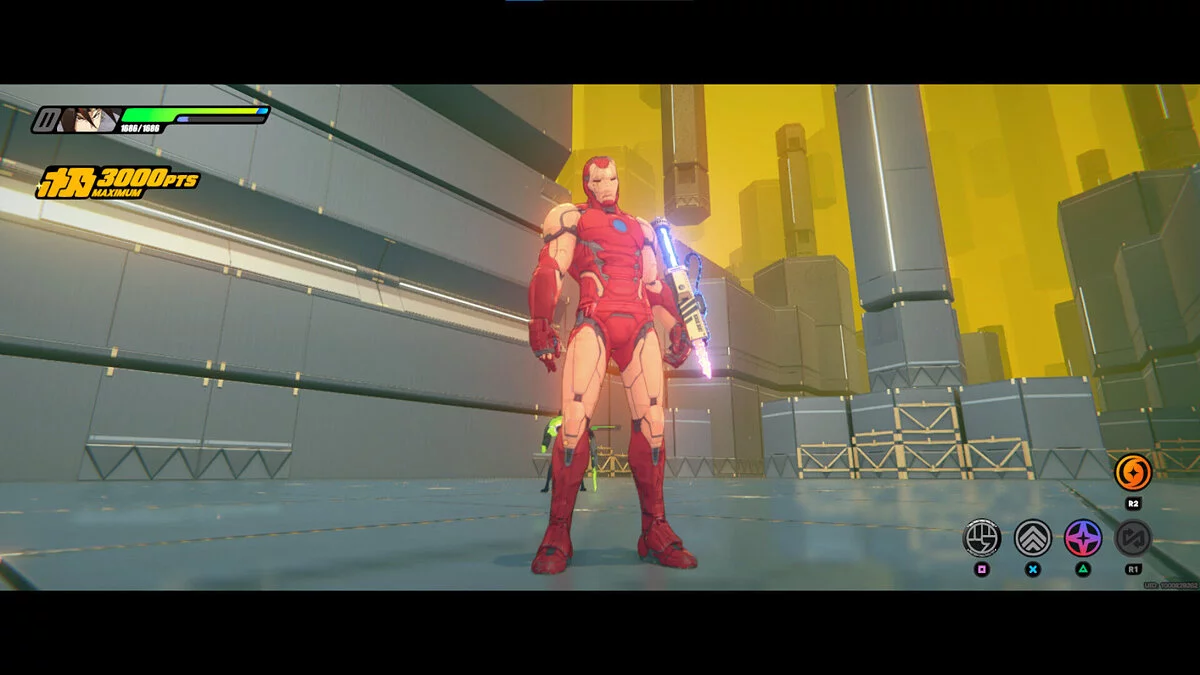
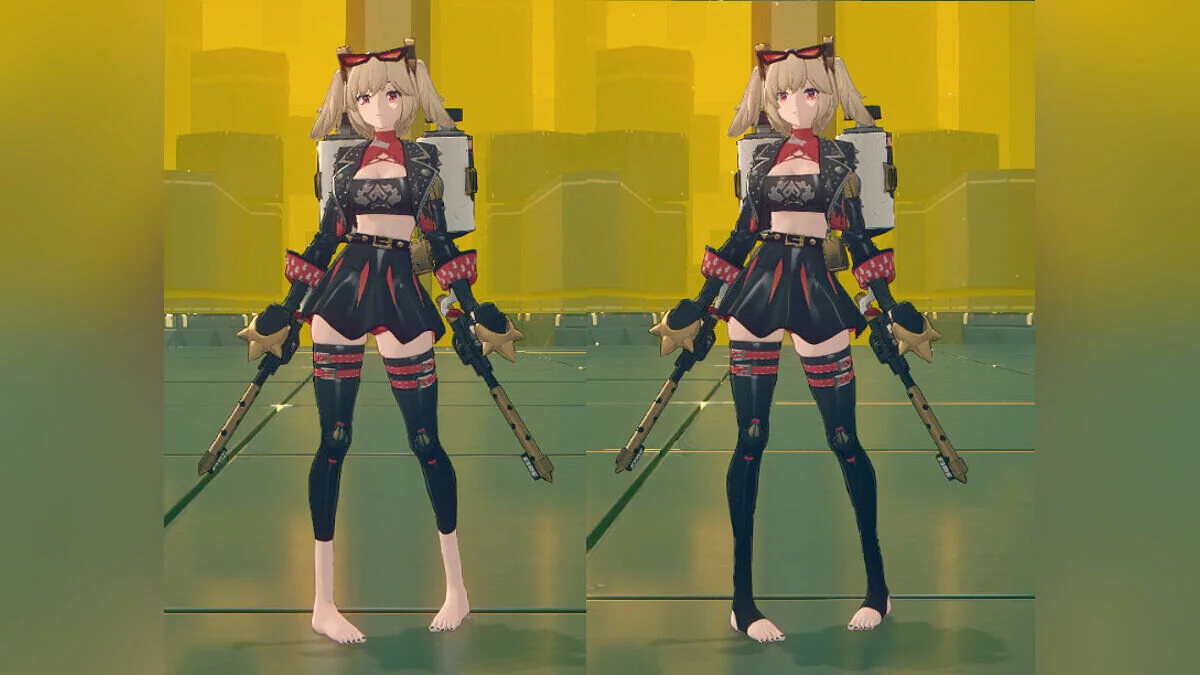
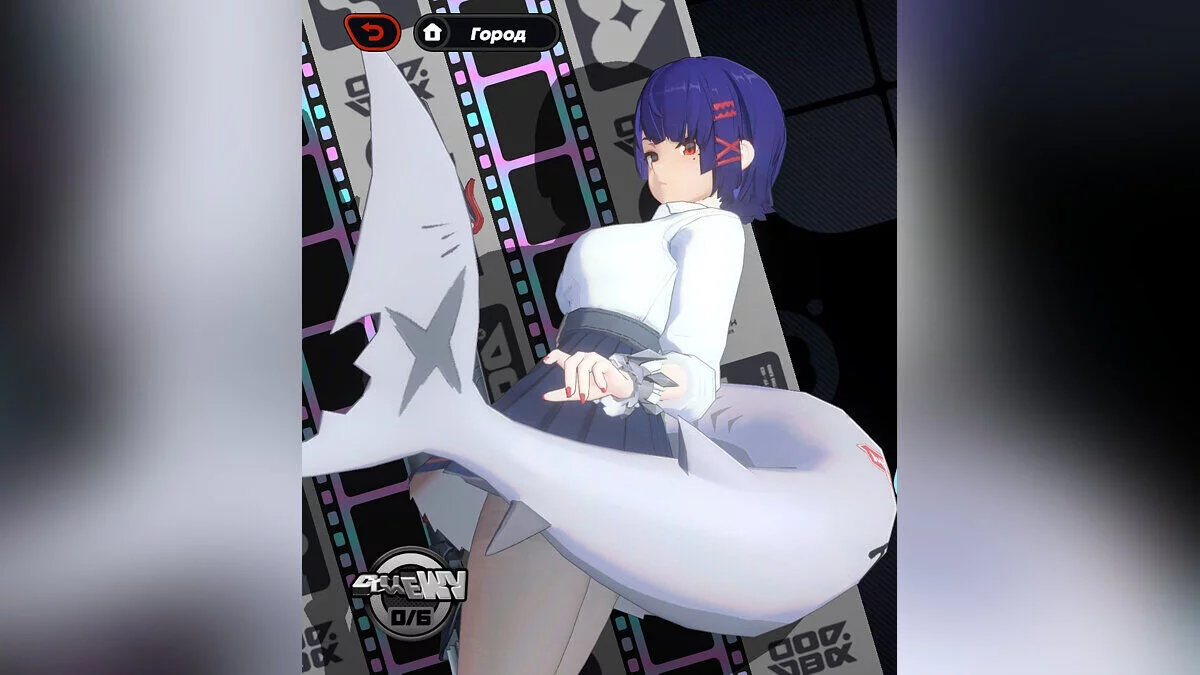
Free role-playing action game from the creators of Genshin Impact and Honkai: Star Rail. In the near future, the world was shaken by a catastrophe: mysterious... Read more
Players:
Steam:
Metacritic:
Shunguang bunny + reverse


Author:
Zlevir, LillyFox
Uploaded by:

Size:
20.06 MB
Date:
February 24, 2026, 12:25 PM
Updated:
June 4, 2026, 04:00 AM
Downloads:
204


Many features are initially locked, but the authors will gradually unlock them.
Available from the start:
- Bunny ears — on/off;
- Collar — on/off;
- Gloves — on/off;
- Wrist loops — on/off;
- Tail — on/off;
- Leggings — on/off;
- Ankle loops — on/off;
- Breast size slider.
Nude [FULL] versionIncludes everything above, plus:
- Suit toggle (nude);
- Chest pasties toggle (visible only if the suit is off);
- Crotch pastie toggle (visible only if the suit is off);
- "Toy" toggles;
- Butt size slider;
- Thigh size slider.
Nude [FULL w/ animation] version:
- Includes everything above, plus the "toys" can be animated.
Main controls:
- / — open/close the menu. The character must be “on screen.” This is NOT the NumPad /, but the regular /. On your keyboard, it might be a different symbol depending on your region. To change the key, edit the first key setting in the ini file if you know how to do it;
- Left or right mouse button — interact with menu elements (click/drag/slider). Be careful with the left mouse button: it can still click things in the game;
- HOLD ALT to bring up the cursor in game if you are not in any of the game menus that naturally show it;
- SHIFT + right arrow — reset menu position and all sliders (in case something breaks, though I wasn't able to break it);
Keyboard controls:
- CTRL + arrow keys — moves the whole menu on the screen in 4 directions, corresponding to the arrow pressed;
- Up and down arrows — navigate through toggles. Arrows that change the menu page are also considered toggles;
- Left and right arrows — simulate mouse click on the selected toggle slot. If a slider is selected, change its value.
Updates:
- Added the "Bottom" toggle.
Related files:
Useful links: