
The Witcher 3: Wild Hunt Error Fixes: Crashes, Lag, and Launch Issues
 Vladyslav Shamshurov
On PC, The Witcher 3: Wild Hunt can break in many different ways: the game may fail to launch after installation, crash while saving, freeze on the loading screen, show DLL errors, lose FPS after changing settings, or conflict with mods and graphics features. Some old issues have long since been fixed by patches, but many errors can still appear on modern systems, especially after reinstalling Windows, updating drivers, switching to the Next-Gen version, or launching the game in DX12.
In this guide, we have gathered fixes for popular The Witcher 3 PC errors: 0xc000007b, Msvcp120.dll and other DLL issues, missing cursor, stuck loading, crashes while saving, low FPS, HairWorks problems, shadows, FPS cap issues, and intro video freezes. Start by checking the system requirements and basic components, then move on to the specific problem below.
What to Install Before Launching The Witcher 3
Before looking for a specific error, update your graphics card driver and install the main system libraries. This is especially important after reinstalling Windows, switching to a new GPU, or updating The Witcher 3 to the Next-Gen version:
An up-to-date graphics driver and required system libraries are essential for stable game performance. It is best to download drivers from the official Nvidia, AMD, or Intel websites. Use third-party automatic driver updater tools only if you clearly understand what they are installing.
You may also need to update supporting software such as DirectX, Microsoft .NET Framework, and Microsoft Visual C++:
- Download DirectX
- Download Microsoft .NET Framework 3.5 SP1
- Download Microsoft .NET Framework 4
Supporting DLL libraries:
- Download Microsoft Visual C++ 2005 Service Pack 1
- Download Microsoft Visual C++ 2008 SP1 (32-bit)
- Download Microsoft Visual C++ 2008 SP1 (64-bit)
- Download Microsoft Visual C++ 2010 SP1 (32-bit)
- Download Microsoft Visual C++ 2010 SP1 (64-bit)
- Download Microsoft Visual C++ 2012 Update 4 (32-bit)
- Download Microsoft Visual C++ 2012 Update 4 (64-bit)
- Download Microsoft Visual C++ 2013
If problems still occur after everything listed above, you can find possible solutions below.
The Witcher 3 Is Stuck While Downloading or Installing
If The Witcher 3 gets stuck while downloading or installing, first pause the process for 20-30 seconds, then resume the download. If that does not help, restart the Steam or GOG client, check free disk space, and make sure your antivirus or Windows security protection is not blocking file writing.
Error 0xc000007b in The Witcher 3
First, make sure you have updated your graphics driver, installed the latest Microsoft Visual C++ Redistributables, DirectX, and .NET Framework, then try launching the game as administrator. Error 0xc000007b is often related to damaged or incompatible system libraries, so do not download separate DLL files from suspicious websites and do not use unknown "DLL Fixer" tools.
To try loading the last known good system configuration, turn on your PC and press "F8" during startup. In the menu that appears, select "Last Known Good Configuration" and press "Enter".
The Witcher 3 Crashes While Saving
If The Witcher 3 crashes while saving, first check the path to your Documents folder, access permissions, Steam or GOG cloud saves, and free space on the system drive. Also make sure the game is not installed or launched from a folder that Windows cannot access properly.
Msvcp120.dll or Other DLL Errors in The Witcher 3
Do not download individual DLL files from unknown websites. Msvcp120.dll errors and similar issues are usually fixed by installing or reinstalling Microsoft Visual C++ Redistributables. After installing the libraries, restart your PC, verify the integrity of the game files in Steam or GOG, and try launching The Witcher 3 again.
Mouse Cursor Is Missing in The Witcher 3
Try pressing the "Shift" key, minimizing and reopening the game, and switching between fullscreen, windowed, and borderless modes. If the problem appeared after connecting a gamepad, temporarily disconnect it and restart the game.
Unable to Detect Windows Media Player Error in The Witcher 3
Open Control Panel, go to Programs, and choose "Turn Windows features on or off". Check the Windows Media Player option: if it is not enabled, turn it on and restart the system. On Windows N and KN editions, you may need to install the Media Feature Pack.
The Witcher 3 Lags, Stutters, or Has Low FPS
To increase FPS in The Witcher 3, first close unnecessary background apps, update your graphics driver, and make sure the game is using the dedicated GPU if you are playing on a laptop. Then lower the heaviest settings: HairWorks, Foliage Visibility Range, Shadow Quality, Grass Density, ray tracing in DX12, and Texture Quality if you are running out of video memory.
You should not completely disable your antivirus. If you suspect that Windows security protection is interfering with the game, it is better to add The Witcher 3 folder to exclusions or check the protection history.
You can also temporarily disable your antivirus program for testing. If the game still runs terribly, make sure your graphics settings have not changed.
The Witcher 3 Does Not Launch
If The Witcher 3 does not launch, verify the integrity of the game files in Steam or GOG, update your graphics driver, install Visual C++ Redistributables, and try launching the game as administrator. If you recently installed mods, temporarily remove them and test the game on a clean version.
How to Disable or Lower Shadows in The Witcher 3
First, try lowering Shadow Quality in the game menu. If you need more precise manual shadow tuning, use a separate guide for The Witcher 3 configuration files, because old rendering.ini tweaks may work differently in the modern version of the game.
How to Change the FPS Cap in The Witcher 3
First, check the FPS limit in the game's own settings and in the Nvidia or AMD driver control panel. Manual edits to files such as performance.xml should only be used as an additional option for older versions of the game, because after updates, parameters may be stored and applied differently.
How to Tune HairWorks in The Witcher 3 Without Losing Too Much FPS
HairWorks remains one of the heaviest graphics settings in The Witcher 3. If FPS drops sharply after enabling it, first try the "Geralt Only" mode or disable HairWorks completely in the game menu. On AMD systems, old methods through Catalyst Control Center may no longer be relevant, so it is better to use the modern AMD Software driver settings and avoid setting tessellation too high. Pay attention to the "Tessellation" section. Next to "Tessellation Mode", set it to "Override application settings", then in the "Maximum Tessellation Level" menu choose 2x, 4x, 8x, or 16x depending on the power of your graphics card.
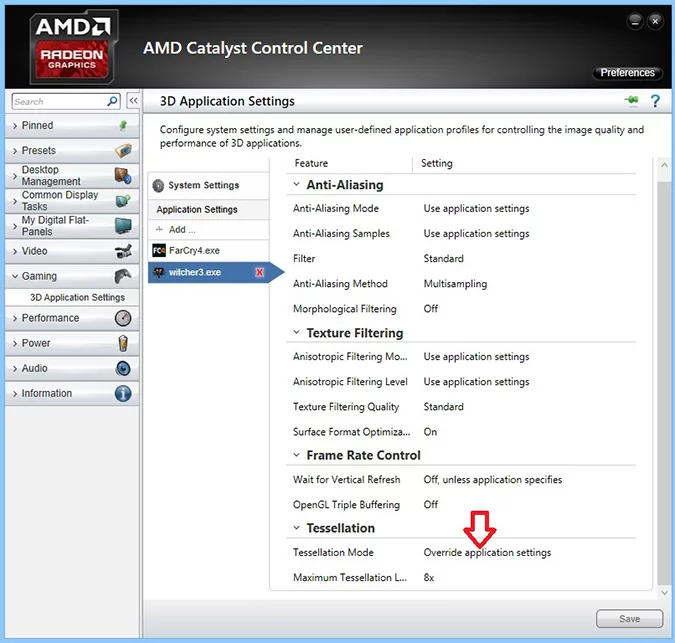
If your driver allows limiting tessellation, try moderate values such as 4x or 8x and test FPS in combat with monsters. If the drops remain, it is better to disable HairWorks: the visual improvement is not always worth the performance loss.

The Witcher 3 Freezes During the Intro Video
If The Witcher 3 freezes during the intro video, try restarting the game, verifying file integrity, updating your video driver, and temporarily disabling Steam, GOG, Discord, GeForce Experience, or AMD Software overlays. Also check whether mods, old config files, or damaged video files in the game folder are interfering with launch.
How to Configure Graphics in The Witcher 3
For proper Witcher 3 graphics settings on Nvidia and AMD systems, read our special articles: The Witcher 3: Wild Hunt Graphics Tweak Guide and The Witcher 3: Wild Hunt Graphics Settings Guide. In them, we explain how to choose the best balance between quality and performance, and which settings have the biggest impact on FPS in Witcher 3.
How to Enable HairWorks in The Witcher 3 with Lower FPS Loss
There is a way to reduce the FPS loss from Nvidia HairWorks in The Witcher 3: Wild Hunt, but the technology will never become free in terms of performance. The reason is that it is automatically processed with 8x MSAA anti-aliasing, which is known to reduce FPS noticeably. How do you increase FPS with HairWorks enabled? It is simple: open the Rendering.ini file located at %game directory%binconfigbase with Notepad, find the line HairWorksAALevel=8, and change 8 to 4 or 2. You will lose some fur and hair quality, of course, but the technology will still work and will not reduce FPS as heavily.
If the game overwrites the file after launch, you can temporarily set it to Read-only in its properties. Keep in mind, however, that after this, some settings may stop saving properly through the game menu.
What to Do First If The Witcher 3 Is Not Working
If you do not know where to start, do not download individual DLL files and do not change Windows system settings blindly. First, perform a basic check that helps with most launch issues, crashes, and low FPS problems.
- Verify the integrity of the game files in Steam or GOG;
- Update your graphics driver from the official Nvidia, AMD, or Intel website;
- Install the latest Microsoft Visual C++ Redistributables, DirectX, and .NET Framework;
- Launch the game without mods or third-party overlays;
- Try DX11 if DX12 is unstable;
- Lower HairWorks, shadows, foliage range, and ray tracing;
- Check free disk space and access permissions for the Documents folder.
The Witcher 3 Error FAQ
Below, we have gathered short answers to the most common The Witcher 3 PC problems: the game does not launch, crashes, shows DLL errors, loses FPS, or freezes after an update.
What should I do if The Witcher 3 does not launch?
Verify the integrity of the game files, update your graphics driver, install Visual C++ Redistributables, and try launching the game without mods or third-party overlays.
How do I fix error 0xc000007b?
In most cases, reinstalling system libraries helps: Microsoft Visual C++ Redistributables, DirectX, and .NET Framework. Do not download individual DLL files from suspicious websites.
Why does The Witcher 3 lag after the Next-Gen Update?
Common causes include heavy DX12 settings, ray tracing, HairWorks, shadows, foliage range, and high texture quality when there is not enough video memory.
Which is better for stable FPS: DX11 or DX12?
For stable FPS, it is usually better to start with DX11. DX12 is required for new graphics features, but on some systems it may run heavier.
Why does the game crash after installing mods?
Mods may conflict with the current version of the game, especially after updates. Remove the mods, test the clean version, and then add modifications back one by one.
***
If you did not find your problem above, check our related materials on The Witcher 3 graphics settings and configuration files. Sometimes crashes, stutters, and FPS drops are caused not by game errors, but by overly high graphics settings, mods, or a DX12 conflict.
Other guides
 All Phone Numbers in Cyberpunk 2077: Phantom Liberty
 Where to Find All Iconic and Legendary Weapons in Cyberpunk 2077: Phantom Liberty
 How to Create Female Characters in Elden Ring Resembling Triss, Ciri, and Harley Quinn
 How to Downgrade The Witcher 3 Remastered to 4.04 or 1.32
 The Witcher 3: Hearts of Stone — All Endings and How to Save Olgierd
 The Witcher 3: Blood and Wine — All Endings and How to Get Them
-
 The Witcher 3: Wild Hunt Graphics Tweak Guide for FPS and Image Quality
 -
 Best inZOI Character Presets: Recreate Movie & Game Characters
 -
 All Elden Ring Endings Explained: How to Get Every Ending and Which Is Best
 -
 Valheim Save File Location: Where to Find Your Saves
 -
 Valheim Materials Guide: Where to Find Every Crafting Resource
 -
 How to Install The Witcher 3 REDKit: Full Mod Editor for The Witcher 3: Wild Hunt
 -
 Fan-Made The Witcher 3: Wild Hunt DLC Based on Andrzej Sapkowski's Novel Now Available on PC
 -
 First Look at New Ciri Collectible Figure from The Witcher 3: Wild Hunt
 -
 Artwork Reveals Geralt, Triss, Yennefer, and Ciri for Sword of Convallaria × The Witcher 3: Wild Hunt Collaboration
 -
 Another Cut Scene From The Witcher 3: Wild Hunt Has Surfaced Online