
Rune II is a first-person action RPG from the creators of the original 2006 Prey. The game is a continuation of the original Rune. The game takes place seven years... Read more
Graphics Settings Preset

-
1576238824_01_runas_reshade_1_v01_1576176202.rarDownload (4.80 kB)
Original title: Runas ReShade
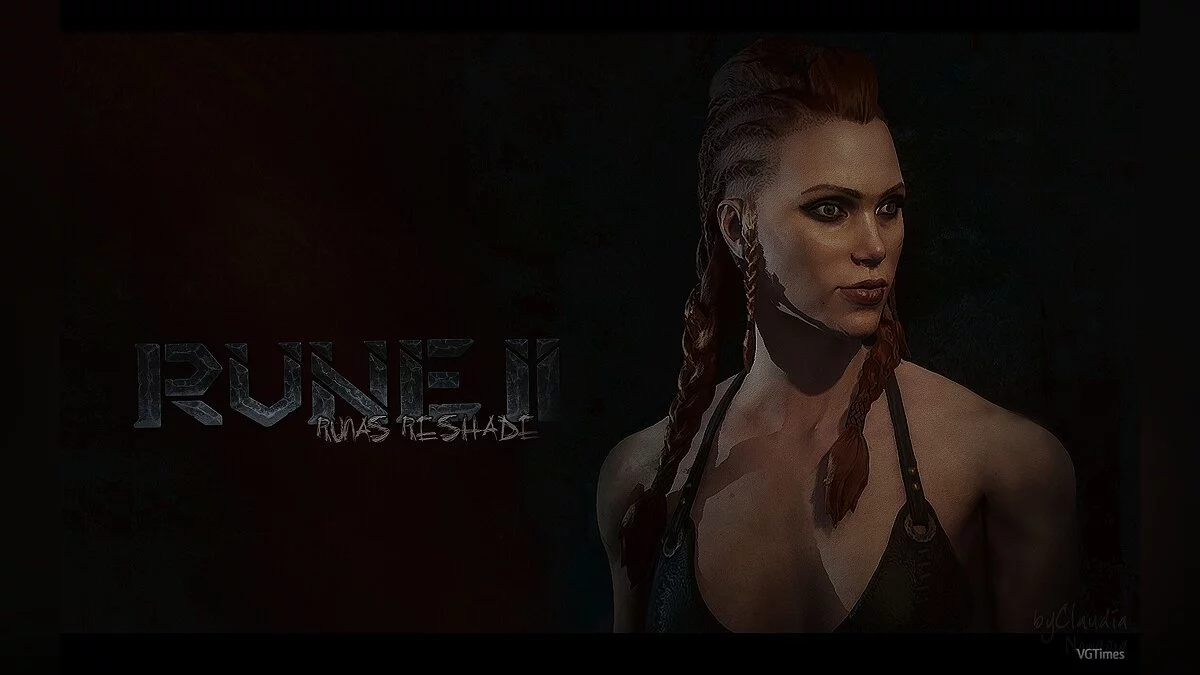
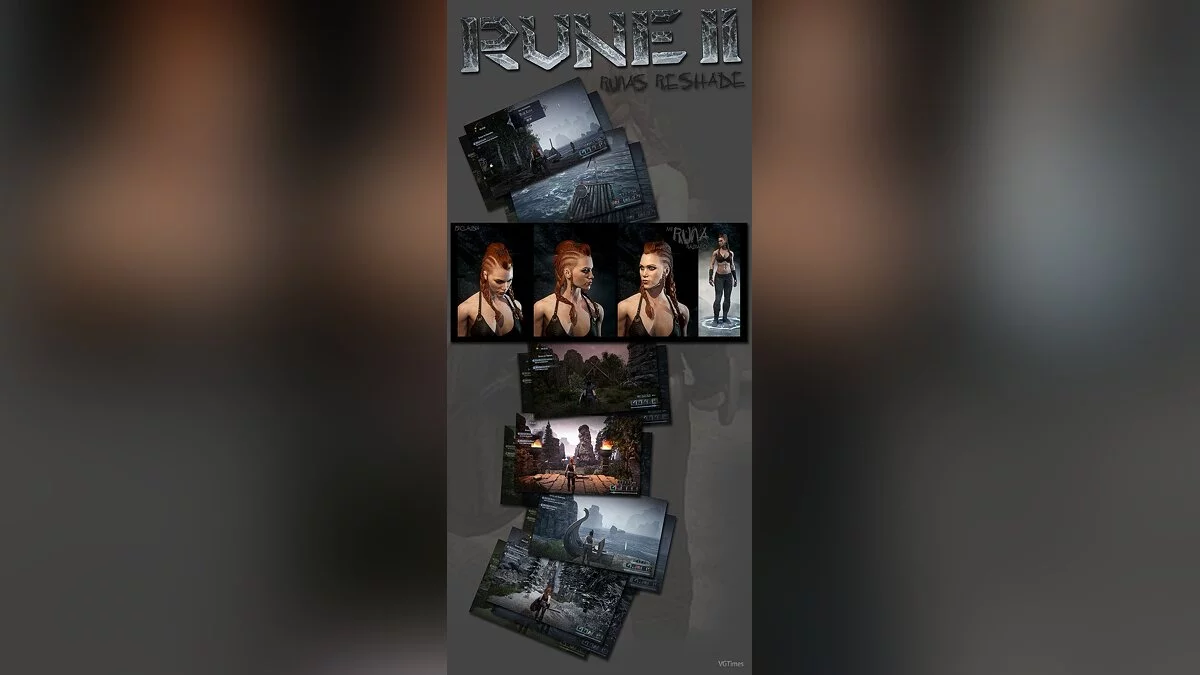
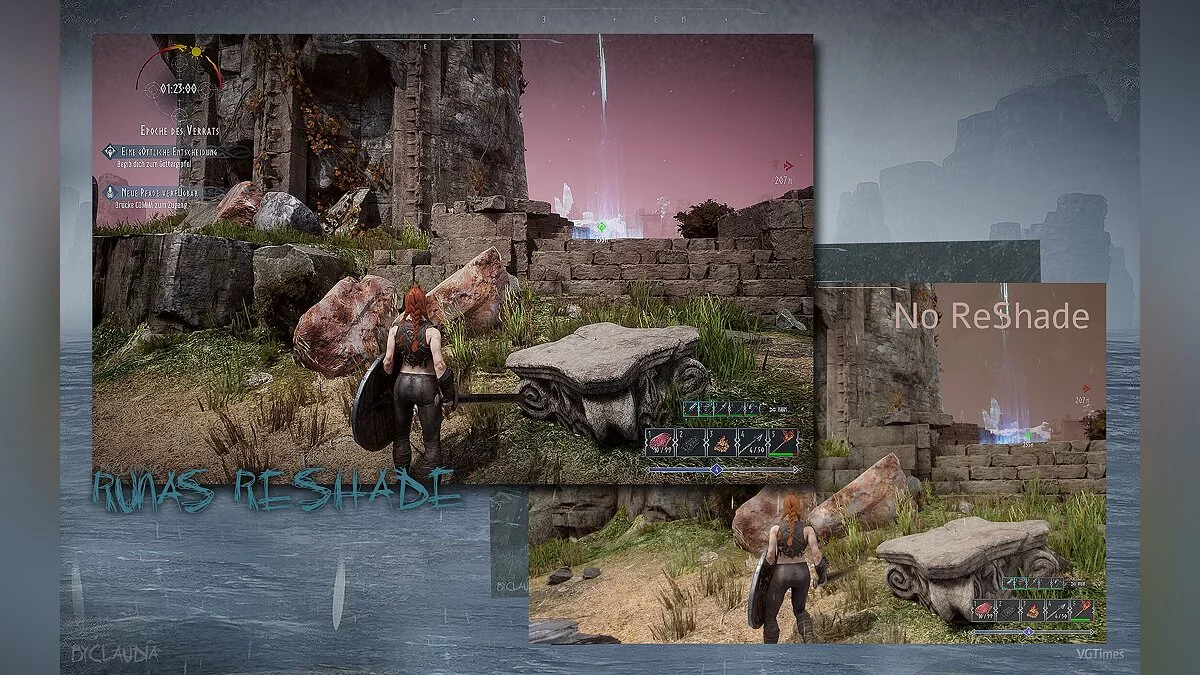
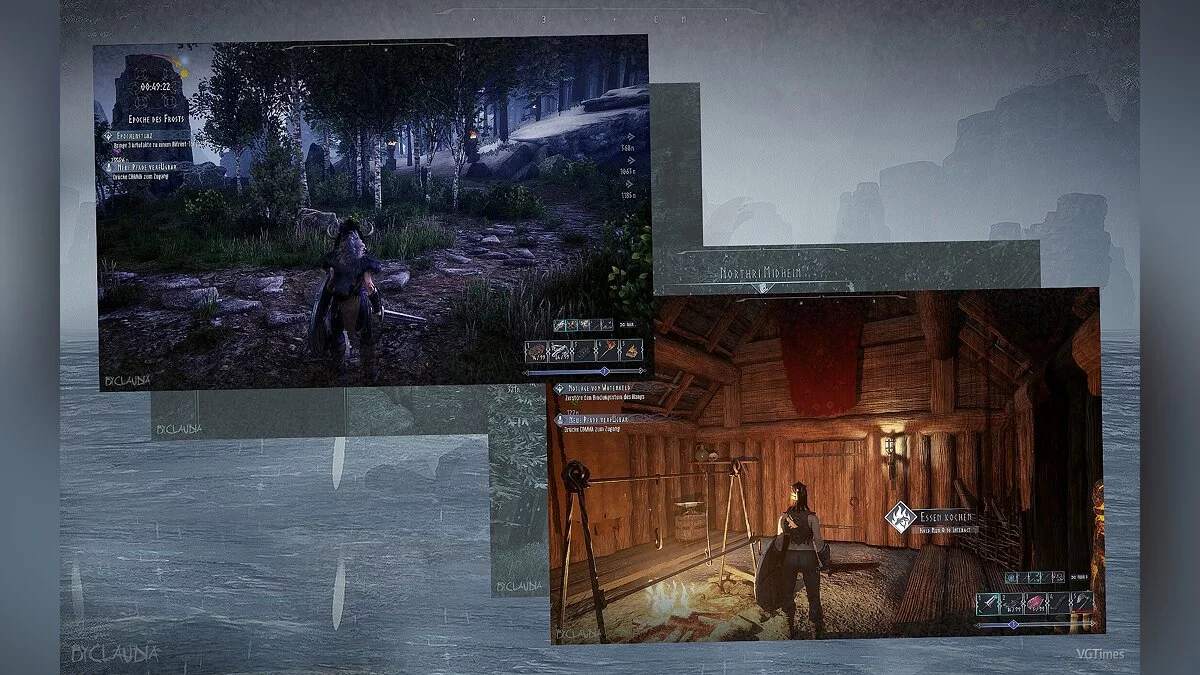
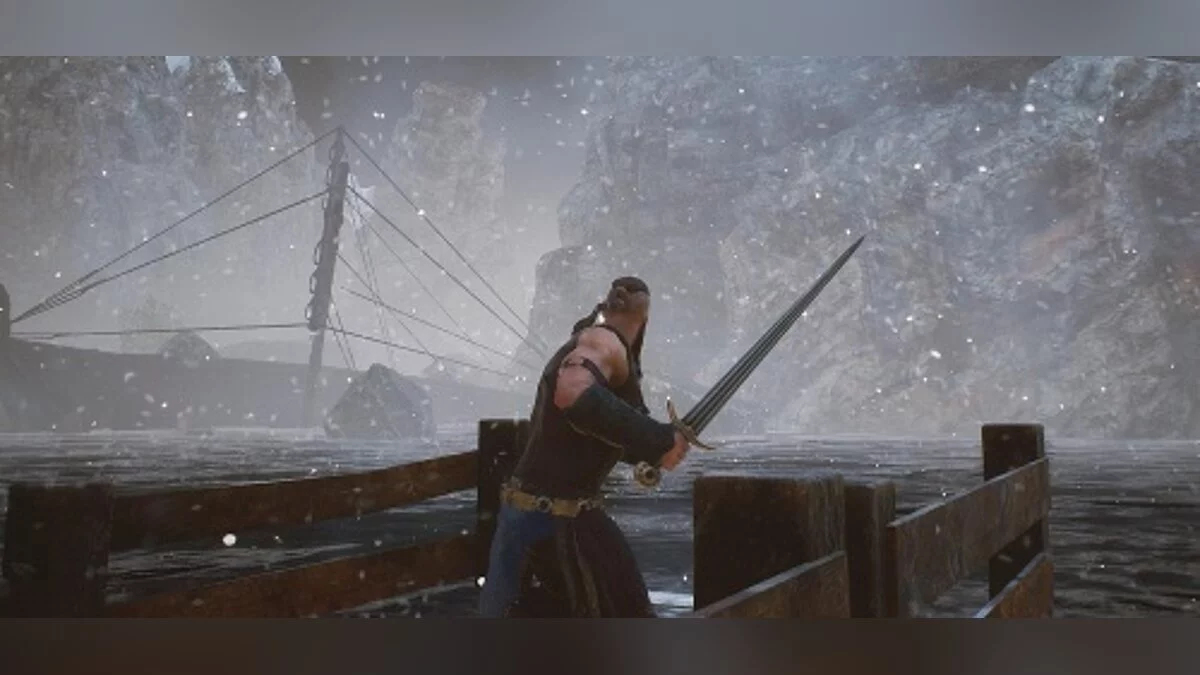
Graphics settings preset for the game Rune 2 alters many colors in the game and the display of effects.
The author did not provide a detailed description of the changes, but you can check the screenshots where the changes have been applied.
Requirements: ReShade
Installation:
1) Unzip the archive into the game folder
2) Run the ReShade installer and select the game's .exe file
3) Choose the game API — this is DX10 +
4) ReShade will request to download .fx files, select all and click "OK" to download and install them
5) After successful installation, close the program
6) Launch the game and open the ReShade menu by pressing the Home (pos1) key on the keyboard. Then click the dropdown arrow to open the dropdown menu and select the file "LUT.fx" from the list. If you do not see the file in the list, you will need to add it manually by pressing the + key next to the dropdown arrow, then enter the full name of the file, for example: LUT.fx, and press Enter.
To close the ReShade menu, press the Home (pos1) key on the keyboard.
Оригинальное название: Runas ReShade
Пресет графических настроек для игры Rune 2 изменяет многие цвета в игре и отображение эффектов.
Подробное описание изменений автор не предоставил, но зато вы можете ознакомится со скрншотами на которых применены изменения.
Требования: ReShade
Установка:
1) Распакуйте архив в папку с игрой
2) Запустите установщик ReShade и выберите файл .exe игры
3) Выберите API игры — это DX10 +
4) ReShade запросит скачивание .fx файлов, выберите все и нажмите «ОК», чтобы загрузить их и установить
5) После успешной установки закройте программу
6) Запустите игру и откройте меню ReShade, нажав клавишу Home (pos1) на клавиатуре. Далее нажмите стрелку раскрывающегося списка, чтобы открыть раскрывающееся меню, и выберите файл «LUT.fx из списка. Если вы не видите файл в списке, вам придется добавить его вручную, нажав клавишу + рядом со стрелкой раскрывающегося списка, а затем введите полное имя файла, например: LUT.fx, и нажмите Enter.
Чтобы закрыть меню ReShade, нажмите клавишу Home (pos1) на клавиатуре.
Useful links:
![Rune II — Trainer (+2) [1.0.919]](https://files.vgtimes.com/download/posts/2020-04/thumbs/1587766409_2vazm65rsiiydy8rxlacba.webp)
![Rune II — Trainer (+2) [0.0.9]](https://files.vgtimes.com/download/posts/2019-11/thumbs/1575116401_gvh5m7u2p5impeusny6b_q.webp)
![Rune II — Trainer (+4) [0.0.9]](https://files.vgtimes.com/download/posts/2019-12/thumbs/1575929631_nigkzsp0tu4jwspfkyafzq.webp)
![Rune II — Cheat Engine Table [UPD: 14.11.2019]](https://files.vgtimes.com/download/posts/2019-11/thumbs/1573761041_1573761010_469.webp)
![Rune II — Trainer (+3) [1.1.14731]](https://files.vgtimes.com/download/posts/2020-06/thumbs/1592259147_qsxzaahzpixvsiwokrdquq.webp)
![Rune II — Cheat Engine Table [UPD: 15.11.2020]](https://files.vgtimes.com/download/posts/2020-11/thumbs/1605525147_02.webp)
![Rune II — Trainer (+3) [2.0.18512]](https://files.vgtimes.com/download/posts/2020-11/thumbs/1606128329_-rhjiieba1szlrn4w7aktw.webp)