A fantasy sandbox with survival elements. You can play alone or with others, exploring the world and gathering resources, finding and raiding tombs, building bases... Read more

Easy Binding Points

-
www.nexusmods.comDownload
Simplified Snap Points.
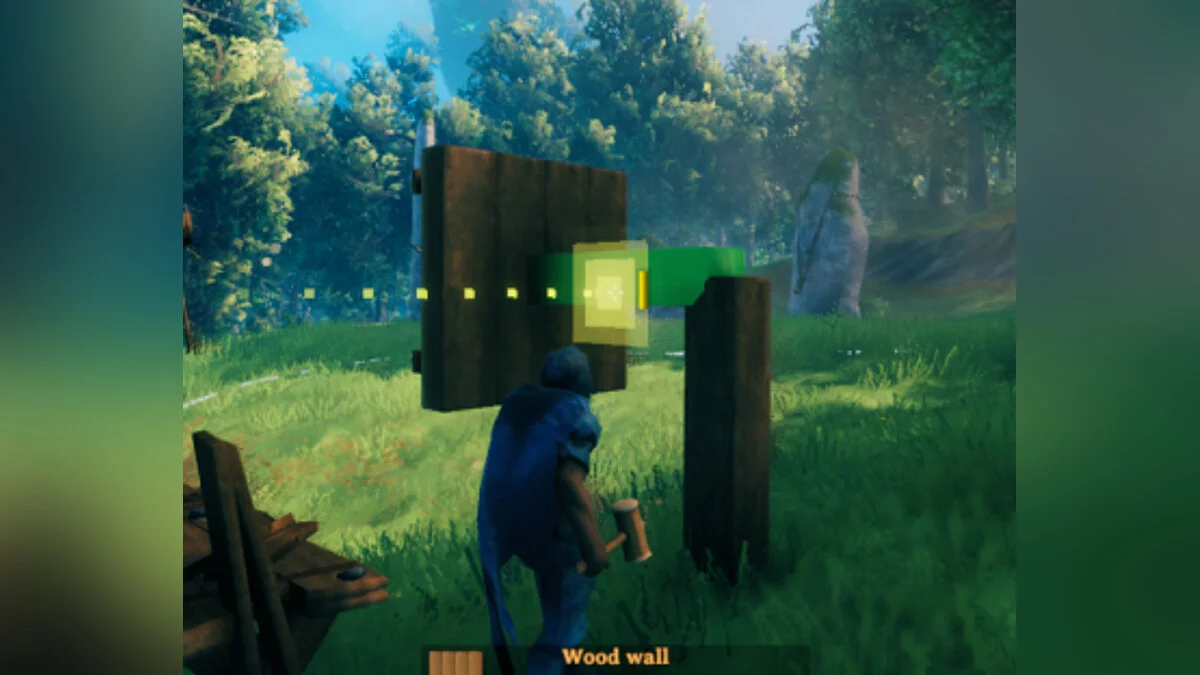
A general quality of life mod that allows you to switch between various binding points when hovering over an object in the game — without the need to directly point at them with your mouse!
Adds the following key bindings:
Left-Control for cycling through binding points on the currently selected building element
Left-Alt for cycling through binding points on the current target building element
Right-Control to toggle SnapMod on/off
Caps-Lock to toggle SnapMod with the nearest target binding point
Usage:
1. Take a hammer and select the piece you want to place.
2. Press Right-Control to enable SnapMod in cycling mode. Aim your point at the point you want to bind to and press Left Control to switch between binding points on the item you are holding. Use Left-Alt to switch between target binding points. For example, you can bind a horizontal beam to the middle of a vertical post by moving both elements to their midpoint binding points.
Use Caps-Lock to use SnapMod in the nearest target binding point mode. You can still cycle through the binding points of the currently placed piece using Left-Control.
Snap Points Made Easy.
Общий мод для улучшения качества жизни, который позволяет вам переключаться между различными точками привязки при наведении на объект в игре — без необходимости указывать на них прямо с помощью мыши!
Добавляет следующие привязки клавиш:
Left-Control для циклического переключения точек привязки на текущем выбранном строительном элементе
Left-Alt для циклического перебора точек привязки на текущем целевом строительном элементе
Right-Control для включения / выключения SnapMod
Caps-Lock для включения / выключения SnapMod с ближайшей целевой точкой привязки
Использование:
1. Возьмите молоток и выберите кусок, который нужно разместить.
2. Нажмите Right-Control, чтобы включить SnapMod в циклическом режиме. Направьте свою точку на точку, к которой вы хотите привязаться, и нажмите Left Control для переключения между точками привязки на предмете, который вы держите. Используйте Left-Alt для переключения между точками привязки назначения. Например, вы можете привязать горизонтальный столб к середине вертикального столба, переместив оба элемента в их средние точки привязки.
Используйте Caps-Lock, чтобы использовать SnapMod в режиме точки привязки к ближайшей цели. Вы по-прежнему можете циклически перемещать точки привязки размещаемой в данный момент детали с помощью Left-Control.
Useful links:

![Valheim — YamlDotNet [16.3.1]](https://files.vgtimes.com/download/posts/2026-09/thumbs/yamldotnet-16-3-1_1789382507_612877.webp)
![Valheim — Cheat Engine Table [UPD: 15.02.2021]](https://files.vgtimes.com/download/posts/2021-02/thumbs/1613383293_konsolnye-komandy-dlya-admina-servera-v-valheim-74726.webp)

![Valheim — Cheat Engine Table [0.218.21]](https://files.vgtimes.com/download/posts/2024-09/thumbs/tablica-dlja-cheat-engine-0-218-21_1727259458_793735.webp)
![Valheim — Cheat Engine Table [UPD: 02.06.2021]](https://files.vgtimes.com/download/posts/2021-02/thumbs/1612610548_valheimkeyartsquadenjoyingthevista.webp)
![Valheim — Cheat Engine Table [0.217.14]](https://files.vgtimes.com/download/posts/2023-08/thumbs/tablica-dlja-cheat-engine-0-217-14_1692962486_170425.webp)