
How to Fix Modern Warfare 4 Crashes, Launch Errors, and Secure Boot Issues
 Vladyslav Shamshurov
Players may run into problems with Call of Duty: Modern Warfare 4 before they even start the first mission. The game might refuse to launch, crash to the desktop, or display a Secure Boot error. This guide explains how to check TPM 2.0 and Secure Boot, repair the game files, and troubleshoot common causes of crashes. We'll also cover problems launching the campaign and connecting to the servers.
Modern Warfare 4 Won't Launch: Where to Start
First, figure out when the error occurs. If the game displays a Secure Boot or TPM warning, check whether those features are enabled. We'll explain how to do that below. If nothing happens after you click Play, or MW4 closes immediately, we recommend verifying the game files and disabling background applications. If you can reach the main menu but can't connect to the servers, start by checking their status.
Before trying again, restart your PC and open Steam, Battle.net, or the Xbox app. Let any pending updates finish, and make sure all required game packages are installed. Check that there are no problems with your account and that you're signed in to the account that owns MW4. If you use the Xbox app, keep in mind that Modern Warfare 4 isn't included with Game Pass at launch and must be purchased separately. We also recommend taking screenshots of any error messages, since the full error code will help you find a solution or contact support.
Pay attention to the dates when each mode becomes available. Modern Warfare 4 launches in full on October 23, 2026. Digital preorders get early access to the campaign on October 16 and to DMZ on October 20. If the mode you want isn't available yet, you'll need to wait until it unlocks.
How to Check Whether Your PC Can Run Modern Warfare 4
If you encounter an error on your first launch, compare your PC's specifications with the minimum requirements. MW4 requires an AMD Ryzen 5 1400 or Intel Core i5-6600 processor, 8 GB of RAM, and an AMD Radeon RX 470, NVIDIA GeForce GTX 970 / GTX 1060, or Intel Arc A580 graphics card. You'll also need DirectX 12 support, an Intel or AMD processor with AVX instructions, and an SSD with 115 GB of free space. Leave some extra room for updates, which may need additional storage after installation.
You can check your processor model and installed memory under Settings > System > About. To find your graphics card model, open Device Manager and expand Display adapters. Intel Arc cards require Resizable BAR to be enabled. Consult your motherboard's manual for setup instructions. If the game won't launch and reports unsupported hardware, compare your system against the official Modern Warfare 4 PC system requirements before reinstalling anything.
How to Check TPM 2.0 and Secure Boot
TPM 2.0 and Secure Boot must be enabled to play Modern Warfare 4's online modes on PC. You can check both directly in Windows. The game requires Windows 10 version 22H2 or later, or Windows 11. To find your Windows version, press Win+R and enter winver.
To check TPM, press Win+R, type tpm.msc, and press Enter. The window should say that the TPM is ready for use and show 2.0 as the specification version. If you see Compatible TPM cannot be found, check your UEFI settings. The TPM may simply be disabled.

Next, press Win+R again, type msinfo32, and open System Information. Look for these entries:
- BIOS Mode: should read UEFI.
- Secure Boot State: should read On.

If TPM is ready for use and Secure Boot is enabled, skip ahead to the section on security verification errors. If Secure Boot is disabled, you'll need to enable it in UEFI. If BIOS Mode says Legacy instead of UEFI, check your system drive's partition style using the instructions below before changing anything. That determines which steps you need to take next.
How to Enter UEFI
Before changing any settings, find the manual for your motherboard or laptop on the manufacturer's website. You can check your motherboard model in System Information. The names and locations of UEFI options vary by device.
If you're unfamiliar with these settings, we recommend reading our guide to setting up TPM 2.0 and Secure Boot in Windows.
If BitLocker or device encryption is enabled, save your recovery key before changing any settings. Windows may ask for it the next time you start your PC. If the key is stored in your Microsoft account, follow Microsoft's instructions for finding your BitLocker recovery key. We also recommend keeping a copy you can access from another device.
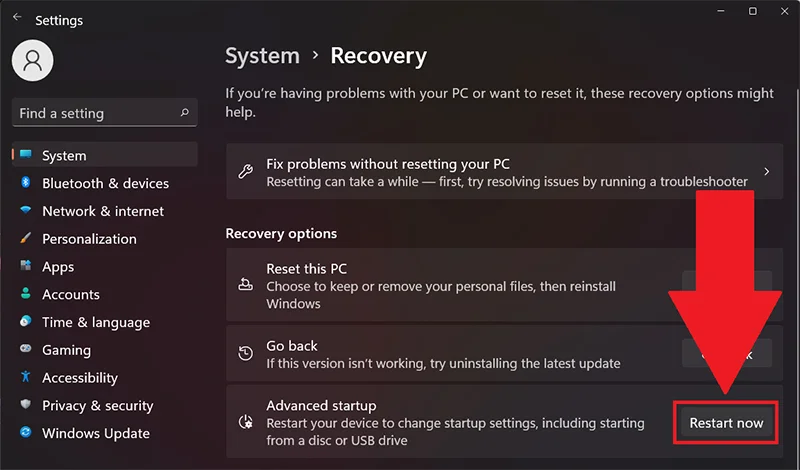
In Windows 11, open Settings > System > Recovery and select Restart now under Advanced startup. In Windows 10, go to Settings > Update & Security > Recovery and find Advanced startup. After the restart, choose Troubleshoot > Advanced options > UEFI Firmware Settings.
How to Enable TPM 2.0
Once you're in UEFI, find the TPM setting. On Intel systems, it may be called Intel PTT or Platform Trust Technology; on AMD systems, look for AMD fTPM or AMD PSP fTPM. Other possible names include Security Device Support and TPM State. Enable the appropriate option, save your changes, and restart the PC.

Run tpm.msc again in Windows and check the result. If the TPM is ready for use and its specification version is 2.0, move on to Secure Boot. Do not choose the option to clear the TPM. Clearing it isn't necessary to enable the module. If you can't find the setting or only TPM 1.2 is available, check the manufacturer's website to see whether your hardware supports TPM 2.0.
How to Enable Secure Boot
If Windows already boots in UEFI mode and the system drive uses GPT, open the Boot or Security section of your firmware settings. Find Secure Boot or Secure Boot Control and set it to Enabled. If the option is unavailable because CSM is enabled, switch to UEFI-only boot and disable CSM by following your motherboard's instructions. Save your changes, boot into Windows, and run msinfo32 again. Secure Boot State should now read On.

On some ASUS systems, you also need to check OS Type. Selecting Windows UEFI mode enables Secure Boot, while Other OS disables it. If Secure Boot still shows Not Active or Setup, follow ASUS's instructions for restoring the factory Secure Boot keys. For other motherboard brands, consult the instructions for your specific model.
What to Do If Windows Uses Legacy Boot and MBR
Press Win+R and enter diskmgmt.msc to open Disk Management. Find the physical drive Windows boots from and right-click its label on the left, such as Disk 0 or Disk 1. Select Properties > Volumes and look at Partition style. It will say GPT or MBR.

If Windows is installed in Legacy mode on an MBR drive, do not immediately switch to UEFI boot or disable CSM. Windows may stop booting. You first need to prepare the drive and bootloader for UEFI. Before proceeding, back up important files, save your BitLocker recovery key if encryption is enabled, and confirm that your device supports UEFI.
Windows includes a tool called MBR2GPT for converting the system drive. Open Command Prompt as an administrator and run mbr2gpt /validate /allowFullOS. This command checks whether conversion is possible without modifying the drive's partitions. If it returns an error, investigate the cause before proceeding. Follow Microsoft's MBR2GPT guide for the conversion and subsequent switch to UEFI, paying attention to its partition and BitLocker requirements.
What to Do If Secure Boot Is Enabled but the Error Persists
Check the security settings again using msinfo32 and tpm.msc. If the required features are enabled, download the Call of Duty Secure Attestation Wizard from Activision's support page. Extract the archive and run CODSecureAttestationWizard.exe. The tool will identify any configuration issues that may be preventing the game from launching.
If you see TCG Event Log Failed, install any available Windows updates and restart your PC. If the authorization key check fails, select Generate Key when prompted. When launching a legitimate installation of the game, also approve the Windows prompt for CODBrokerInstaller.exe or enrollaik.exe. This is required for TPM verification.
If you see Authorization declined but no permission prompt appears, open Start and search for Change User Account Control settings. Restore the default notification level and launch the game again. If the enrollaik.exe prompt keeps appearing even after you approve it, check your motherboard manufacturer's website for BIOS updates. Activision has identified this issue on some AMD systems.
Modern Warfare 4 Won't Launch After Clicking Play
In this case, we recommend verifying the game files first. If a download or update was interrupted, some files may not have installed correctly. Your game client can check the installation and redownload anything that's missing:
- Steam. Find Call of Duty in your library, open Properties > Installed Files, and select Verify integrity of game files.
- Battle.net. Open the game's page, click the gear icon next to the Play button, and select Scan and Repair.
- Xbox app. Open the game's menu in your library and select Manage > Files > Verify and Repair. Before confirming, back up any local data if the app warns that it could be lost.

After verification finishes, launch MW4 through your game client. If you previously added the -dx11 or -d3d11 launch options, remove them, since the game requires DirectX 12. Also disable Windows 7 or Windows 8 compatibility mode if you turned it on manually, then try launching the game again.
If the game still closes, disable recording software, overlays, and button-remapping applications. If the game starts working after you turn off third-party software, re-enable those applications one at a time to identify which one causes the problem. If closing an application normally doesn't help, check Task Manager for any processes it left running, and temporarily disable its automatic startup with Windows.
How to Launch the Campaign If the Xbox App Has No Play Button
If COD Home doesn't show a button to launch the campaign, open MW4's installation management settings and check whether Call of Duty: Modern Warfare 4 — Content Pack 1 is installed. If it's missing, install it and let the download finish. Then close both the game and the Xbox app, reopen them, and check whether the button has appeared. Make sure you're signed in to the account that purchased the game as well.
As of October 20, Activision is still investigating this issue for some Xbox app users on PC. If Content Pack 1 is installed but the campaign remains unavailable, contact support. You can check for updates on the Modern Warfare 4 known issues page.
How to Fix Crashes and DirectX Errors
If MW4 crashes on startup or during the campaign, start by updating your graphics driver. As of October 20, Activision recommends NVIDIA 616.56, AMD 26.7.1, and Intel 32.0.101.8974. NVIDIA has also announced a driver with ASD support for October 21, ahead of MW4's full launch. Download the appropriate version from your GPU manufacturer's website, install it, and restart your PC. Check the MW4 system requirements page for the latest driver recommendations.
Next, repeat the action that caused the crash. If you can access the game's settings, lower the texture quality and resolution, then load the same mission again. Change one setting at a time to determine whether a particular option is causing the problem. If you've manually overclocked your graphics card or adjusted its voltage, temporarily restore the stock settings while troubleshooting.
On a laptop, check which GPU the game uses. Open Settings > System > Display > Graphics, select the game, and choose High performance. If your laptop has both integrated and dedicated graphics, select the dedicated GPU for MW4. Restart the game after saving the setting.
If the game crashes after a long session, check your hardware temperatures. Move anything obstructing the ventilation openings and make sure the fans are running. If the entire PC shuts down or restarts along with the game, test it with other demanding applications. The problem may be related to your hardware or its configuration.
Save the full error code, even if one of these steps gets the game working again. A DirectX error or a reference to KERNELBASE.dll doesn't point to a single cause. If the crash happens again, record which mission you were playing and what you did just before it occurred. This information will help if you need to contact support.
Black Screen After Launch: What to Do
If you can hear audio but can't see anything, press Alt+Enter to try switching display modes. If the picture appears, open the game's settings and choose a suitable windowed or fullscreen mode. If the problem started after you enabled HDR, temporarily turn it off in Windows display settings and try again. This will help you determine whether HDR is responsible for the black screen.
If you have multiple monitors connected, check whether the game opened on another display. You can also temporarily leave just one monitor connected before launching the game again. If there's still no image, verify the game files, update your driver, and disable overlays using the steps above. Be sure to back up your custom settings before deleting them.
What to Do If the Game Won't Connect to Servers
Open Activision's online services status page and select Modern Warfare 4 and your platform. If an outage is reported, wait for service to be restored. If there are no warnings, check the status of Steam, Battle.net, Xbox, or PlayStation services, depending on where you play. A platform account login problem can also prevent you from connecting to the game.
Close MW4 and its launcher, restart your router, and try again. If you're on Wi-Fi, we recommend connecting your PC with an Ethernet cable to see whether the issue persists. Pause game downloads and updates on other devices on your home network. If nothing changes, note the error code and the time it appeared.
If your antivirus reports blocking a game file, open its log and check why. Then repair the installation through your game client. Don't disable the entire firewall or add exceptions without checking the blocked file. If there are no blocked-file warnings, continue troubleshooting your connection through the game's support team or your internet service provider.
How to Report a Bug in Modern Warfare 4
If none of the suggested steps help, open the Modern Warfare 4 bug report form. Provide your platform, storefront, full error code, and the point at which the issue occurs. If the game crashes in a particular mission, name the mission and describe what you were doing just before the crash. Include the troubleshooting steps you've already tried so support won't ask you to repeat them.

For PC issues, you'll also need your Windows version, CPU and GPU models, RAM capacity, and graphics driver version. You can save your system information by pressing Win+R, entering dxdiag, and selecting Save All Information. Attach the resulting file if the form accepts uploads. For Secure Boot and TPM errors, provide the results of your msinfo32 and tpm.msc checks. You don't need to share your BitLocker recovery key.
Other guides


