
How to Optimize a Low-End PC for Gaming
 Vladyslav Shamshurov
What should you do if your PC is old or too weak? In some cases, updating drivers and cleaning up the system is enough. In others, replacing the graphics card or processor, or moving to an SSD, will help. In this article, we will cover the main ways to speed up a low-end PC for gaming in 2026 and explain how to tell when your computer needs an upgrade. Some tips will also be useful even for owners of powerful gaming rigs, such as checking temperatures, startup apps, drive health, and Windows settings.
Technical guides for PC gamers
- How to Optimize a Low-End PC for Gaming
- How to Fix Stuttering, Lag and Low FPS in Games
- Best NVIDIA App and Control Panel Settings for Gaming
- How to Fix Lag in Online Games and Reduce Ping
- How to Set Up MSI Afterburner On-Screen Display for FPS, Temps and Usage
- How to Check CPU Temperature in Windows 10 and 11
- How to Optimize Windows 10 and 11 for Gaming and Better FPS
- How to Check PC Specs on Windows 10 and 11 for CPU, GPU and RAM
- How to Fix 100% CPU Usage While Gaming on Windows 10 and 11
- How to Check GPU Usage in Games and Fix Low GPU Utilization
First, we need to clarify an important point. In this article, we are talking about speeding up a PC primarily for running video games. Because of that, it is important to understand that many common tips from the internet, such as disabling Windows visual effects, unnecessary fonts, or interface transparency, have almost no effect on FPS. They may make a very weak computer feel slightly faster in the operating system or simple programs, but games depend far more on the graphics card, processor, RAM capacity, storage drive, drivers, and temperatures. If a computer is so weak that it needs basic operating system effects disabled, then for modern games it most likely needs an upgrade, not cosmetic optimization.
How to Upgrade a Low-End PC and Choose the Right Components
An old or weak computer is a relative concept. Desktop systems with DDR2 memory can be considered truly outdated and almost unsuitable for modern games. It is easier to replace such a PC than to try to revive it. Having DDR3 memory also does not automatically mean the computer is worth upgrading: some old platforms can still be used for undemanding online games and older releases, but you should not expect comfortable performance in modern AAA games. The same applies to laptops with very weak processors and integrated graphics. No optimization will make such a machine run Cyberpunk 2077 or other demanding modern games properly. In this case, you need new hardware.

Buying only one or several components will cost much less than building a PC from scratch. If maximum savings are the goal, you can often keep the case, power supply, storage drives, and motherboard. First of all, consider replacing the graphics card and processor. To save as much as possible, look for good deals on the used market. Use stress-testing programs to check the components: OCCT for the processor and FurMark for the graphics card.

You can find the system bottleneck through testing. Lower all settings to the minimum and set the lowest possible resolution. If the game still runs poorly with this preset, the processor is probably the problem, unless your graphics card is completely unsuitable for gaming. You can monitor system parameters with MSI Afterburner. Read more in our guide How to Set Up MSI Afterburner Monitoring in Games.
Whatever socket you are using, try to find a processor with at least four cores and eight threads. For very old builds, this is still the minimum baseline, but for new games in 2026 it is better to aim for 6 cores and 12 threads. Even moving from a dual-core processor to a quad-core one can give a noticeable boost, but do not expect miracles: in modern games, performance often depends not only on core count, but also on CPU architecture.
You should replace or upgrade RAM if you do not have enough capacity or if the memory is running in single-channel mode. In 2026, 8 GB of RAM is already the bare minimum for older and undemanding games. For modern titles and normal Windows use, 16 GB is better, while demanding games, mods, a browser running in the background, and work tasks are more comfortable with 32 GB. Memory frequency also matters, especially for integrated graphics and Ryzen processors, but it is usually more beneficial to increase RAM capacity first and chase higher frequency later.
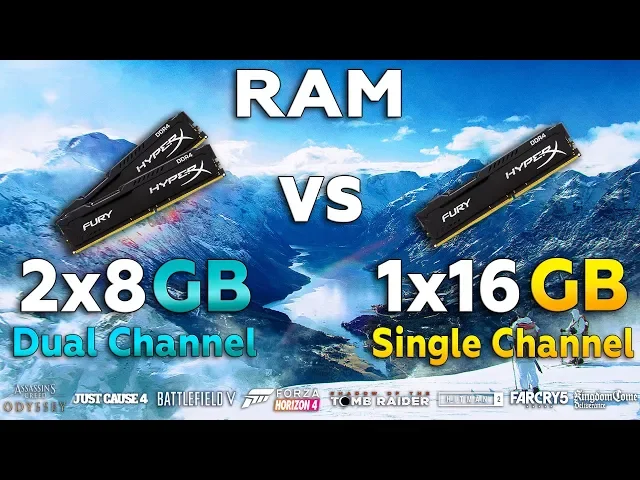
Also, if you have only one memory stick installed, you should add a second one to enable dual-channel mode and gain extra performance. This is critical when using integrated graphics. Since an iGPU has no dedicated memory of its own, it uses system RAM. The faster that RAM is, the better.
How to Speed Up an Old PC with an SSD and Drive Optimization
We separated this tip into its own section because an SSD does not always increase average FPS, but it strongly affects system responsiveness, Windows boot speed, app launch times, and loading in games. In 2026, an SSD should be considered the minimum requirement even for an old gaming PC. If a game is installed on a regular hard drive, you may experience long loading screens, stutters while locations, textures, and open-world areas stream in. Even a basic SATA SSD will be enough for an old system, and if your motherboard supports M.2 NVMe, it is better to choose that type of drive.
If an old computer takes a long time to boot, freezes when opening programs, or stutters in games while loading the world, moving from an HDD to an SSD often gives the most noticeable everyday improvement. It will not turn a weak PC into a powerful gaming machine, but it will make the system much more responsive.
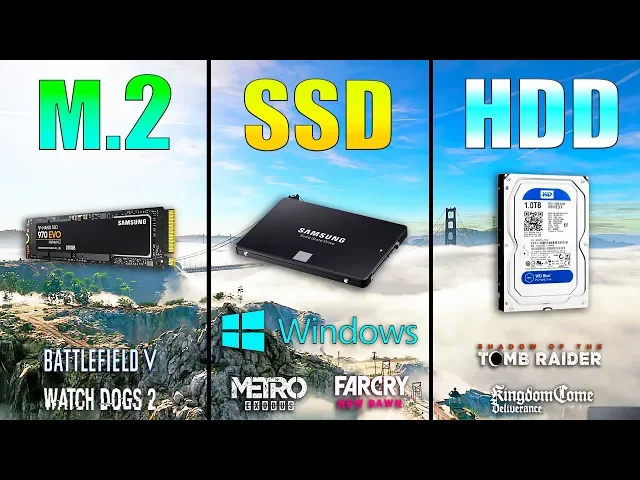
If you still use a regular hard drive, you can periodically run optimization and defragmentation. This arranges stored files for faster access. Do not expect miracles, but it can sometimes improve loading and streaming times. For SSDs, classic defragmentation is not needed: Windows detects the drive type and uses the appropriate optimization mode.

In File Explorer, right-click the hard drive and select Properties. Then go to the Tools tab and open the Optimize and defragment drive section. Note that Windows automatically detects whether you are using an SSD or HDD. Because of that, you do not need to worry about accidentally defragmenting a solid-state drive.
Should You Overclock the CPU, RAM, and Graphics Card on a Low-End PC
If your processor can be overclocked, this may give a small performance boost. For example, FX processors respond very well to core and northbridge overclocking. You may not get perfect performance, but you might reach a stable 30 FPS in games where you barely had 25. Keep in mind that an overclocked processor may require better cooling and a more expensive motherboard with a strong power delivery system.
CPU overclocking is fairly complicated, but in practice it comes down to finding the highest stable frequency at an optimal voltage. This value differs for every processor, so it is better to study overclocking guides for your exact model in advance.
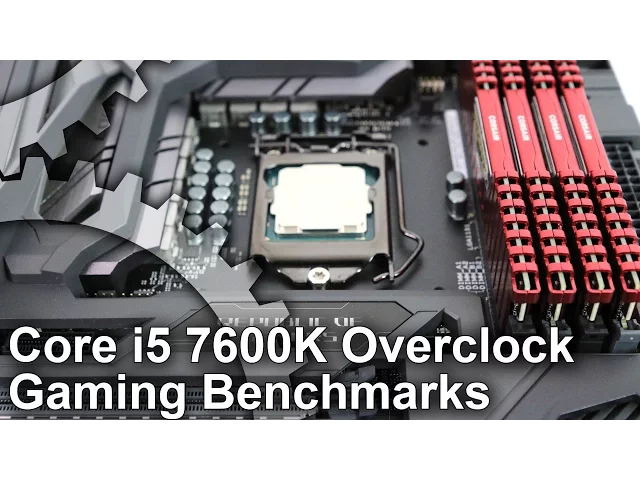
For Intel, unlocked multipliers are usually found on processors with K or KF in the name, such as the Core i7-7700K or newer models in that line. Full overclocking also requires a suitable motherboard, usually with a Z-series chipset. Many AMD Ryzen processors support overclocking, but the actual options depend on the specific CPU model, chipset, BIOS, cooling, and motherboard power delivery. On older platforms like AMD FX, overclocking is still possible, but investing in an expensive board and cooling for such a build is usually no longer worth it.
Graphics card overclocking is done through MSI Afterburner or manufacturer utilities, but you need to approach it carefully. Usually, users raise the Power Limit first, then increase the core and memory clocks in small steps, checking stability and temperatures after each change. On modern graphics cards, the gain is often small, while crashes, artifacts, and extra noise are possible. Sometimes it is better not to overclock the card, but to undervolt it: lower the voltage, reduce heat and noise, and keep almost the same performance. You can read more about this in our article How to Set Up an NVIDIA Graphics Card for Gaming.
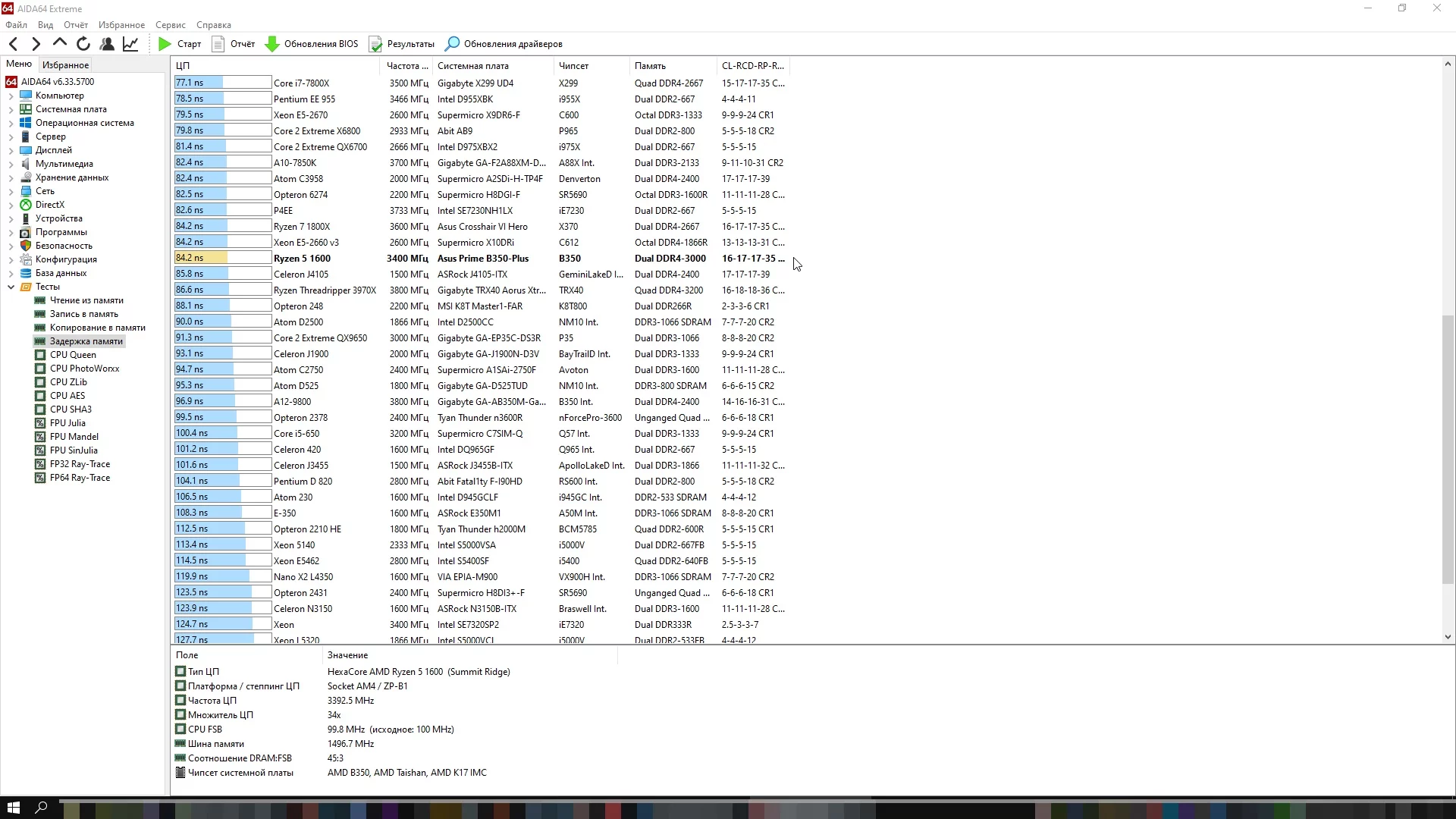
Memory overclocking is one of the more difficult types of tuning. If your hardware allows you to select an XMP, EXPO, or DOCP profile, it is usually best to start with that. These are ready-made frequency and timing profiles enabled in the BIOS. If you decide to tune memory manually, you will have to adjust frequency, timings, and voltage, then check stability every time. You can check memory parameters, such as bandwidth and latency, with the AIDA Memory Test. Stability can be tested with MemTest86 or TestMem5.
How to Clean Dust from a PC and Replace Thermal Paste
It takes some neglect for dust to clog the cooling radiators badly enough that the computer starts throttling from overheating. Even so, this is quite common when a PC case has no filters and runs for years without maintenance. It is best to clean the system unit at least once a year, and more often if the room is dusty or you have pets at home. Pay special attention to the CPU heatsink, graphics card, case filters, and power supply. If you are afraid to do this yourself or are not sure how to safely remove a cooler and replace thermal paste, it is better to contact a service center.

Also, if you have overheating or cooling problems, you should replace the thermal paste on the CPU and possibly the graphics card. Over time, thermal paste dries out and loses its properties, while dust makes heatsinks harder to cool. You can check temperatures through HWiNFO, MSI Afterburner, AIDA64, or manufacturer utilities. We recommend reading our detailed CPU overheating guide How to Check CPU Temperature in Windows 10. Despite the title, the basic principles of temperature monitoring are also relevant for Windows 11.
How to Remove Viruses and Miners If Your Computer Is Slow
Viruses, miners, and other malware can seriously slow down your computer and reduce FPS in games. Miners, for example, use your PC resources to mine cryptocurrency. You can often spot this by high load while idle, fans getting loud for no clear reason, and a sharp rise in temperatures.

You can find and remove malware with an antivirus. For a one-time scan, you can use built-in Microsoft Defender, Microsoft Defender Offline Scan, and additional scanners such as Dr.Web CureIt! or Malwarebytes AdwCleaner. For most users, built-in Windows Security provides basic real-time protection, but if you suspect an infection, it is better to run a full scan and an offline scan. In Windows 10 and Windows 11, open Settings, go to Privacy & security or Update & Security, then open Windows Security and Virus & threat protection.
Also, to protect yourself from viruses, do not download software or games from suspicious websites. Use only trusted resources with a large user base.
How to Set the Power Plan for Maximum Gaming Performance
The power plan can limit PC performance, but this is not the most common issue. You should not expect miracles from it either: it will not turn a weak dual-core Celeron into a Core i9. Still, the setting is worth checking. A power-saving mode may be the reason why a game stutters or even freezes.

Press Win + I, then go to System > Power or Power & battery. On laptops, check the power mode and choose the maximum performance option if you play while plugged in. On a desktop PC, you can also open the classic Control Panel and select the High performance plan. There is also an Ultimate Performance mode, but it may be hidden by default. Do not expect miracles: the power plan will not turn a weak processor into a powerful one, but it can remove drops if the system was limited by power-saving settings. Read more about this in our article How to Set Up Windows 10 for Gaming.
How to Enable Windows Game Mode and Whether It Helps a Low-End PC
Press Win + I to open Windows Settings, then go to Gaming > Game Mode and turn the switch on. In Windows 10 and Windows 11, Game Mode helps the system prioritize the game and limit some background activity, such as driver installation through Windows Update during gameplay. On weaker computers, the effect may be more noticeable, but you should not expect a large FPS increase. It is more of a useful basic setting than a full PC acceleration method.
In any case, we recommend checking active background processes in the system. It is better to remove unnecessary processes and programs. You can use search to find out what a specific system process does. If you right-click a process in Task Manager, the context menu includes a Search online option.
How to Clean Windows Startup Apps and Remove Unnecessary Programs
In the previous section, we recommended removing unnecessary programs and processes. The same applies to startup apps. The more programs launch together with Windows, the slower the system starts and the more RAM is used in the background. To disable unnecessary startup apps, open Task Manager with Ctrl + Shift + Esc and go to the Startup or Startup apps tab. Click an unnecessary program and select Disable. In Windows 10 and Windows 11, you can also check startup apps through Settings > Apps > Startup.
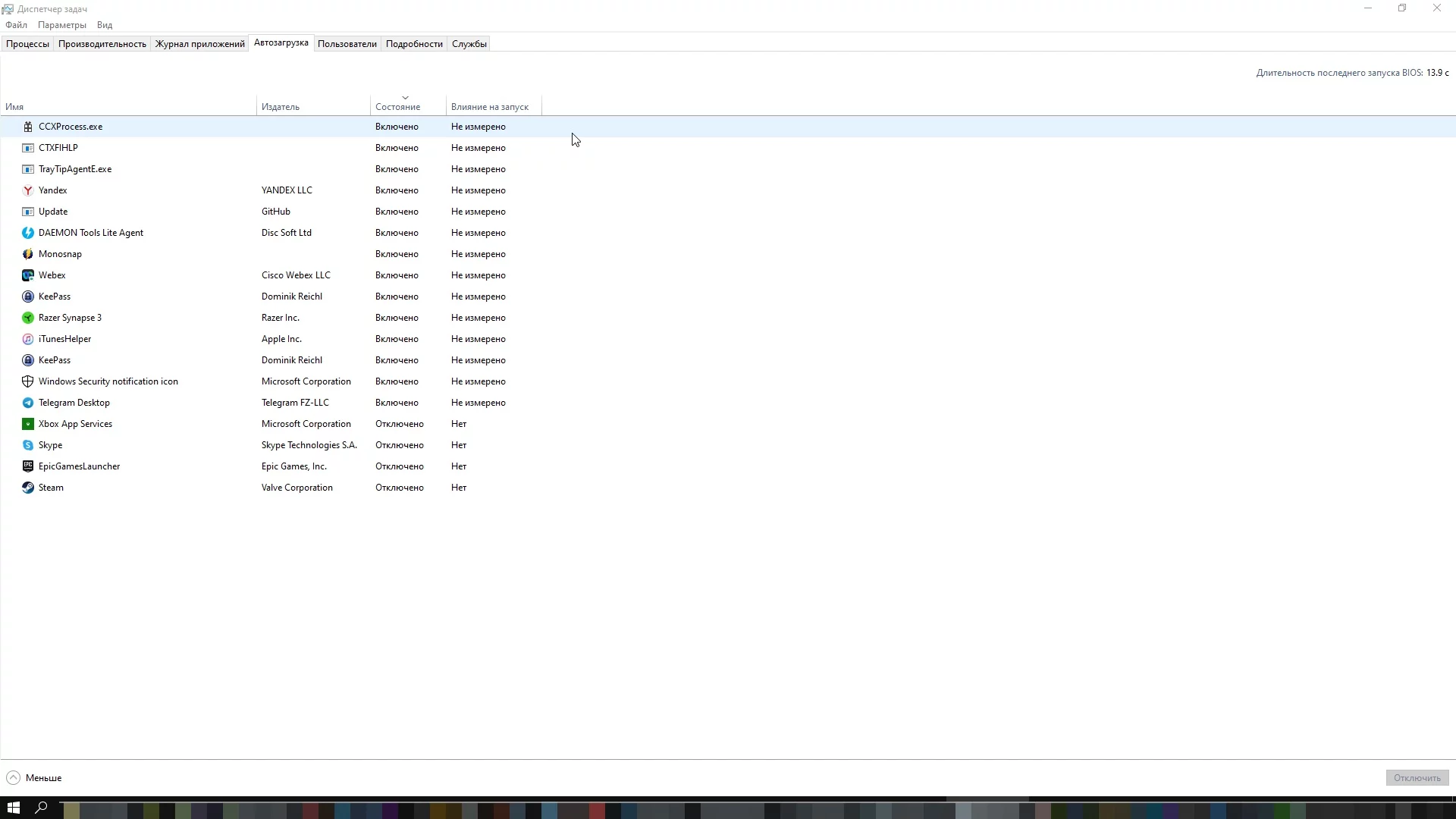
You should also look through installed programs and remove anything unnecessary. Even if this does not directly speed up the computer, it will at least free up space. If a drive, especially the system SSD, is almost full, performance can suffer. The easiest way to remove programs is through Windows Settings. Press Win + I and go to Apps > Installed apps. You can also open System > Storage and enable Storage Sense so Windows automatically deletes temporary files.
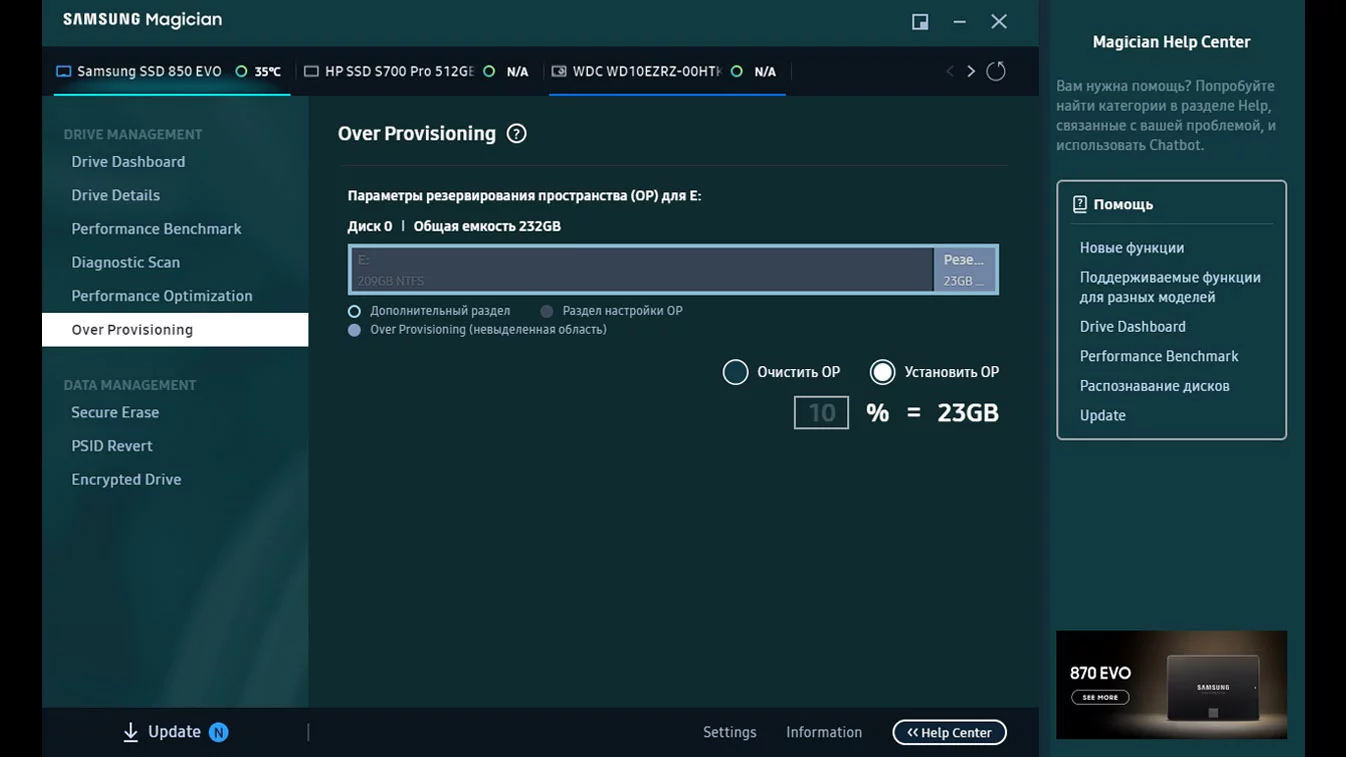
Note that many branded SSD utilities include an Over Provisioning feature. It reserves the required amount of free space on the drive to maintain maximum performance. You lose some usable capacity, but in return you do not need to worry as much about filling all remaining available SSD space.
What the Paging File Is For and Whether You Should Move It to an SSD
If the PC does not have enough RAM, the system uses the paging file. For a low-end computer with little RAM, this is especially important, because a paging file that is too small or disabled can cause games and programs to crash.
Recently, many people have claimed that the paging file can be disabled completely if the PC has 32 GB of RAM or more. In reality, this is not quite true. Some programs may work incorrectly or fail to launch at all if the paging file is too small or missing. Because of that, we do not recommend disabling it. Type Adjust the appearance and performance of Windows into Windows Search. Then go to the Advanced tab and click Change under Virtual memory.

It is best to let the system choose the size automatically. At the same time, the paging file should be stored on an SSD rather than a hard drive: if Windows needs to use virtual memory, an SSD will handle it much faster. You should not disable the paging file even if you have a large amount of RAM, because some games and programs may work incorrectly. Increasing the size manually makes sense only if the system reports a lack of memory or a specific game crashes with an error.
How to Update Graphics Card, Chipset, and Windows Drivers
In some cases, outdated drivers can affect performance and stability. Graphics card manufacturers regularly release optimized drivers for new games, fix bugs, crashes, and compatibility issues. This does not mean that a game will necessarily run poorly or fail to launch on an old driver, but before starting a major new release, it is better to update the graphics card driver. This is especially relevant for NVIDIA GeForce, AMD Radeon, and Intel Arc.
- Download NVIDIA graphics card drivers or install NVIDIA App for automatic updates.
- Download AMD graphics card drivers or use AMD Software: Adrenalin Edition.
- Download Intel Driver & Support Assistant for automatic Intel driver detection.
It is also worth updating the motherboard BIOS and chipset drivers. To do this, visit the official website of your motherboard manufacturer and open the support section. Unlike graphics cards, you need to know the exact motherboard model, not just its chipset or series. Some motherboards allow internet updates directly from the BIOS. However, updating from a USB flash drive is usually safer. Ideally, you should also have a UPS in case of a power outage.

You should also install all available Windows updates. In Windows 10, press Win + I and go to Update & Security. In Windows 11, go to Windows Update. Check whether the latest updates are installed and whether automatic updates are enabled. Important: Windows 10 support ended on October 14, 2025, so for a main gaming PC it is better to move to Windows 11 if the computer meets the system requirements. Windows 10 will continue to run, but without regular security and feature updates, using it becomes riskier.
Should You Upgrade from Windows 10 to Windows 11 for Gaming
If your computer meets the Windows 11 system requirements, the upgrade is worth considering. Windows 10 support ended on October 14, 2025, so the system no longer receives regular security updates or new features. Older games and programs may continue to work on Windows 10, but for a main gaming PC it is safer to use an up-to-date operating system.
At the same time, moving to Windows 11 will not make a weak computer powerful by itself. If the problem is an old graphics card, not enough RAM, an HDD, or overheating, you should solve those issues first. Before upgrading, also check hardware compatibility, TPM 2.0 availability, and drivers for the motherboard, graphics card, sound, and network adapter.
FAQ About Low-End PCs and Speeding Up Games
How do you optimize a low-end PC for gaming?
First, if your computer struggles with games, you should not start with random tweaks. Begin with basic system checks: drivers, temperatures, startup apps, free SSD space, and background processes.
Second, read and apply all recommendations from this article. Also update your graphics card driver, check startup apps, temperatures, free SSD space, and Windows Game Mode. You can also read our other articles: How to Set Up Windows 10 for Gaming, and How to Set Up an NVIDIA Graphics Card for Gaming.
How do you know if your PC is weak?
First, check which components are installed. We explain how to do this in detail in our guide. Then compare your PC specs with the system requirements of modern games from our game database. If the computer has less than 16 GB of RAM, weak integrated graphics, an old dual-core or quad-core processor without Hyper-Threading/SMT, and the game is installed on an HDD, then it is already a weak configuration for new releases.
How do you make games load faster on PC?
The easiest way is to install the game on an SSD. Even a regular SATA SSD will make a noticeable difference, but if your system supports M.2 NVMe, it is better to use a faster drive. In some modern games, an SSD is effectively required for comfortable world and texture streaming.
What can you play on a low-end PC?
Our website has excellent game collections in different genres for low-end PCs. For example: Shooters for Low-End PCs and Strategy Games for Low-End PCs.
How do you install an SSD in an old PC?
If your computer has a SATA port, you can buy a standard 2.5-inch SSD. This type of drive is compatible even with the older SATA 2 interface, although speeds will be lower than on SATA 3. If the motherboard has an M.2 slot with NVMe support, it is better to choose an NVMe SSD. Before buying, make sure to check exactly which drive types your motherboard or laptop supports.
What happens if you install a new graphics card in an old computer?
It depends on how old the computer is. If the graphics card is too powerful for the rest of the system, you should not expect a huge performance boost. You can read more about this in our guide GPU Usage in Games.
-
 67 Best FPS Games in 2026: First-Person Shooters on PC, PS5, Xbox and Switch
 -
 Korea. IL-2 Series Review — An Accessible Flight Sim or Another Hardcore Experience for Fans?
 -
 Herman Miller’s Motorized Gaming Desk Turns Out to Be Pricier Than Actual Gaming PCs
 -
 Most Optimized PC Games: TOP 25 Hits for Weak, Old, and Mid-range Hardware
 -
 ASUS Releases a Board for Those Who Can't Stand Wires Inside Their PC Case