
Best NVIDIA App and Control Panel Settings for Gaming
 Vladyslav Shamshurov
Buying and installing a graphics card is only half the job. You also need to set it up properly: install the latest driver, set the monitor refresh rate, check the color range, 3D settings, overlay, gameplay recording, and latency modes. In this article, we will explain what to do after installing an NVIDIA graphics card, which settings you should check in NVIDIA App and NVIDIA Control Panel, and which ones are better left at default.
Technical guides for PC gamers
- How to Optimize a Low-End PC for Gaming
- How to Fix Stuttering, Lag and Low FPS in Games
- Best NVIDIA App and Control Panel Settings for Gaming
- How to Fix Lag in Online Games and Reduce Ping
- How to Set Up MSI Afterburner On-Screen Display for FPS, Temps and Usage
- How to Check CPU Temperature in Windows 10 and 11
- How to Optimize Windows 10 and 11 for Gaming and Better FPS
- How to Check PC Specs on Windows 10 and 11 for CPU, GPU and RAM
- How to Fix 100% CPU Usage While Gaming on Windows 10 and 11
- How to Check GPU Usage in Games and Fix Low GPU Utilization
What to Do Right After Installing an NVIDIA Graphics Card
After installing an NVIDIA graphics card, the first thing you should do is install the latest driver, then check the monitor resolution and refresh rate, color range, 3D settings, overlay, and gaming features such as NVIDIA Reflex or DLSS. Start with the driver: without it, the graphics card may not work correctly, and some NVIDIA settings may be unavailable.
The very first thing to do after installing a new graphics card is to download and install the latest driver. If you previously had a different graphics card, especially from AMD or Intel, it is best to remove the old driver first. The easiest way to do that is with Display Driver Uninstaller. If you are simply updating the driver for an already installed NVIDIA graphics card, a regular update through NVIDIA App or the official website is usually enough.
You can download the NVIDIA driver through the official website or NVIDIA App. Fill in the fields according to your graphics card and operating system, or use automatic updates in the app. For games, you should usually choose the Game Ready Driver: these drivers are optimized for new releases. Studio Driver is better suited for users who mostly work with video editing, 3D, graphics, and other professional software.
How to Set Up Your Monitor in NVIDIA Control Panel
After installing the driver, open NVIDIA App and NVIDIA Control Panel. NVIDIA App is used for driver updates, the overlay, recording, game optimization, and some newer features. NVIDIA Control Panel is still needed for a number of classic display and 3D settings. You can open it through the NVIDIA icon in the system tray, the desktop context menu, or a link inside NVIDIA App.
First, check your monitor settings: native resolution, maximum refresh rate, RGB color format, and full dynamic range. These settings directly affect image sharpness, smoothness, and correct picture output after installing an NVIDIA graphics card.
Check the Resolution and Refresh Rate
In the Display section on the left, select Change resolution. Resolution and refresh rate are usually set automatically, but you should still check them manually. Choose your monitor's native resolution and the highest available refresh rate: 60, 75, 120, 144, 165, 240 Hz, or higher if your display supports it. Also check the refresh rate in Windows settings and in the game itself. Sometimes the monitor is connected with the correct cable, but Windows still leaves it at 60 Hz.

Set RGB and Full Dynamic Range
The Apply the following settings section is more interesting. For most monitors, it is better to set the color format to RGB and the dynamic range to Full. When connected through DisplayPort, this is usually enabled by default, but with HDMI the range can sometimes be limited. In that case, the image may look pale, washed out, or too gray. If you are using a TV, also check the HDMI range settings on the TV itself: the range should match both in the driver and on the display.
YCbCr 422 and 444 color formats are usually not worth choosing for a regular monitor unless you have a specific reason. However, they can be used if RGB is unavailable because of cable, port, or older HDMI version limitations. For example, at a high resolution, high refresh rate, and HDR, an older HDMI connection may not have enough bandwidth for RGB with full range. In that case, you can lower the refresh rate, disable HDR, choose a different cable or port, or use YCbCr. The main thing is that the range settings match in the driver and on the TV or monitor.

Check the Color Range for Video
Also open the Video section and Adjust video color settings. If videos in media players look washed out or too gray, enable With the NVIDIA settings and go to the Advanced tab. There you can enable Full dynamic range. If there are no color issues, you can leave this setting at default.
How to Configure NVIDIA 3D Settings for Gaming
By default, most graphics settings are better configured inside the game itself. This applies to anti-aliasing, anisotropic filtering, texture quality, FPS limits, and other options. However, the NVIDIA driver also allows fine-tuning: for example, you can force anti-aliasing or filtering in older games, limit frame rate, choose a power mode, or adjust latency. The main rule is not to change everything globally without a clear reason. It is better to configure a specific game if you have a specific problem.
Global Settings and Per-Game Settings
Note that there are two tabs:
- Global Settings: Settings apply to every game.
- Program Settings: Settings apply only to the selected application.
It is better to work with a specific application so you can choose optimal settings for that game. If the game you need is not in the dropdown list, simply add its executable file with the .exe extension.
Which NVIDIA 3D Settings Are Worth Changing
Let's go through the settings in more detail:
- Image Sharpening. Useful if the image looks blurry and you want to make it a bit sharper. This is especially relevant after upscalers such as DLSS, FSR, or XeSS, if the game itself does not have a convenient sharpening slider. Do not overdo the intensity: halos, noise, and bright edges around objects may appear. If the game already has a sharpening setting, use that first.
- CUDA GPUs. Leave it at default or select your main graphics card.
- DSR Smoothness, DSR Factors, and DLDSR. These features let the game render at a higher resolution and then output the image to a lower-resolution monitor. This improves sharpness and anti-aliasing, but increases GPU load. If you have a powerful graphics card and a 1080p monitor, you can try DSR or DLDSR in older and less demanding games. For new demanding games, this mode is often too expensive in terms of performance.
- Anisotropic Filtering. Affects texture sharpness. This setting is available in almost every game, so you can usually leave it alone and set it directly in the application. It has a low performance cost, but on weak systems it is still better not to overuse it.
- Vertical Sync. This is V-Sync. It removes screen tearing, but can increase input latency. If your monitor supports G-Sync, FreeSync, or VRR, it is better to enable adaptive sync and limit FPS slightly below the monitor's refresh rate. For example, for 144 Hz, you can set the limit to around 141 FPS. If you do not have VRR, you will have to choose between lower latency and no screen tearing.
- OpenGL Rendering GPU. Select your main graphics card.
- Ambient Occlusion. An older setting for improving shadows and contact shading in some games. It is not supported everywhere and does not work in modern APIs such as DirectX 12. For newer games, it is usually better to leave it off or control similar effects directly in the game settings.
- Shader Cache and Shader Cache Size. Saves compiled shaders so they can be reused later. This can reduce stutters and speed up repeat launches of games. Shader caching is better left enabled by default. The cache size can usually stay at the default value, but if you have many modern games and enough free space on your SSD, you can increase it.
- Max Frame Rate. Lets you limit FPS. This is useful if a game overloads the graphics card, heats up the system, has uneven frame times, or if you need to set up G-Sync or FreeSync. If you use a regular monitor without VRR, you can set the limit equal to the refresh rate. If you use G-Sync, FreeSync, or VRR, the limit is usually set a few frames below the monitor refresh rate: for example, 141 FPS for 144 Hz or 237 FPS for 240 Hz.
- Background Application Max Frame Rate. Lowers FPS for a minimized game. In other words, if you leave a game running in the background, it will not heavily load your hardware.
- Multi-Frame Sampled AA (MFAA). Can improve anti-aliasing in some older games, but it does not work everywhere and does not always make a noticeable difference. For modern games, it is usually better to use built-in anti-aliasing settings, DLSS, DLAA, or other available technologies. Globally, MFAA is better left off and enabled only for specific older games if it makes sense.
- Threaded Optimization. There is not much reason to touch it, so it is better to leave it on Auto. If a game does not support multithreading, this setting will not help anyway.
- Preferred Refresh Rate. You should touch this setting only if the game settings do not allow you to set the desired refresh rate. Again, if a game does not support 144 Hz, this setting alone will not solve the problem.
- Low Latency Mode. Can reduce input latency in some games, especially when the game is GPU-bound. However, if the game supports NVIDIA Reflex, it is better to enable Reflex directly in the game settings: it usually works more accurately. Use the driver-level Low Latency Mode as a fallback for games without Reflex. If FPS drops or becomes unstable after enabling it, return the setting to default.
- Power Management Mode. For most games, it is better to leave Optimal Power or Adaptive mode. Prefer maximum performance makes sense only for a specific game if the graphics card lowers clocks too aggressively and causes drops. There is no need to enable maximum performance globally: the card will more often hold higher clocks, heat up more, and consume more power.
- FXAA Anti-Aliasing. This is another type of anti-aliasing, and it is less demanding on resources. However, it can also make the image blurrier, which not everyone likes. We recommend leaving it at default.
- The following settings: Antialiasing — Gamma Correction, Antialiasing — Setting, Antialiasing — Transparency, and Antialiasing — Mode. We recommend leaving them at default and using the anti-aliasing settings inside the game itself. However, you can try enabling these options for older games that do not have built-in anti-aliasing settings.
- Triple Buffering. This feature is only needed if you use V-Sync.
- Texture Filtering — Anisotropic Sample Optimization. On modern graphics cards, you can usually leave this at default. Enabling it for performance makes sense only on very weak hardware.
- Texture Filtering — Quality. For most players, it is better to leave this at Quality or the default value. On weak graphics cards, you can choose Performance, but the gain is usually small, while image quality may become worse.
- Texture Filtering — Negative LOD Bias. Usually leave this at default. If you use anisotropic filtering and want to avoid texture shimmering, you can choose Clamp.
- Texture Filtering — Trilinear Optimization. Usually leave this at default. It is worth changing only when manually configuring older games.
After choosing the settings, do not forget to apply them by clicking the corresponding button at the bottom of the screen.
What to Configure in NVIDIA App
There are also a few things worth doing in NVIDIA App. This is NVIDIA's new main app, replacing GeForce Experience. You can use it to update drivers, enable the overlay, record gameplay, view performance statistics, configure individual games, and use some newer NVIDIA features. Unlike the old GeForce Experience, NVIDIA App does not require mandatory account sign-in for basic features.
In this app, the first things to check are drivers, the in-game overlay, gameplay recording, Instant Replay, and performance statistics. If you want maximum FPS and minimum latency, it is better to disable unnecessary background features.
In NVIDIA App, you can enable the in-game overlay. It lets you take screenshots, record gameplay, enable Instant Replay, view performance statistics, and use filters. However, if maximum FPS and minimum latency matter to you, it is better to disable unnecessary features. Instant Replay constantly records video in the background, so it can slightly reduce performance and take up disk space.
Should You Overclock Your Graphics Card in MSI Afterburner
Graphics card overclocking can give a small FPS boost, but it is not guaranteed. Sometimes the gain is almost unnoticeable, and sometimes the card starts running hotter, louder, or less stable. For basic tuning, you can use MSI Afterburner, but you need to be careful: change settings in small steps, monitor temperatures, and test stability in games. If you do not want to take risks, you can try undervolting instead of overclocking: it often reduces heat and noise without a noticeable performance loss.
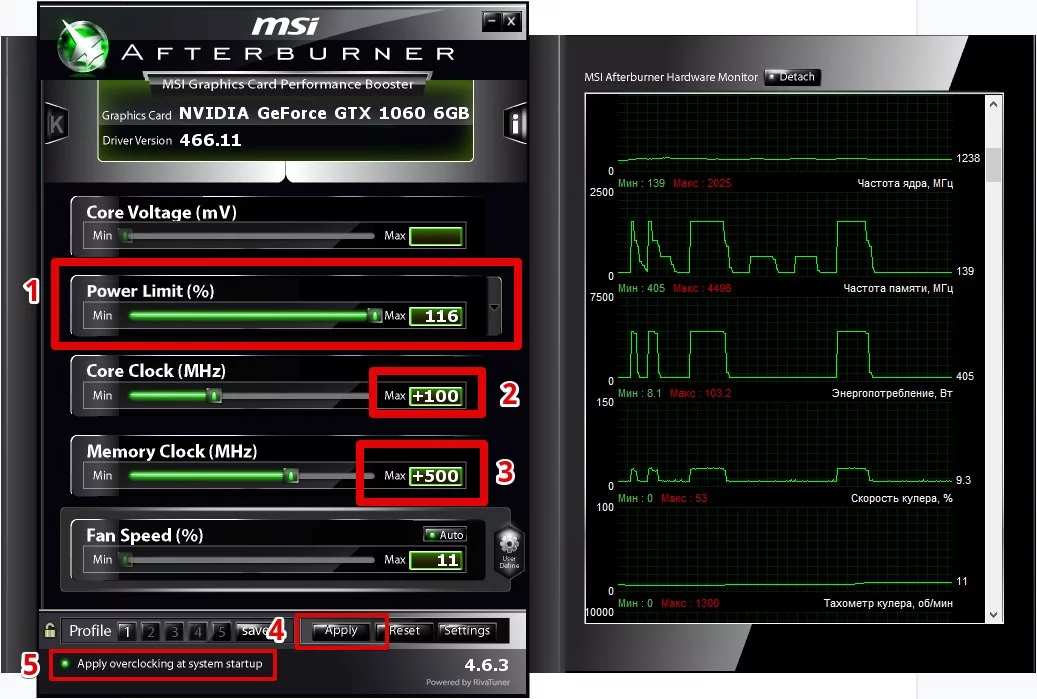
- First, save the default settings profile so you can quickly roll back.
- You do not have to increase Power Limit to the maximum. Start with small changes and watch temperature, noise, and power consumption.
- Increase core clock in small steps, for example by 25-50 MHz, and test stability in several games or benchmarks. FurMark alone does not guarantee stability in every game.
- If you see crashes, artifacts, a black screen, or freezes, lower the clock speed.
- After the core, you can carefully raise memory clock, for example by 50-100 MHz at a time. Check stability again.
- Do not enable profile autoload until you are sure the settings are fully stable.
We do not recommend flashing the BIOS, sharply increasing voltage, or doing other advanced actions. A small overclock or undervolt is safer if you do everything gradually and test stability. Still, watch temperatures, noise, power consumption, and the card's behavior in real games. If crashes or artifacts start after tuning, return the settings to default.
What to Enable in Modern Games: DLSS, Reflex, Frame Generation, and RTX HDR
In modern games, some important settings are not located in NVIDIA Control Panel, but inside the game itself. If you have an RTX graphics card, check whether the game supports DLSS, NVIDIA Reflex, Frame Generation, and RTX HDR. These features can increase FPS, reduce input latency, or improve image quality without manual driver tuning. DLSS improves performance through upscaling, and some games also support frame generation. On RTX 40 Series graphics cards and newer, you can find Frame Generation, while newer models can also support Multi Frame Generation in compatible games.
NVIDIA Reflex for Lower Latency
For competitive games, look for NVIDIA Reflex. It reduces system latency and is usually more useful than the global Low Latency Mode in the driver. If the game supports Reflex, enable it in the game settings.
RTX HDR and RTX Dynamic Vibrance
NVIDIA App also includes additional features such as RTX HDR and RTX Dynamic Vibrance. RTX HDR can add HDR to SDR games if you have a compatible RTX graphics card, Windows 11, and an HDR monitor. RTX Dynamic Vibrance makes colors more saturated. These features are not mandatory, but you can try them if you want to improve the picture without manually configuring each game.
-
 NVIDIA’s New Vera Processor Surprises with Engineering Sample Results
 -
 NVIDIA Graphics Cards Got Hidden Support for DLSS 5, But You Can't Enable It Yet
 -
 Intel and NVIDIA Are Teaming Up to Create a "Super-Chip" for Next-Gen PCs
 -
 NVIDIA Hikes Prices Again: RTX 5090 Gets a Markup, Other Models Hold the Line for Now
 -
 Not Enough Memory to Go Around: NVIDIA Sets Its Sights on Chip Supplies Meant for Apple and Samsung
 -
 All Elden Ring Endings Explained: How to Get Every Ending and Which Is Best