
How to Check GPU Usage in Games and Fix Low GPU Utilization
 Vladyslav Shamshurov
In this guide, we will explain GPU usage in games. Many players wonder what GPU load should look like and whether it is normal for a graphics card to run at 100%, 90%, or only around 60%. We will break down when high usage is normal, when low usage points to a problem, and how to understand what the game is limited by: the graphics card, processor, RAM, VRAM, storage drive, or poor optimization.
Technical guides for PC gamers
- How to Optimize a Low-End PC for Gaming
- How to Fix Stuttering, Lag and Low FPS in Games
- Best NVIDIA App and Control Panel Settings for Gaming
- How to Fix Lag in Online Games and Reduce Ping
- How to Set Up MSI Afterburner On-Screen Display for FPS, Temps and Usage
- How to Check CPU Temperature in Windows 10 and 11
- How to Optimize Windows 10 and 11 for Gaming and Better FPS
- How to Check PC Specs on Windows 10 and 11 for CPU, GPU and RAM
- How to Fix 100% CPU Usage While Gaming on Windows 10 and 11
- How to Check GPU Usage in Games and Fix Low GPU Utilization
How to Check GPU and CPU Usage
To understand the problem, you first need to check your graphics card and processor usage in a specific game. You can use MSI Afterburner with RTSS, HWiNFO, NVIDIA App, AMD Software, Intel Graphics Software, or the built-in Windows monitoring tools. We have already explained how to set up MSI Afterburner in detail in our guide How to Set Up MSI Afterburner Monitoring in Games, so we will not repeat everything here.
For diagnostics, you should look not only at GPU usage, but also at FPS, frame time, per-core CPU usage, CPU and GPU temperatures, clock speeds, RAM usage, and VRAM usage. Sometimes the average FPS looks fine, but frame time spikes make the game feel choppy.
GPU Usage Is at 100%
If your graphics card is loaded at 95-100% in games, this is usually normal. It means the game is GPU-bound and the graphics card is working close to full capacity. If FPS is comfortable, frame time is stable, temperatures are normal, and there is no throttling, there is nothing to worry about.
If FPS is low while the graphics card is loaded at 100%, it simply cannot handle the selected settings. In that case, lower the resolution, shadow quality, reflections, ray tracing, anti-aliasing, or texture quality if you are running out of VRAM. You can also enable upscalers such as DLSS, FSR, or XeSS if the game supports them.
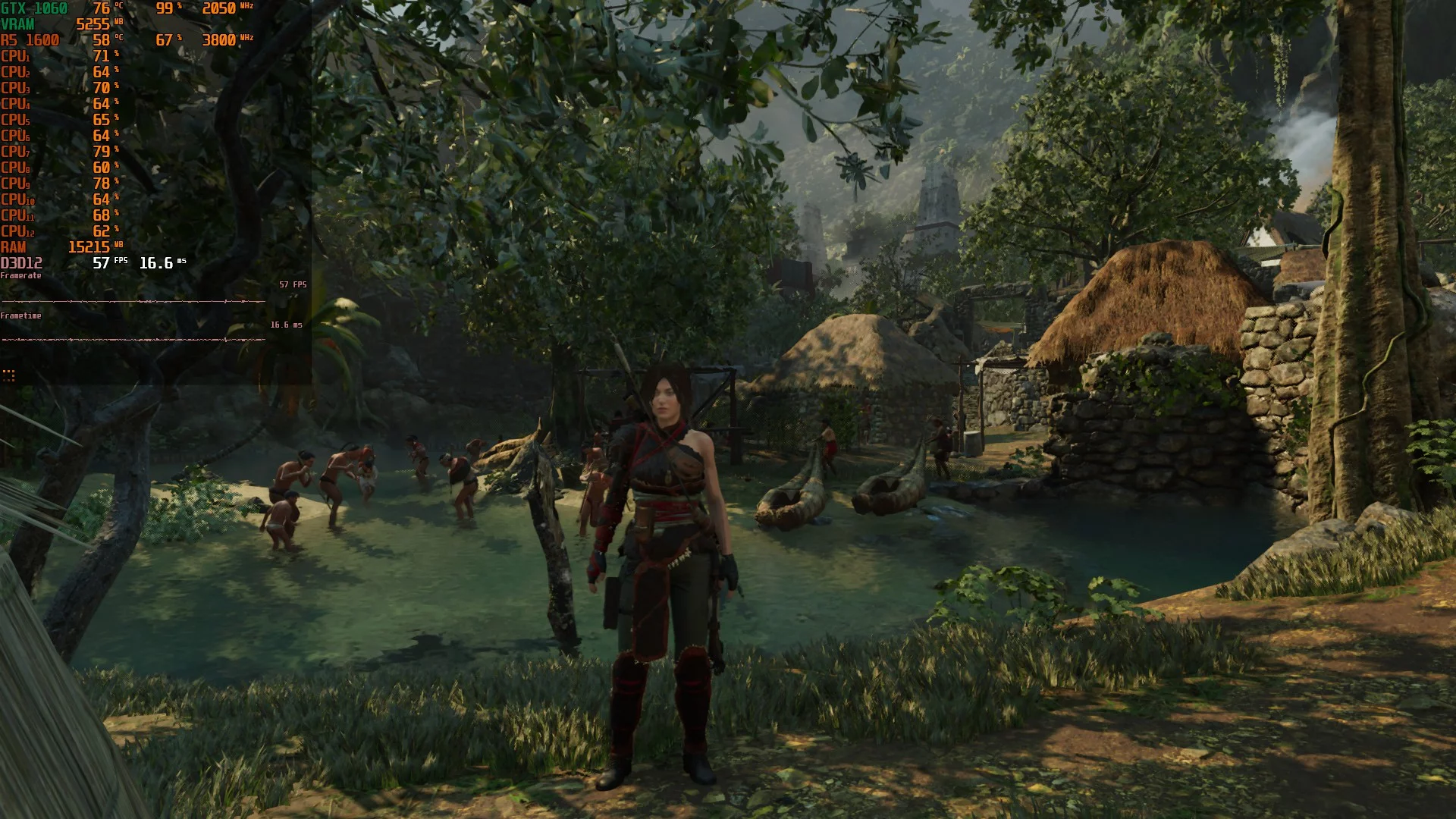
However, if the graphics card stays under heavy load while idle, when you have not launched a game or a demanding program, that is a bad sign. The cause may be a miner, malware, a frozen browser tab with hardware acceleration, video recording software, an overlay, an AI app, or another background process.
Open Task Manager, go to the Processes tab, and sort the list by the GPU column. Find the process that is loading the graphics card, then check its name and file location. If the process looks suspicious, scan the system with Windows Security or another reliable antivirus.
When 100% GPU Usage Can Be a Problem
100% GPU usage is not dangerous by itself. It becomes a problem if the graphics card overheats, drops clock speeds, gets very loud, causes the game to crash, or starts showing visual artifacts. In that case, you need to check temperature, clock speeds, power draw, fan speed, and the power limit.
If the graphics card is constantly loaded at 100% even in a game's menu, enable an FPS limit. This will reduce heat, noise, and power consumption. You can set the limit in the game settings, NVIDIA Control Panel, AMD Software, Intel Graphics Software, or RTSS.
GPU Usage Is Not at 100% or the GPU Is Underused. Is This Normal?
If the graphics card is underused, things are more complicated. On its own, this does not necessarily mean there is a problem. Low GPU usage is common in old, undemanding, or esports games, at low graphics settings, with an FPS limit enabled, with V-Sync, upscaling, Frame Generation, or in game menus.
The problem starts when the graphics card is not fully loaded, FPS is low, frame time is uneven, and the game clearly stutters or runs poorly. In that case, you need to look for a bottleneck in the processor, RAM, VRAM, storage drive, power settings, drivers, or the game's own optimization.
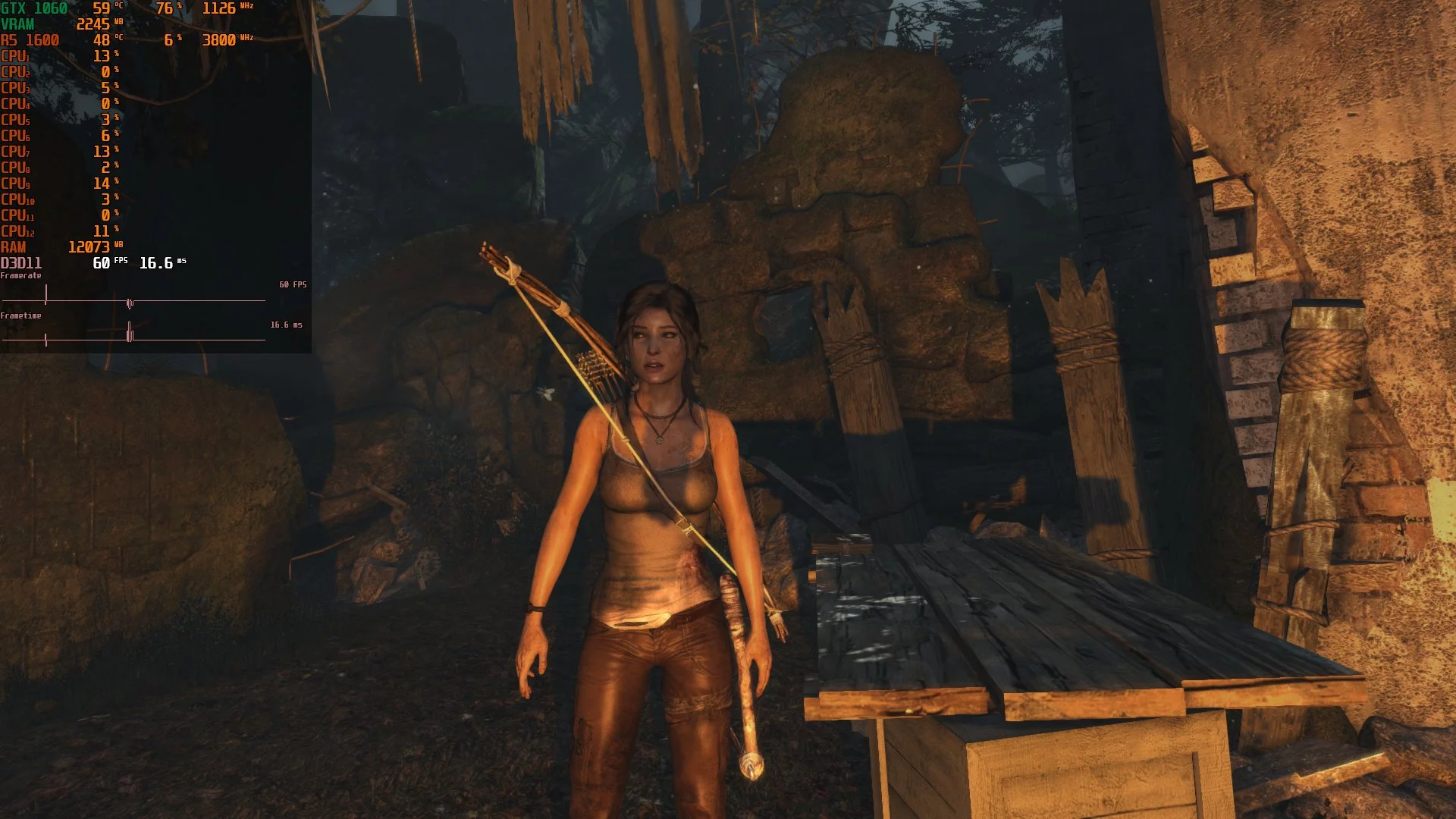
The first things to check are frame rate and frame time. If you have a 60 FPS cap, for example, and the graphics card easily holds that limit, there is nothing to worry about. The same applies to enabled V-Sync, G-Sync, FreeSync, VRR, or an FPS limit in the driver.
To check whether the graphics card can be loaded more heavily, temporarily remove the FPS limit, disable V-Sync, or raise the resolution and graphics settings. If GPU usage increases, the graphics card is fine. But if the GPU is still underused, FPS is low, and the game stutters, something is wrong.
Why the GPU Is Not at 100% and What to Do
If the graphics card is underused and this is causing problems, you need to figure out why. The most common causes are a weak processor, an FPS limit, V-Sync, not enough RAM, not enough VRAM, a slow storage drive, power-saving mode, overheating, drivers, or poor game optimization. Let us go through the main reasons in more detail.

Weak CPU or CPU Bottleneck
There is a concept often called a CPU bottleneck. It is sometimes used too simplistically, but the actual problem of a processor not keeping up with a graphics card does exist. The same CPU can limit a graphics card at 1080p, but stop being the main bottleneck at 1440p or 4K, because higher resolutions shift more of the load to the GPU.
The important part is this: if the processor cannot prepare frames fast enough for the graphics card, the GPU will sit idle. In monitoring, this often looks like this: the graphics card is loaded at 50-80%, FPS is low or unstable, one or more CPU cores are maxed out, and frame time jumps around.
It is also worth checking the CPU temperature. We explained how to do this in a detailed guide. The CPU may be overheating, lowering its clock speeds, and failing to keep up with the game as a result. In that case, clean the cooling system, replace the thermal paste, check cooler mounting pressure, adjust fan curves, or improve case airflow.

Poor Optimization
If a game is poorly optimized, it can run badly even on powerful hardware. Low GPU usage in this case may come together with uneven frame time, stutters, shader compilation issues, a single CPU core bottleneck, or internal engine limitations.
If you are dealing with this kind of problem, try updating your graphics driver, installing game patches, verifying game files, and checking discussions on forums or Steam. Sometimes switching the API helps, for example between DirectX 11, DirectX 12, or Vulkan, if the game supports it. However, if the cause is the game's own code, no driver or Windows reinstall will fix it until the developers release a patch.
Other Issues
There may be other causes as well. The graphics card itself may be faulty, especially if you see artifacts, crashes, a black screen, overheating, or sudden clock speed drops. In this case, test it in other games, benchmarks, and stress tests, and if possible, in another PC. FurMark can be used to check heat and stability, but one stress test is not enough: some issues only appear in specific games.
You should also check power-saving modes, Windows settings, the graphics driver, FPS limits, V-Sync, and which graphics card the game is using. On laptops, a game may accidentally launch on integrated graphics instead of the dedicated GPU. Read more about this in our guides How to Optimize Windows 10 for Gaming and How to Set Up an NVIDIA Graphics Card for Gaming.
What to Do If You Do Not Have Enough VRAM
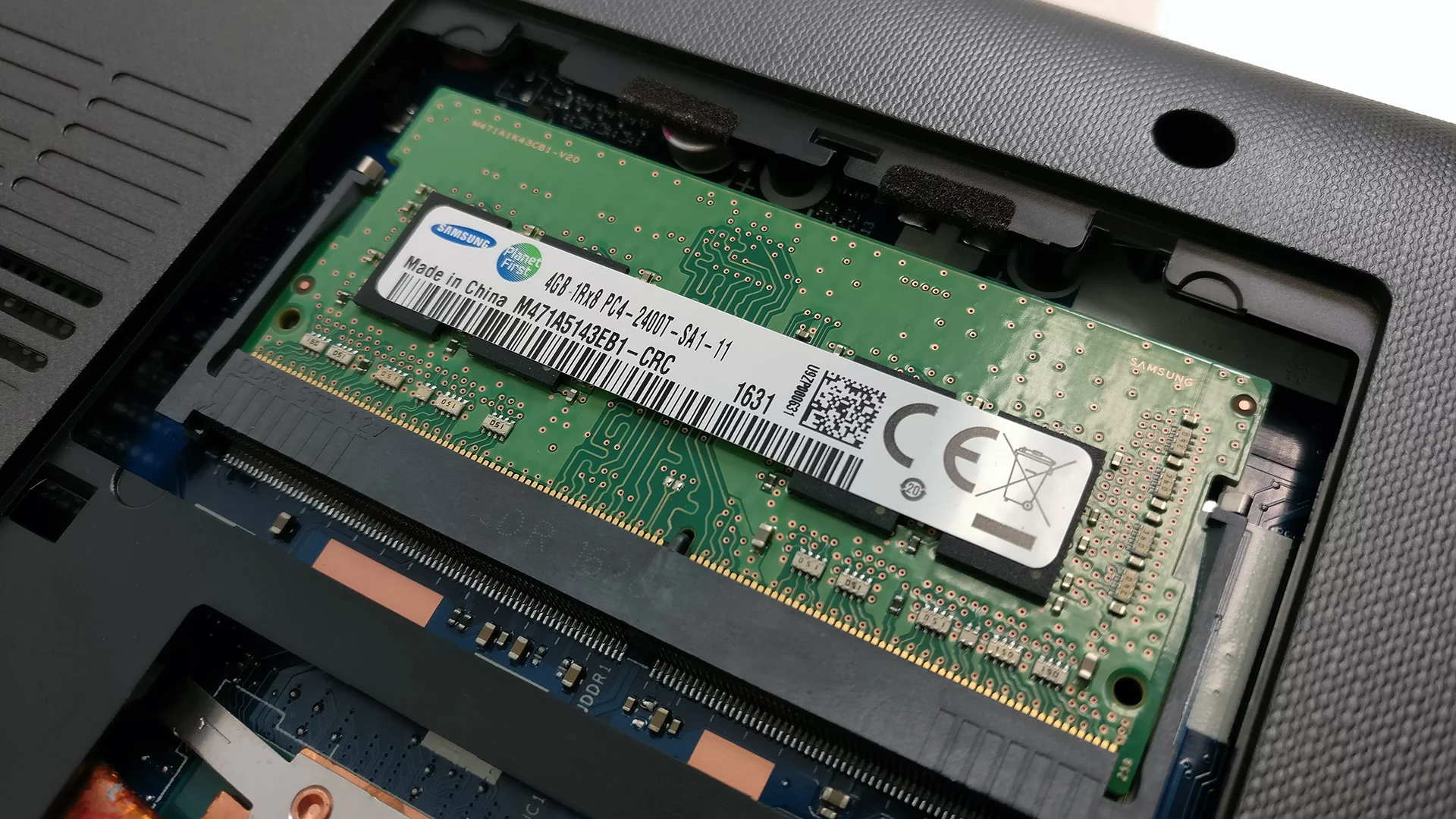
Low GPU usage and stutters can be caused not only by the processor, but also by a lack of VRAM. If a game fills up video memory, texture streaming issues, microstutters, sharp drops, and sometimes crashes can begin. This is especially common in modern games with high texture settings, ray tracing, and high resolutions.
Check VRAM usage in MSI Afterburner, HWiNFO, or the driver's built-in overlay. If VRAM is almost full, lower texture quality, resolution, ray tracing, draw distance, or disable heavy HD texture packs.
FAQ
Is It Normal for GPU Usage to Be at 100%?
If the graphics card is loaded in a game or a demanding application, then yes. It means the GPU is working at full power. If high usage persists while idle, that is suspicious: the system may be loaded by a miner, browser, recording software, overlay, or another background process.
Is It Normal for GPU Usage to Be Below 100%?
If FPS is high, frame time is stable, and there is an FPS limit, V-Sync, G-Sync, FreeSync, or VRR enabled, then yes. But if the game stutters while the graphics card is underused, you need to look for a bottleneck.
What Matters More: the Graphics Card or the Processor?
There is no single answer. Both the processor and graphics card matter in games, but their roles depend on the game, resolution, settings, and target FPS. At 4K, the graphics card is usually the main limit. At 1080p, in esports games, and in projects with many NPCs, the processor can be just as important. The key is balance: a very weak CPU will limit even a powerful graphics card, while a weak GPU will not let you play at high settings even if the CPU is good.
How Does the Graphics Card Affect Image Quality and Performance in Games?
The graphics card is responsible for resolution, anti-aliasing, texture quality, lighting, reflections, shadows, effects, ray tracing, and upscalers. The processor has a stronger impact on the number of objects, NPCs, physics, scripts, AI, world simulation, and maximum FPS in CPU-heavy scenes. If you want to play at 4K with high settings and ray tracing, the graphics card will usually be the main limit. If you want high FPS in a competitive game or dense crowds in an open world, the processor also matters.
-
 Your GPU Is Forza Horizon 6 Ready — NVIDIA Drops a New Driver
 -
 Updated Your AMD Driver? Make Sure Your GPU Fans Haven't "Died" After the Screen Turns Off
 -
 Scammers Have Gotten To The RTX 5090: Top-Tier GPUs Are Being Mass-Converted Into "Dummies"
 -
 How to Check if Your GPU Supports DLSS and FSR
 -
 All Elden Ring Endings Explained: How to Get Every Ending and Which Is Best