
MechWarrior 5: Mercenaries is a sci-fi action game with a first-person view. The game will take you to a sci-fi universe where several factions fight each other for... Read more
Industrial Reshade

-
1576238623_industrial_reshade_1_0_02_1576166072.zipDownload (4.19 kB)
Original title: Industrial Reshade
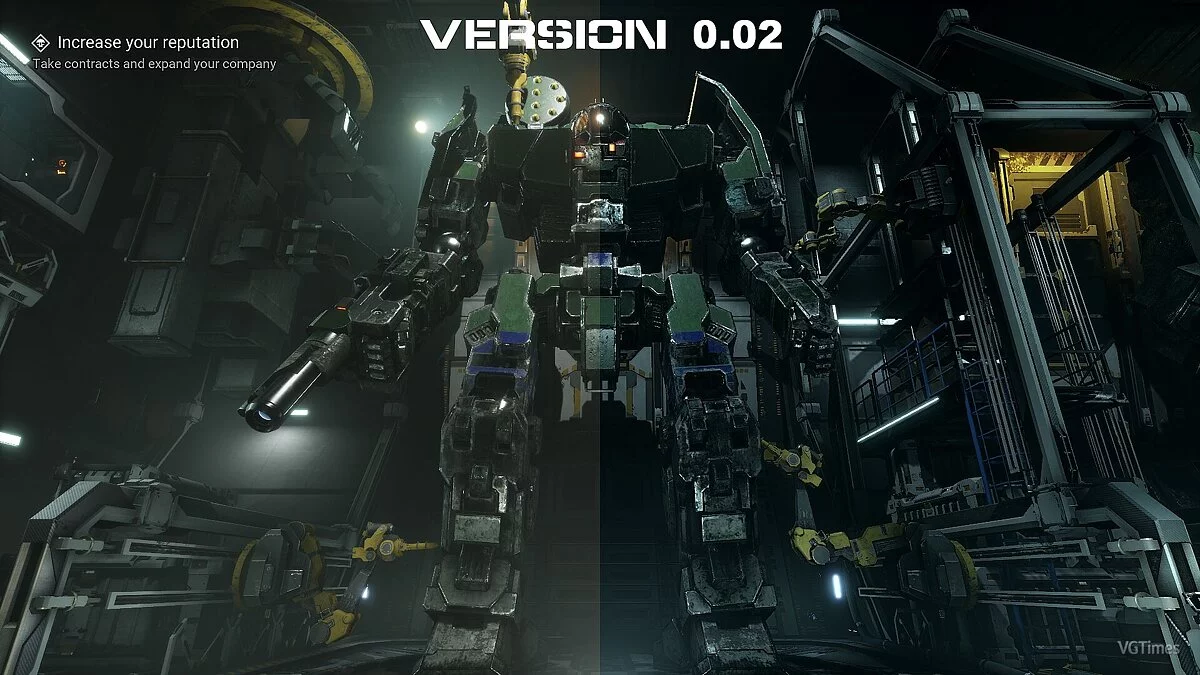
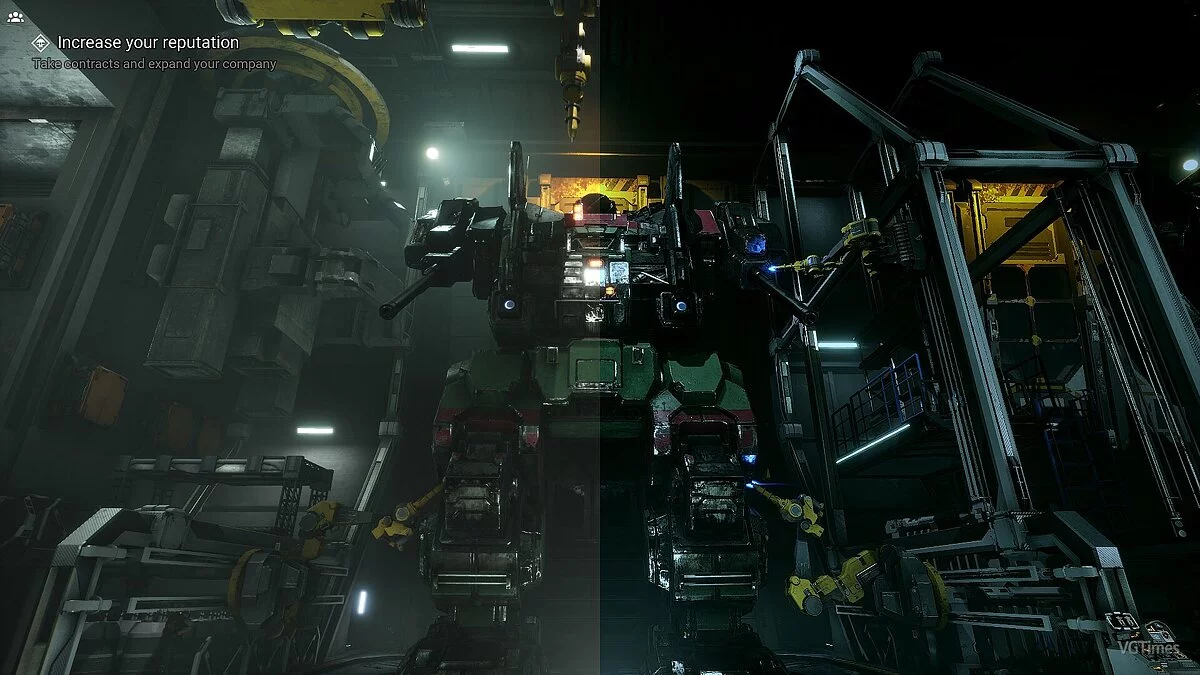
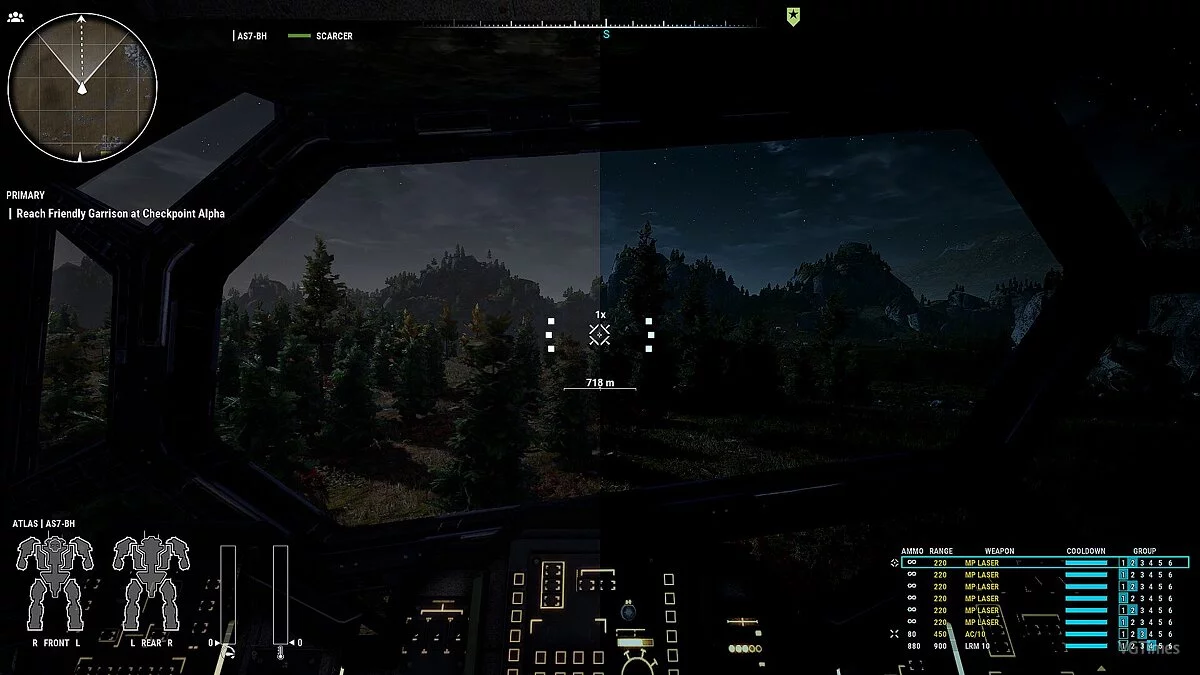
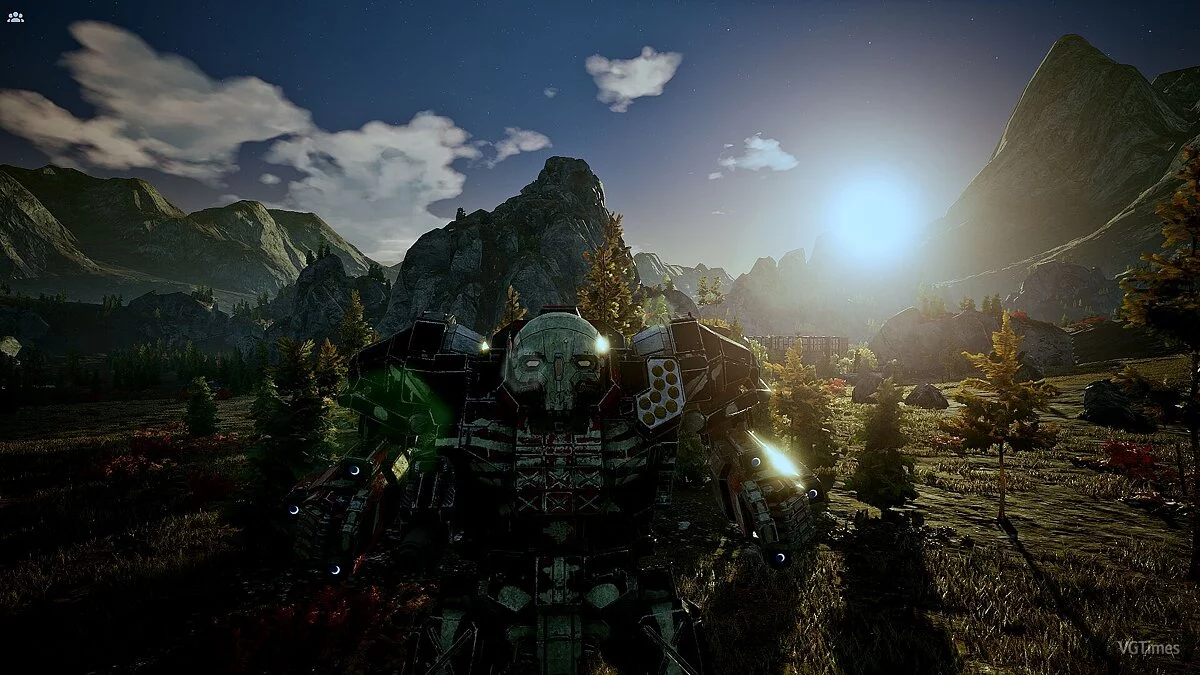
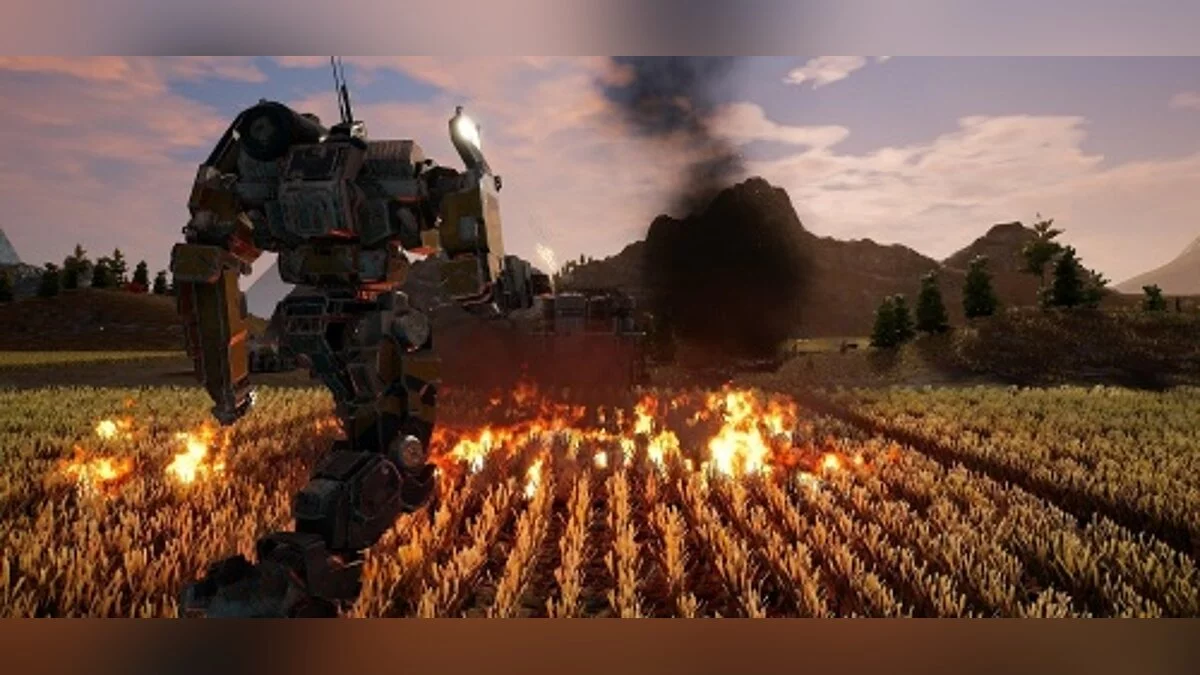
This is a graphics settings preset for MechWarrior 5: Mercenaries that changes the game's color palette to a more "grimy" tone. The reshade adds deeper shadows, darker blacks, and replaces the vibrancy of some colors with a grayer variant.
Requirements: ReShade
Installation:
1) Extract the archive to the game folder
2) Run the ReShade installer and select the game's .exe file
3) Choose the game API — this is DX10 +
4) ReShade will prompt you to download .fx files, select all and click "OK" to download and install them
5) After successful installation, close the program
6) Launch the game and open the ReShade menu by pressing the Home (pos1) key on your keyboard. Then click the dropdown arrow to open the dropdown menu and select the file "LUT.fx" from the list. If you do not see the file in the list, you will need to add it manually by pressing the + key next to the dropdown arrow, then enter the full name of the file, for example: LUT.fx, and press Enter.
To close the ReShade menu, press the Home (pos1) key on your keyboard.
Оригинальное название: Industrial Reshade
Пресет графических настроек дляMechWarrior 5: Mercenaries изменяет цветовую гамму игры на более "грязный" оттенок. Решейд добавляет углубленные тени, более темные цвета черного цвета и и заменяет цветность некоторых оттенков на более серый вариант.
Требования: ReShade
Установка:
1) Распакуйте архив в папку с игрой
2) Запустите установщик ReShade и выберите файл .exe игры
3) Выберите API игры — это DX10 +
4) ReShade запросит скачивание .fx файлов, выберите все и нажмите «ОК», чтобы загрузить их и установить
5) После успешной установки закройте программу
6) Запустите игру и откройте меню ReShade, нажав клавишу Home (pos1) на клавиатуре. Далее нажмите стрелку раскрывающегося списка, чтобы открыть раскрывающееся меню, и выберите файл «LUT.fx из списка. Если вы не видите файл в списке, вам придется добавить его вручную, нажав клавишу + рядом со стрелкой раскрывающегося списка, а затем введите полное имя файла, например: LUT.fx, и нажмите Enter.
Чтобы закрыть меню ReShade, нажмите клавишу Home (pos1) на клавиатуре
Useful links:
![MechWarrior 5: Mercenaries — Trainer (+15) [1.0 - 1.1.286]](https://files.vgtimes.com/download/posts/2021-05/thumbs/1622369513_vypsewjnzgbpj4lmnetd-q.webp)
![MechWarrior 5: Mercenaries — Trainer (+9) dated 14.02.2020 [WeMod]](https://files.vgtimes.com/download/posts/2020-02/thumbs/1581701494_2020-02-14_202913.webp)
![MechWarrior 5: Mercenaries — Cheat Engine Table [UPD: 06.02.2021]](https://files.vgtimes.com/download/posts/2021-06/thumbs/1622722481_featured-carousel-1920x1080-1920x1080-a2238016961c.webp)
![MechWarrior 5: Mercenaries — Cheat Engine Table [UPD: 04.06.2021]](https://files.vgtimes.com/download/posts/2021-06/thumbs/1622885135_diesel_product_mechwarrior-5_home_carousel-img-2-1920x1080-d38ec244522846e118d2e9aefaf733363ce064eb.webp)
![MechWarrior 5: Mercenaries — Trainer (+9) from 29.07.2022 [WeMod]](https://files.vgtimes.com/download/posts/2022-07/thumbs/1659089447_2022-07-29_130947.webp)
![MechWarrior 5: Mercenaries — Trainer (+9) from 03.11.2023 [WeMod]](https://files.vgtimes.com/download/posts/2023-03/thumbs/trejjner-9-ot-11-03-2023-wemod_1679568003_700556.webp)
![MechWarrior 5: Mercenaries — Cheat Engine Table [UPD: 18.12.2019]](https://files.vgtimes.com/download/posts/2019-12/thumbs/1576640539_1576640488_830.webp)