Third-person horror with survival and adventure elements Silent Hill 2 is a remake of the cult classic from 2001. The new game largely follows the canon... Read more

Optimized Settings and FSR 3 Frame Generation
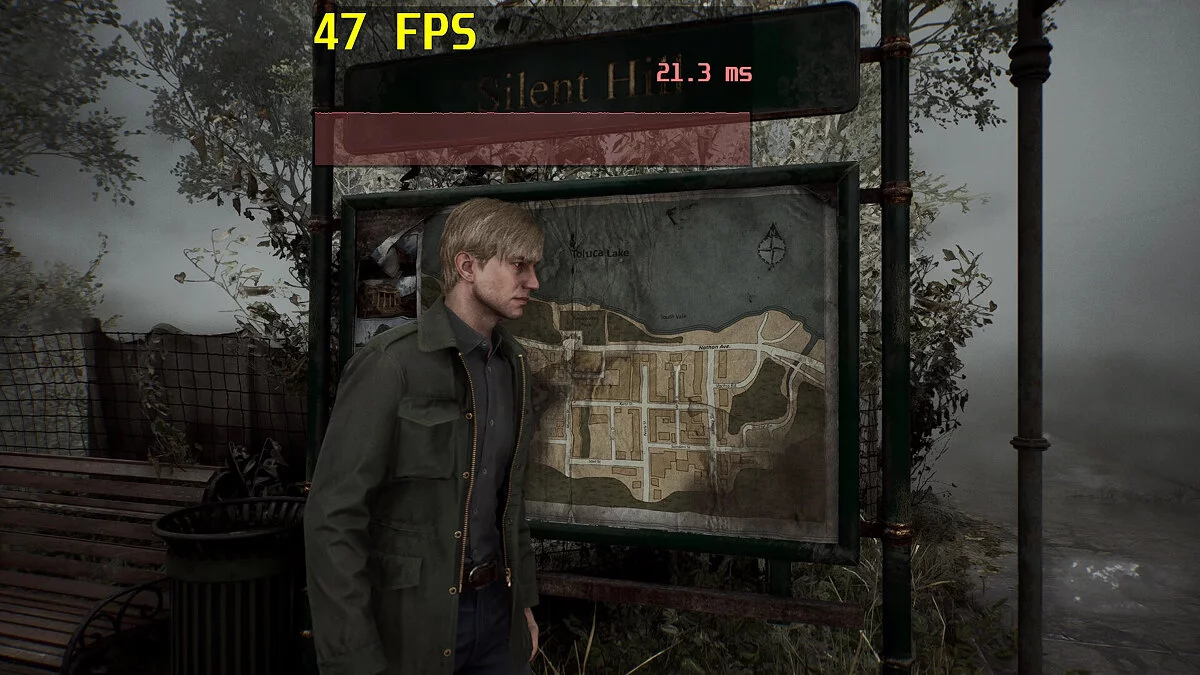
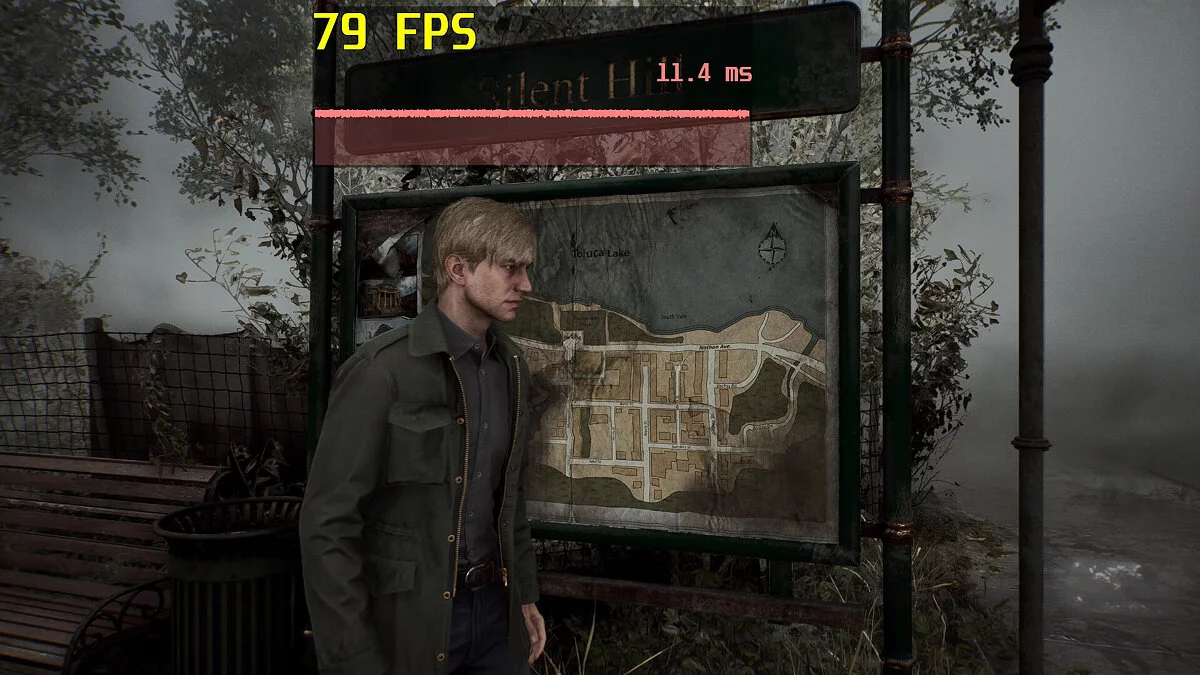

-
Download (1.54 kB)October 18, 2024, 03:40 PMOptimized Tweaks and FSR 3 Frame Generationoptimizirovannye-nastrojjki-i_1729255208_437184.zip
-
Download (1.05 kB)October 18, 2024, 03:40 PMТолько генерация кадров FSR 3optimizirovannye-nastrojjki-i_1729255208_279302.zip
-
Download (1.52 kB)October 18, 2024, 03:40 PMТолько оптимизированные настройкиoptimizirovannye-nastrojjki-i_1729255208_402631.zip
-
Download (1.48 kB)October 18, 2024, 03:40 PMОтключение хром. аберрации и/или других эффектовoptimizirovannye-nastrojjki-i_1729255208_374117.zip
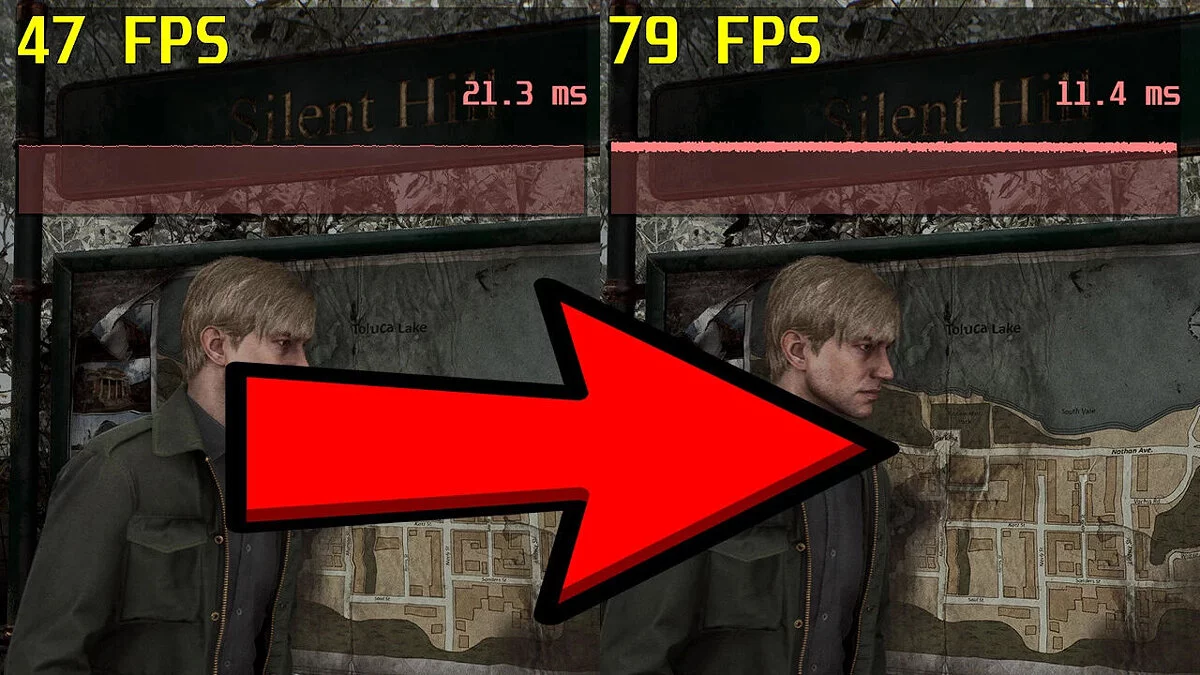
In this file, you will find enhanced graphics settings for the remaster of Silent Hill 2, which will help improve performance and ensure smooth FPS. Additionally, the file includes FSR 3 Frame Generation technology, which reduces system load without sacrificing visual quality and minimizes stuttering.
Installation:
- Download one of the necessary files
- Extract the archive and move the Engine.ini file to C:/Users/YourUserName/AppData/Local/SilentHill2/Saved/Config/Windows and replace the original.
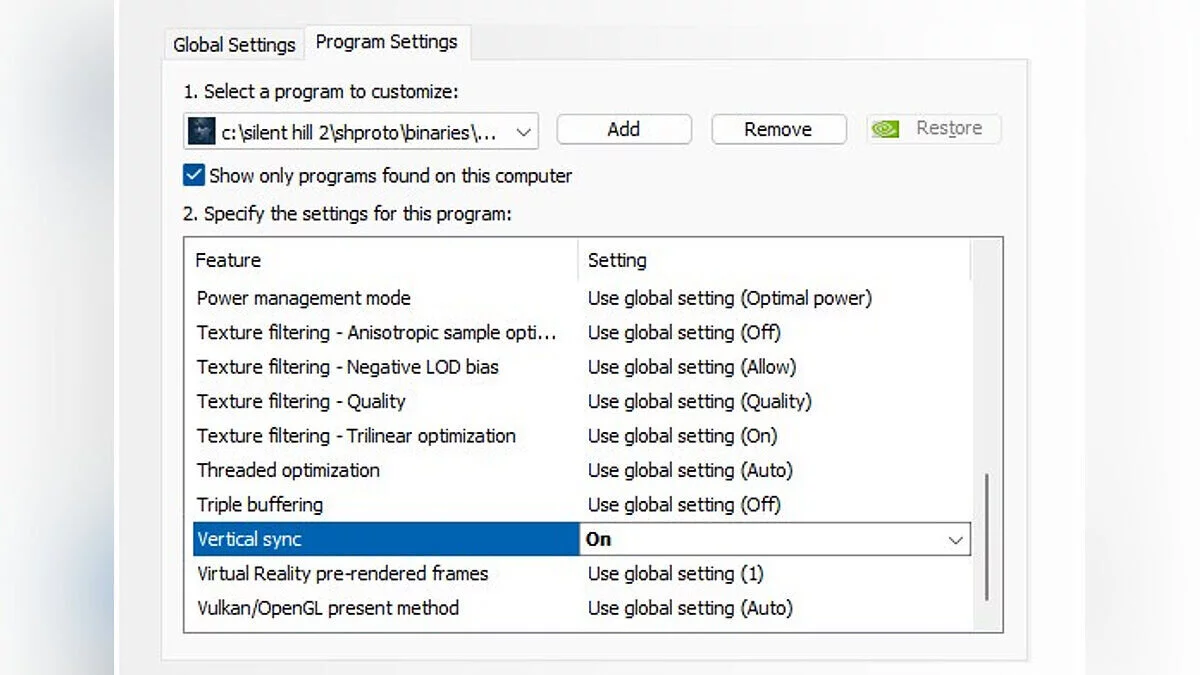
- If you are using Vsync, enable it in the NVIDIA Control Panel (or AMD Control Panel):
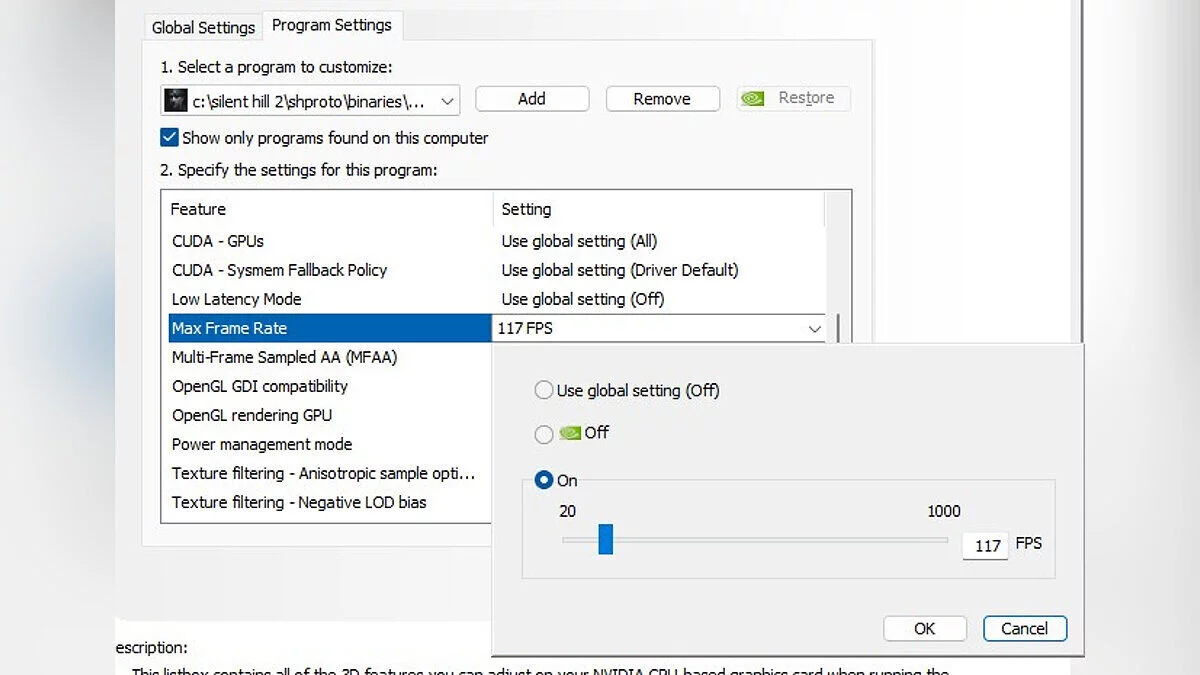
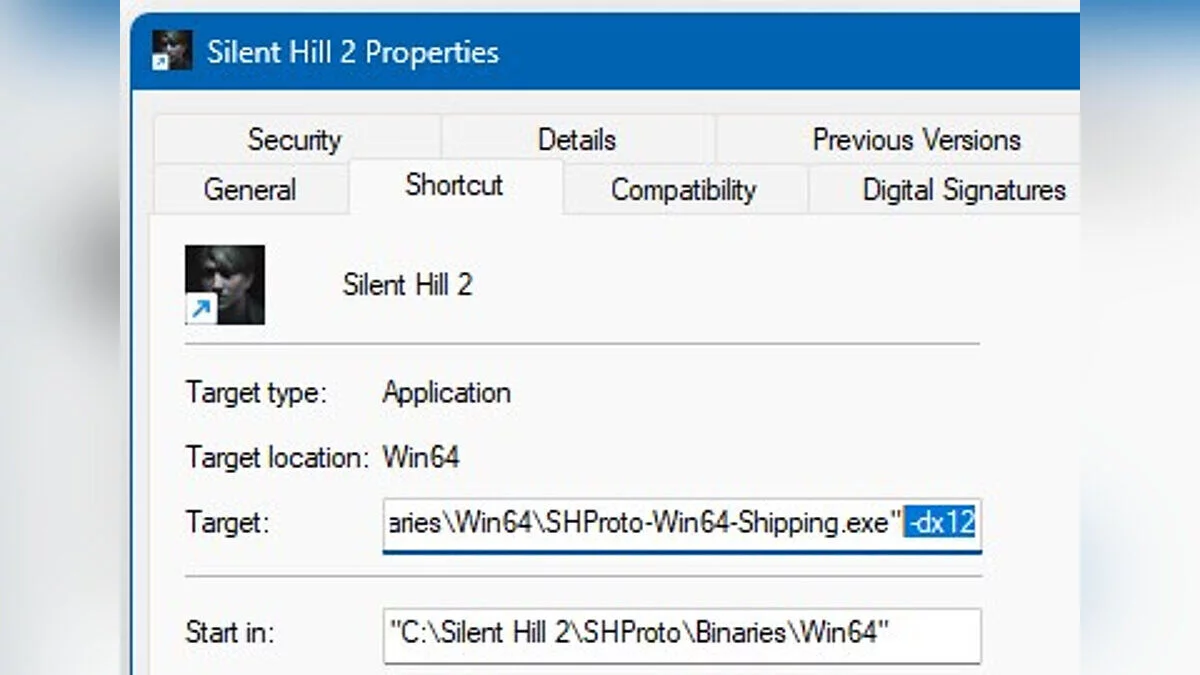
If you are not using Vsync, limit the FPS in the NVIDIA Control Panel or RivaTuner (or AMD Control Panel): - Make sure the game runs in DirectX 12 mode by adding the -dx12 launch parameter to the game shortcut or through the launch options in Steam
- Launch the game, go to graphics settings, and set FPS to Unlimited, Vsync to Off, and scaling mode to FSR 3.0.
В этом файле вы найдёте улучшенные настройки графики для ремастера Silent Hill 2, которые помогут повысить производительность и обеспечить плавный FPS. Кроме того, в файл включены технологии FSR 3 Frame Generation, которые позволяют снизить нагрузку на систему без потери визуального качества и уменьшить заикания.
Установка:
- Скачать один из необходимых вам файлов
- Распаковать архив и переместить файл Engine.ini в C:/Users/YourUserName/AppData/Local/SilentHill2/Saved/Config/Windows и заменить оригинальный.
- Если вы используете Vsync, включите его в Панели управления NVIDIA (или Панели управления AMD):
Если вы не используете Vsync, ограничьте fps в Панели управления NVIDIA или RivaTuner (или Панели управления AMD): - Убедитесь, что игра запускается в режиме DirectX 12, добавив параметр -dx12 в параметры запуска игры к ярлыку или через параметры запуска игры через Steam
- Запустите игру, перейдите в настройки графики и установите FPS на Неограниченно, Vsync на Выкл, а режим масштабирования на FSR 3.0.
Useful links:
![Silent Hill 2 — Trainer (+6) [1.1.236.114 / Update 07.10.2024]](https://files.vgtimes.com/download/posts/2024-10/thumbs/trejjner-6-1-1-236-114-update-07-10-2024_1730123306_477031.webp)