
It’s not uncommon to encounter a situation where the functionality of an app on Android phones is much broader than in its Windows version. Moreover, sometimes developers simply don’t port their projects to other platforms. In this guide, we’ll explain how you can install mobile programs on your computer.
Windows Phone Link
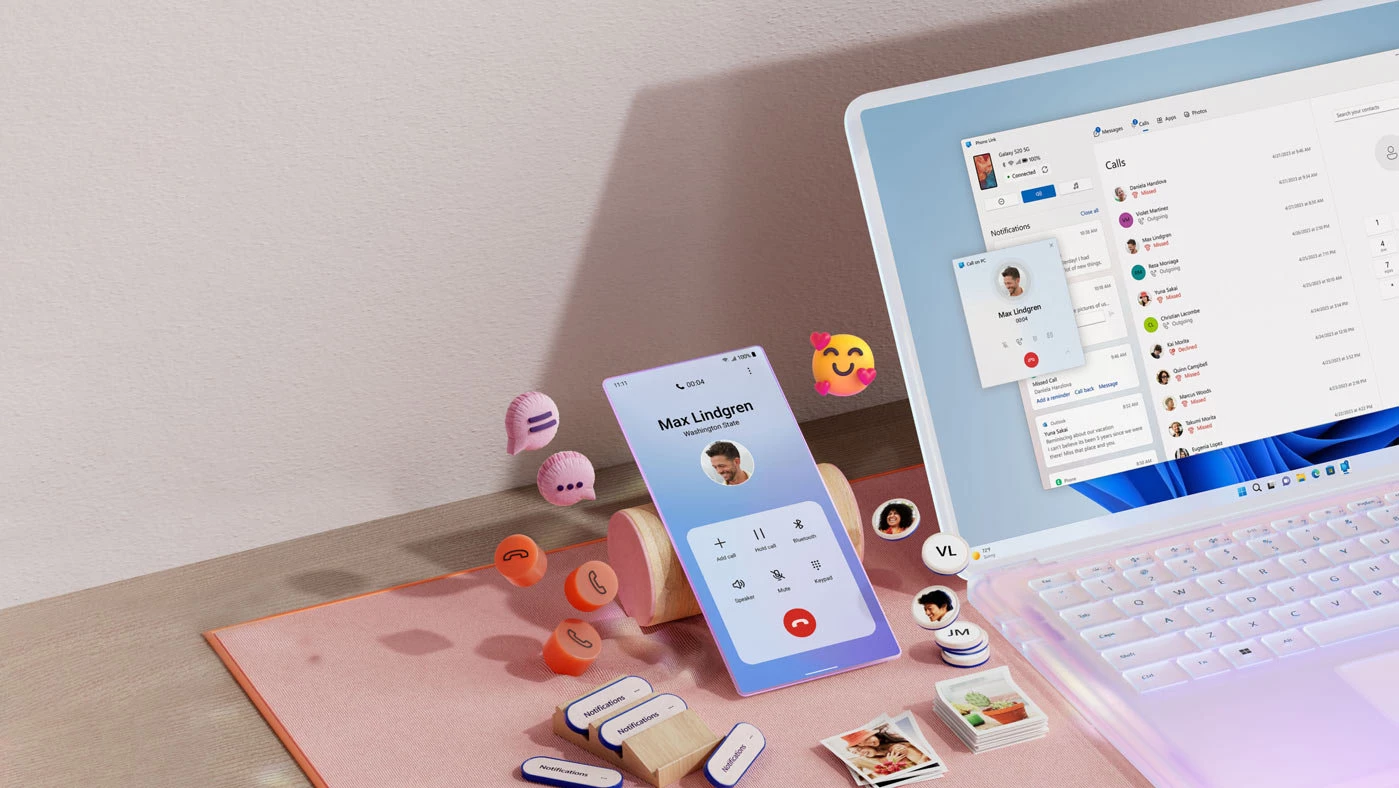
Connect your devices using the official Windows Phone Link app. It allows you to receive phone notifications, respond to them, answer calls, and view photos. This way, you get full access to another gadget and its apps, which can even be pinned to the taskbar.
For a stable connection, you only need to connect both devices to the same Wi-Fi network, as well as have an operating system update released after Windows 10 in May 2019, and Android 9.0 or higher. Don’t forget to download Windows Phone Link for your phone.
Third-Party Emulators
Unlike the previous method, these utilities launch individual apps or entire operating system models. Note that this option is not recommended for gaining progress in online games, as developers may ban your account for using an emulator.
Bluestack
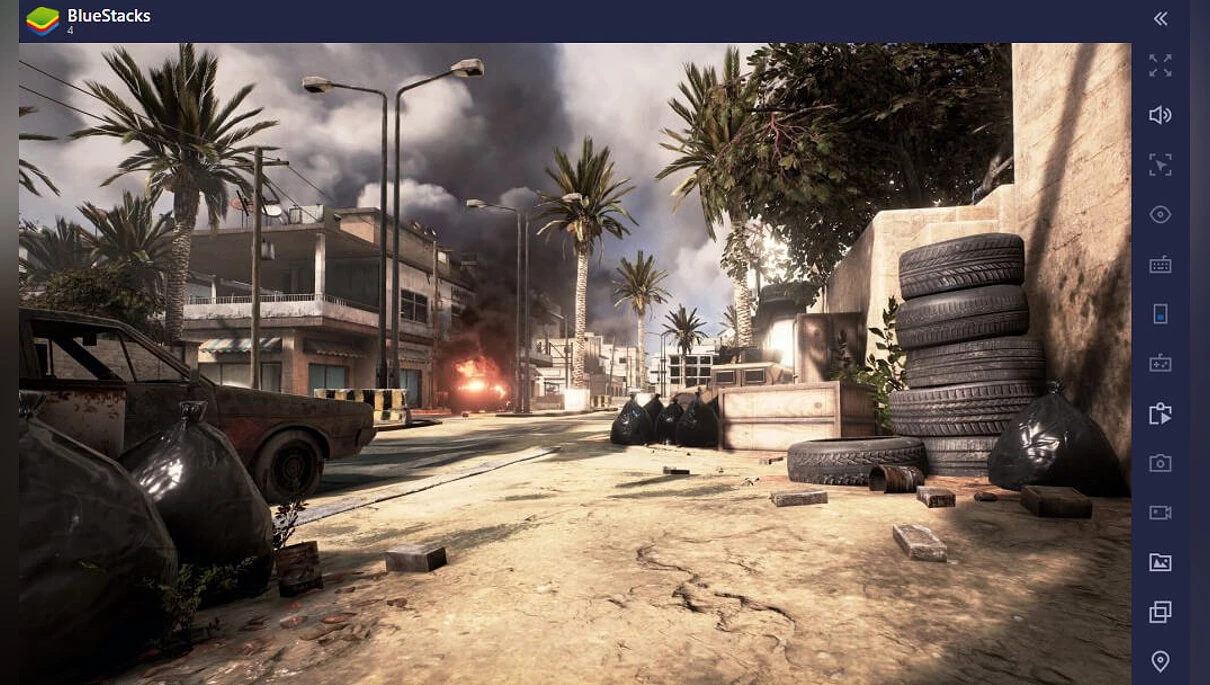
One of the most well-known examples, available for download at this link. It even allows you to remap keys, adjust your computer’s power consumption, and doesn’t require deploying a full OS model, but simply launches the desired apps from the built-in store.
Genymotion
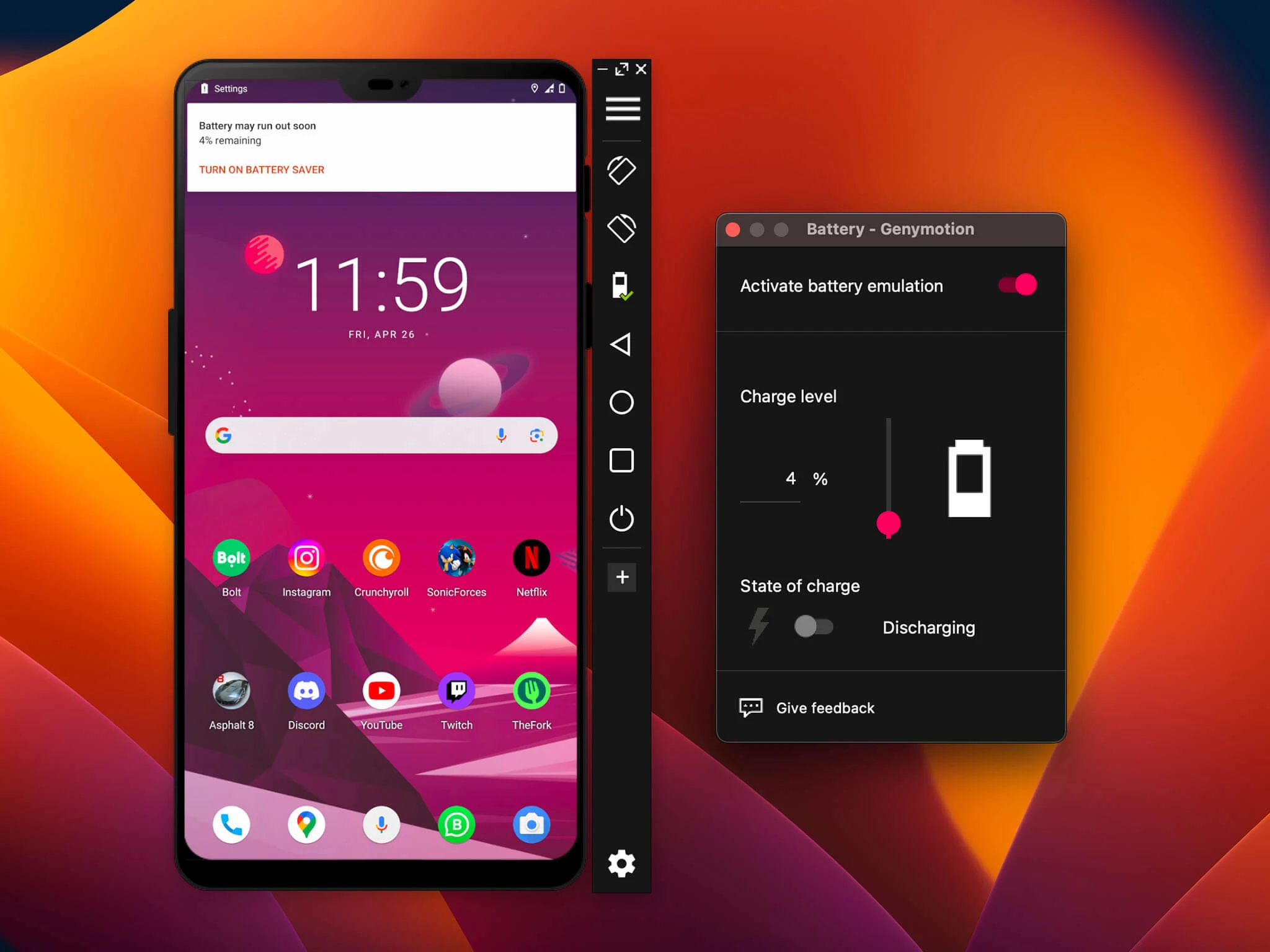
This project supports emulating a full operating system, extensive customization, and allows you to dive deeper into its technical structure. In addition, it offers both a paid version and free use. You can find it at this link.
Google Play Games
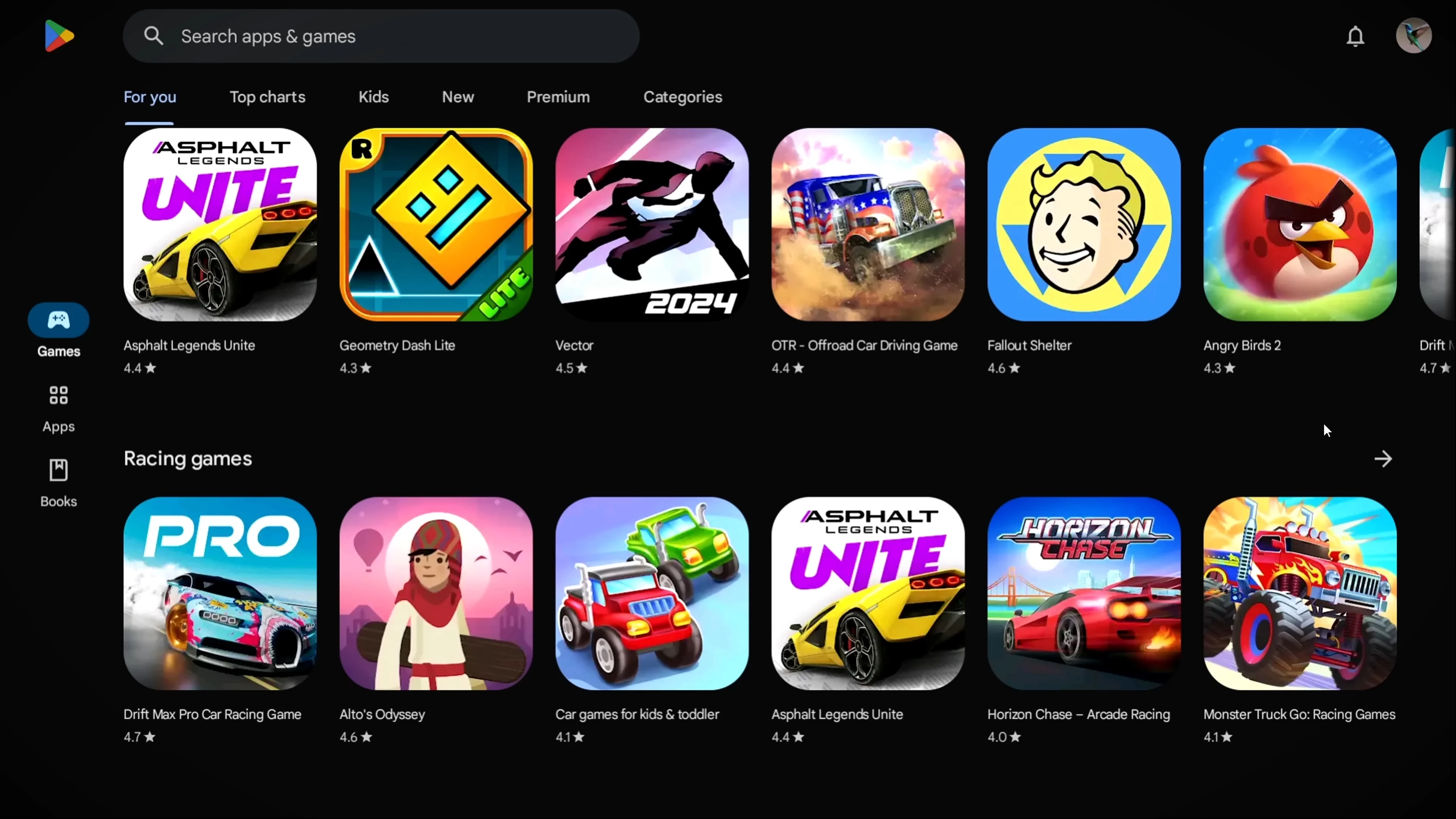
A special app from Google that allows you to install and use certain mobile games optimized for PC. One of the advantages: in many programs, cloud saving will be available for transferring progress between devices. The beta version can be downloaded from the official website.

-
 Google Rolls Out Android 16: Enhanced Notifications, Security Boost & Tablet Tweaks
 -
 Windows 11 Tests New Feature to Reduce CPU Strain During Idle Time
 -
 From Phone to PC: Windows 11 to Sync Apps in Real Time
 -
 All Elden Ring Endings Explained: How to Get Every Ending and Which Is Best
 -
 Valheim Save File Location: Where to Find Your Saves
 -
 Valheim Materials Guide: Where to Find Every Crafting Resource