
Grounded 2 — Best Graphics Settings and Optimization Guide
 Vladyslav Shamshurov
Grounded 2 has been released in early access and, as expected, received a lot of negative feedback, including criticism for its poor optimization. Have you already guessed which engine is under the hood of Obsidian's project? Of course, it’s Unreal Engine 5! Lags, stuttering, sudden frame drops, and screen tearing — a classic set that comes with Early Access. In this guide, we’ll help you choose the best graphics settings for Grounded 2 so you can survive more comfortably in the micro-world. By following our recommendations, gamers will be able to overcome most issues and enjoy a pleasant visual experience.
What are the system requirements for Grounded 2
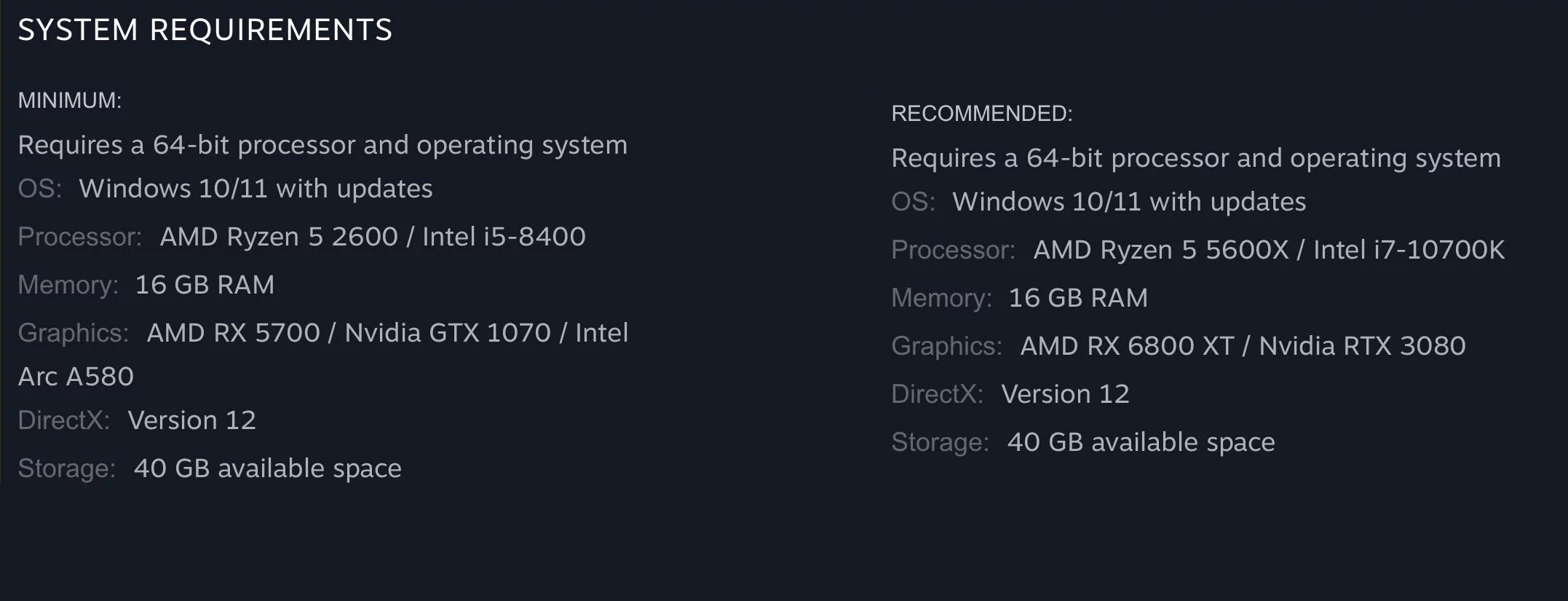
Below are the recommended system requirements from the developers. Unlike the previous part, Grounded 2 is extremely demanding on powerful hardware, and older PC builds are unlikely to handle the graphics even on minimum settings. Fortunately, the project doesn’t require the very top lines of video cards and processors. You just need at least 16 GB of RAM. It’s also important to note: AMD RX 5700 and Nvidia GTX 1070 video cards, listed in the minimum requirements, are barely capable of running the project in FHD resolution. We recommend upgrading to at least an RTX 3060 or 4060 to be able to use DLSS.
Best graphics settings in Grounded 2
Unlike most games released on Unreal Engine 5, Grounded 2 does not offer a flexible graphics settings system. This drawback deprives users of the opportunity to find the perfect balance between visuals and performance. However, there are a couple of tricks that will allow you to manually adjust parameters and disable unnecessary graphical overlays that significantly affect your FPS.
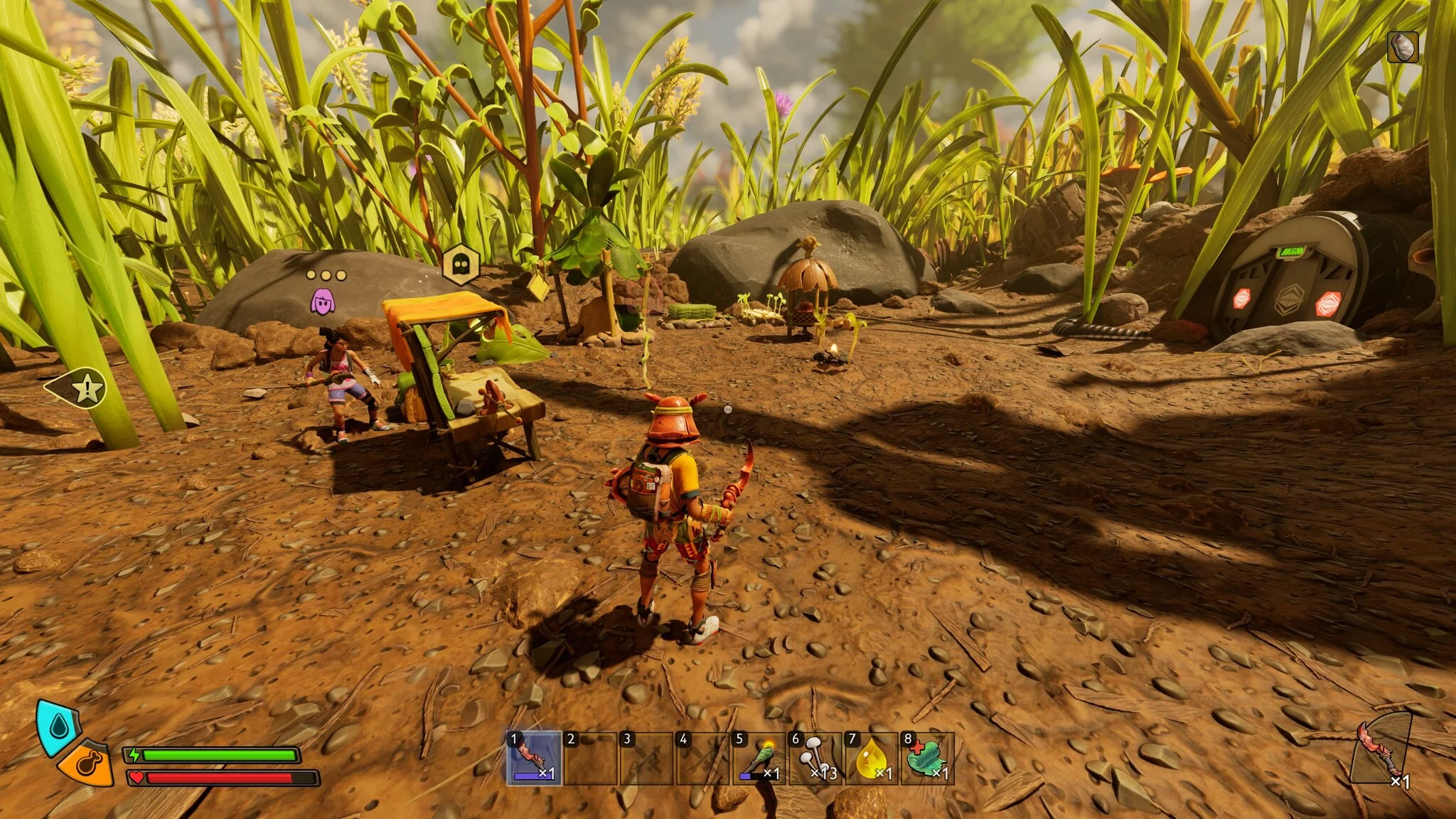
Window Mode: We recommend setting it to Borderless Fullscreen. However, if you experience stuttering and screen tearing during gameplay, select Fullscreen.
Resolution: Set your native resolution. Do not lower the resolution for the sake of performance. The image will become blurry and torn, which will significantly affect your gameplay experience.
Render Scale: This setting directly affects image quality and FPS. First, set it to 100% to visually assess the image and performance. If you have less than 60 FPS, then adjust the slider: 1080p — 80%, 1440p — 65%, 4k — 50%. This way, you’ll get a less sharp image but lighten the load on your GPU. After that, open the AMD or Nvidia control panel and increase the game’s sharpness setting to 40% to get rid of the blurry image.
Quality: confidently set it to Medium. The quality of models and textures will still be better than on Xbox consoles. You won’t even notice the difference compared to High, and the performance boost will be huge.
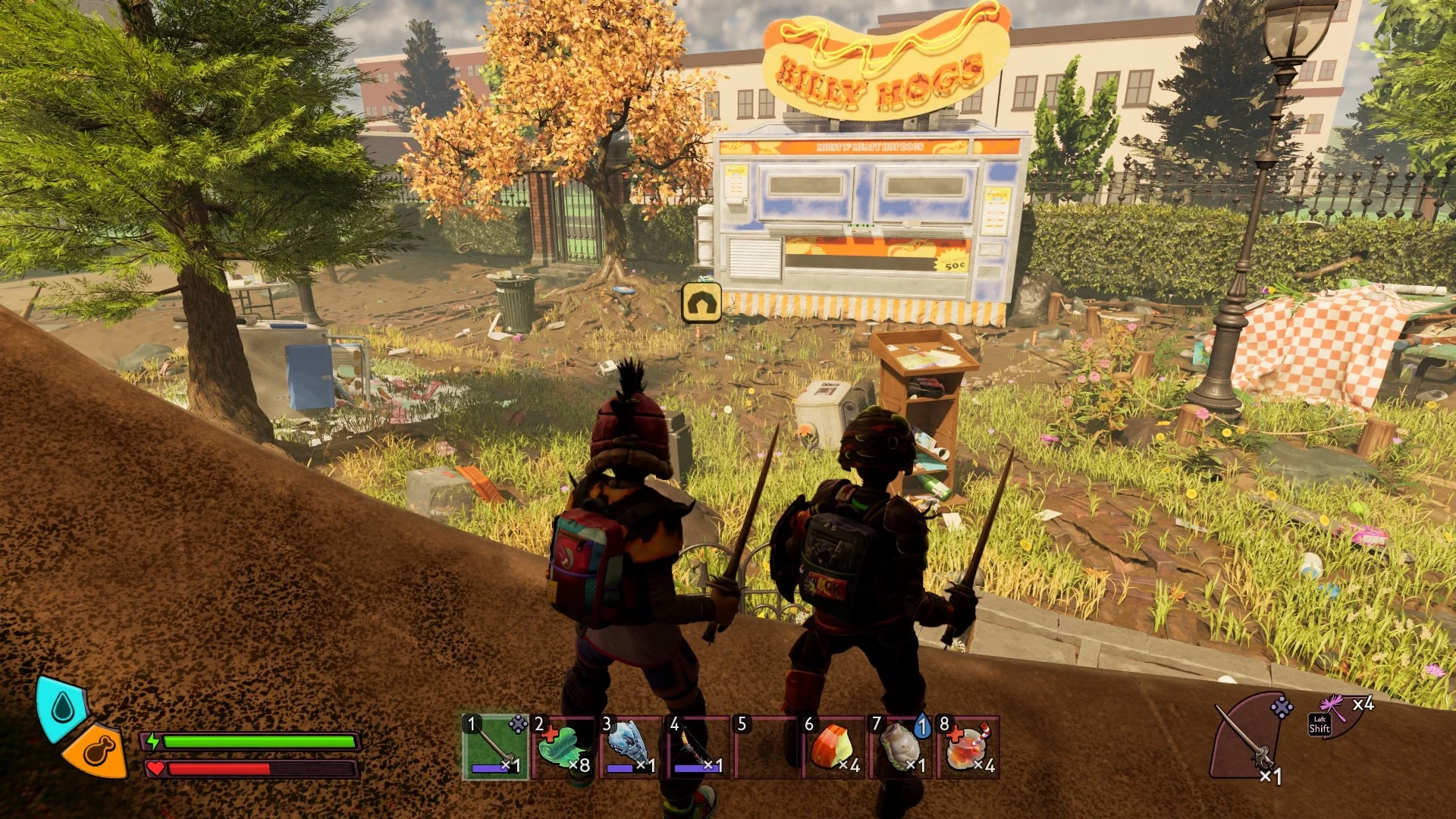
Frame Rate Limit: choose Unlimited. If your monitor does not support 144 Hz, then set it to 60 or 120 FPS.
Depth of Field: choose at your discretion. The depth of field setting does not affect performance.
V-Sync: select Off if your monitor can display more than 60 frames. If not, then be sure to enable this option.

Motion Blur: another useless option that should be turned off by default if you play without a gamepad. Select Off and move on.
Chromatic Aberration: this setting does not affect performance. However, if you are using Render Scale, we strongly recommend disabling aberrations to avoid excessive blurriness.
Field of View: do not set values higher than 80–90. A higher FOV affects overall performance.
Additional graphics settings for Grounded 2 via Config
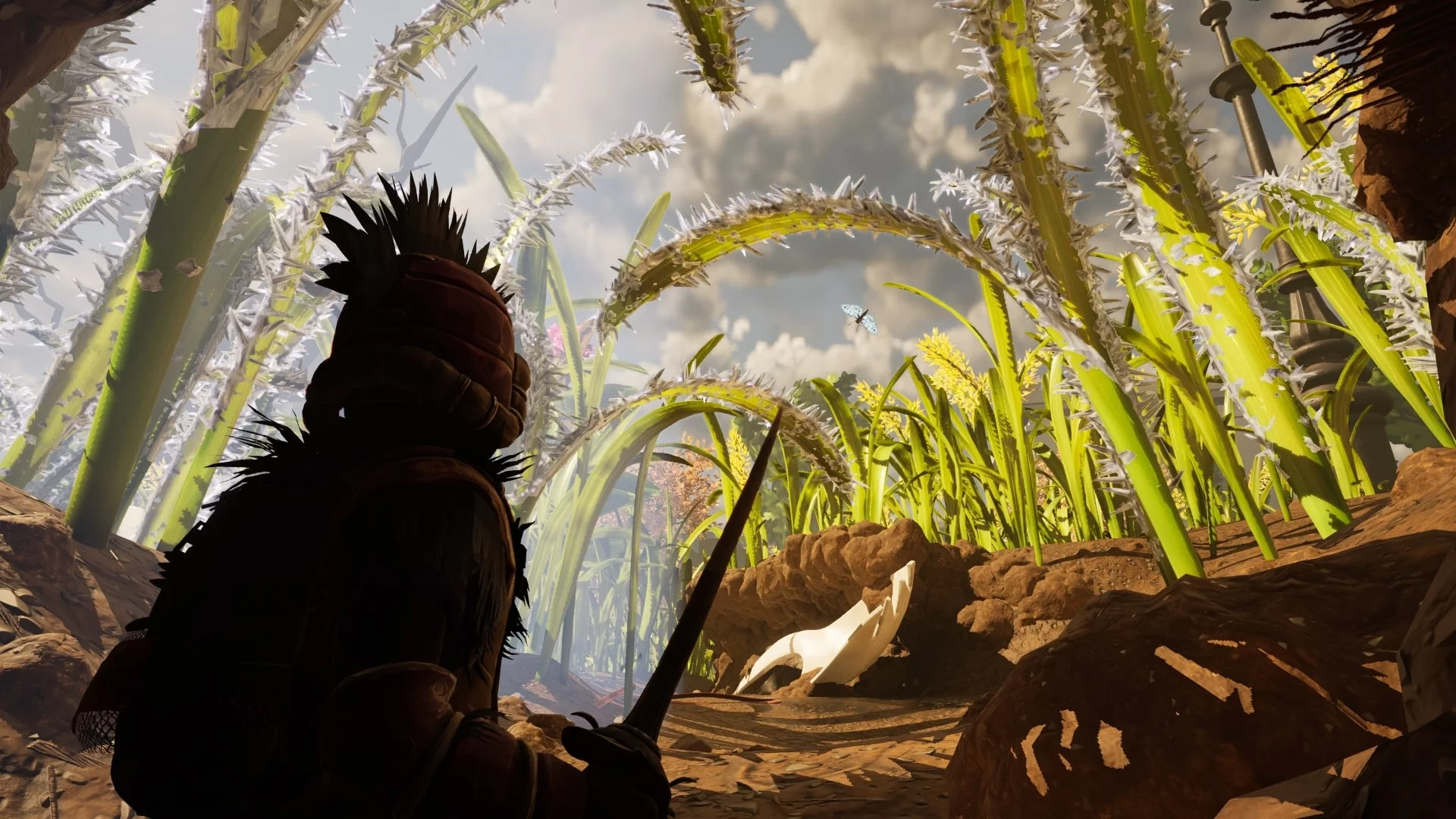
Unfortunately, only one option in the graphics settings allows you to adjust image quality to your liking. Fortunately, we are already well acquainted with Unreal Engine projects and know how to improve performance and get more options using the Config file.
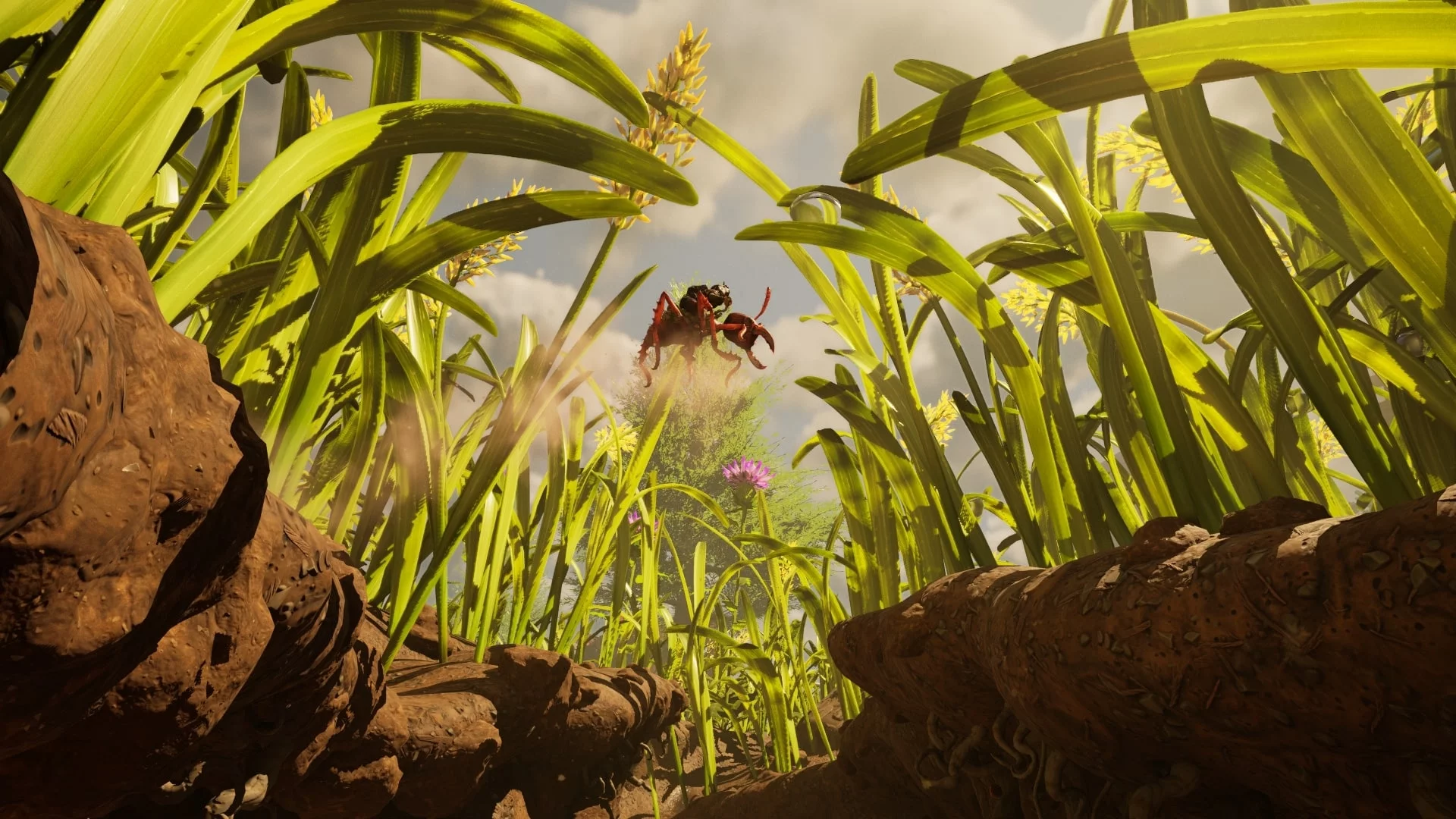
Where is the Grounded 2 Config file located
To access the Config file, you need to go to the save folder, which is located at:
%LocalAppData%\Augusta\Saved\Config\
To avoid digging through the system for a long time and open the desired folder in two clicks, press Win + R, paste the address into the empty line, and press Enter.
If this folder is not on your PC, it means you copied the address incorrectly or have not launched the game. To make the config appear, you must launch Grounded 2 at least once. If you purchased the game on Steam, the Windows folder will appear. For Xbox Game Pass, there will be a WinGDK folder. In other cases — WinGRTS.
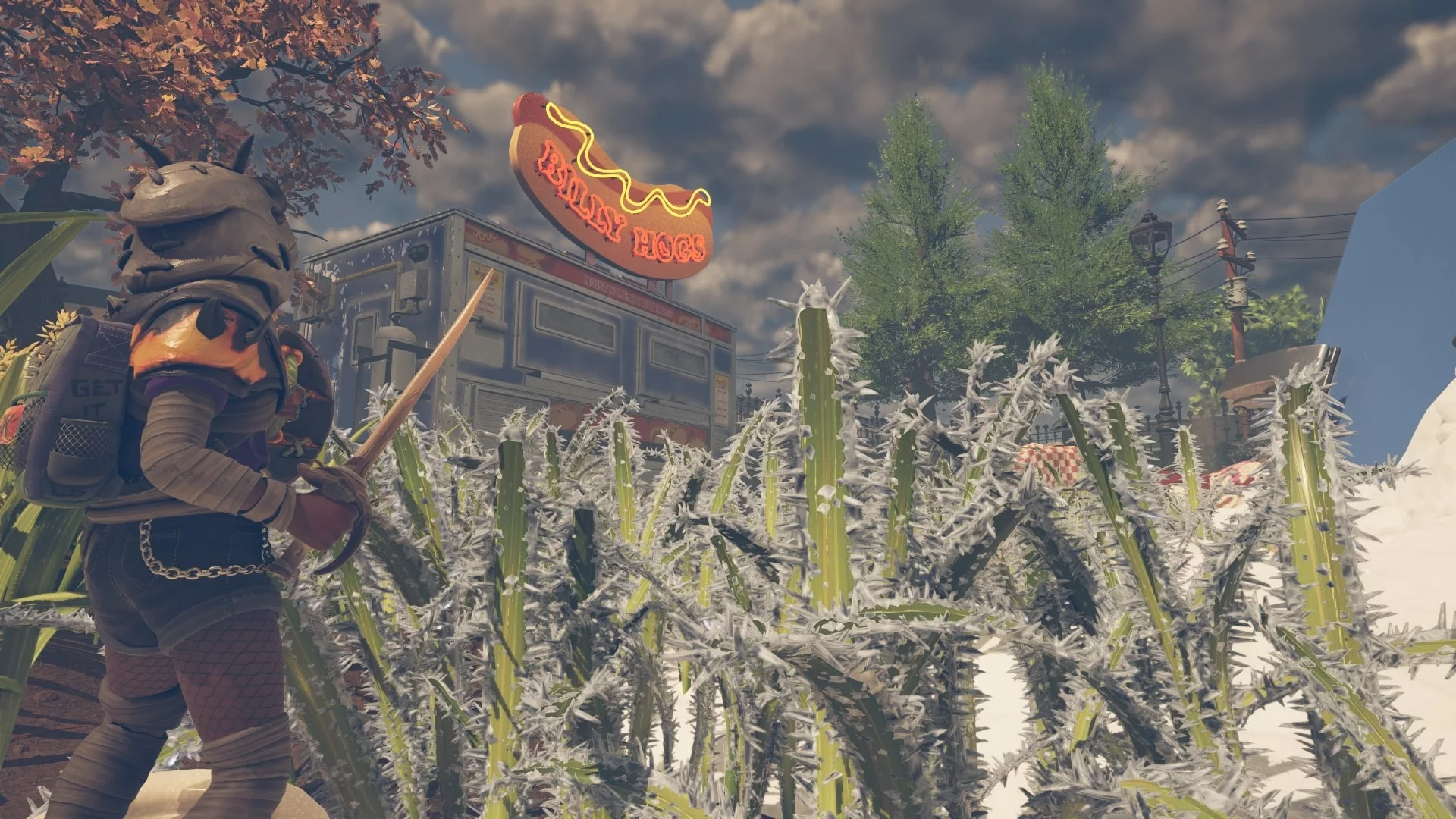
Settings to increase FPS in Grounded 2
In the configuration folder, there is a file called GameUserSettings.ini, which contains detailed graphics settings. However, since Grounded 2 is in early access, changing the parameters in this file does not affect the image quality in the game itself. To bypass these limitations, we have to create a new file and write the necessary settings into it.
Create a text document (right-click → New → Text Document) in one of the following folders: WinGDK, WinGRTS, or Windows. Rename the file to Engine.ini. Before doing this, make sure that the "File name extensions" option is enabled in the folder settings (View tab) so you can remove the .txt extension from the name.
Open Engine.ini in Notepad or Notepad++ and paste the required text:
r.Lumen.DiffuseIndirect.Allow=0
r.Lumen.DiffuseIndirect.AsyncCompute=0
r.LumenScene.Lighting.AsyncCompute=0
r.Lumen.ScreenProbeGather.AsyncCompute=0
r.FilmGrain=0
r.EnableAsyncComputeVolumetricFog=0
Close the file, right-click on it → Properties and check the "Read-only" box. If you plan to edit the file later, don’t forget to uncheck this box so changes can be saved.
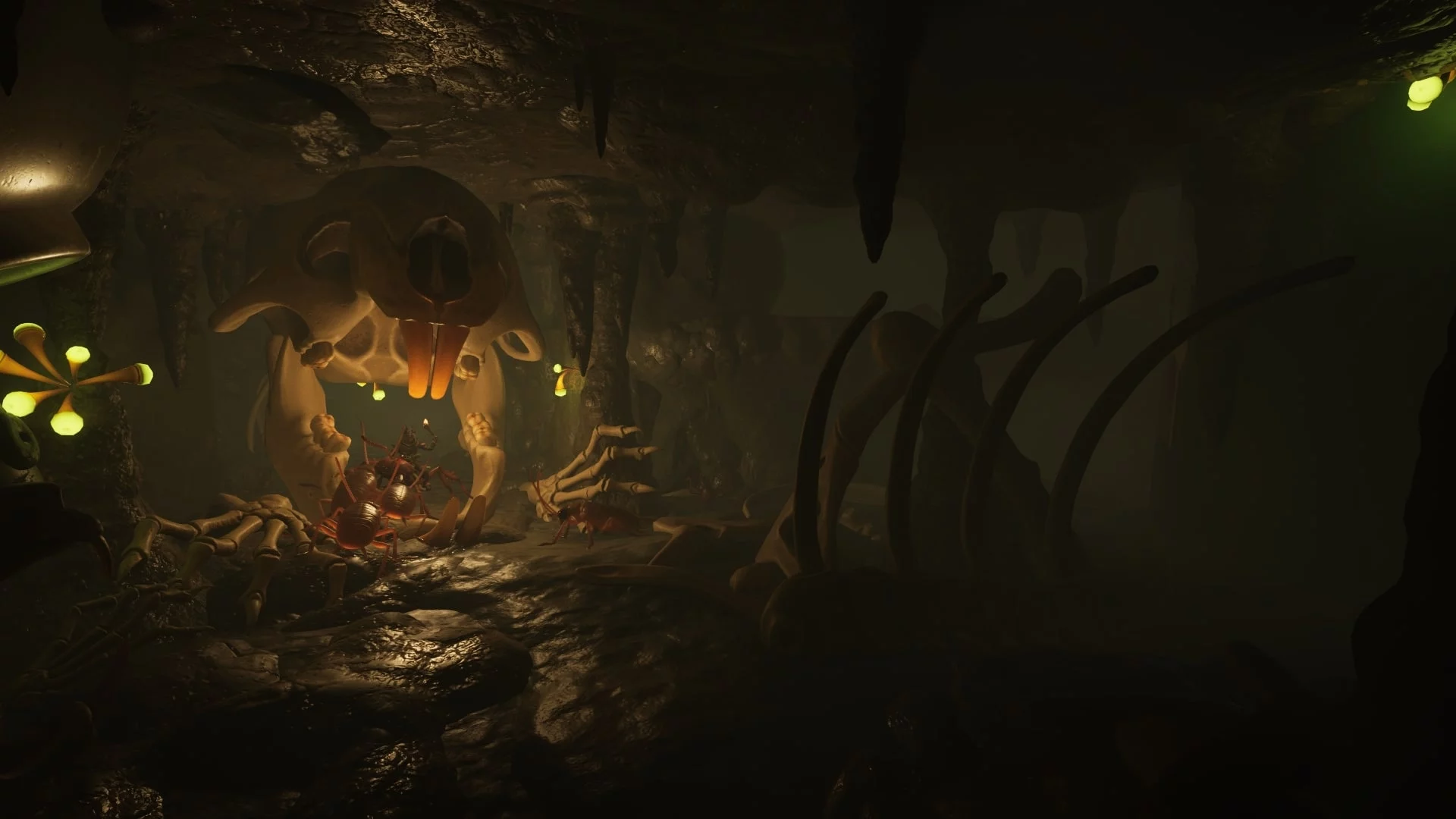
Additional settings in the Config file
If you still experience frame rate issues after disabling Lumen lighting, update the Engine.ini file and add the following text:
; Enable PSO Precaching to reduce stutters
r.pso.CreateOnRHIThread=true
r.PSOPrecaching=1
; Disable Lumen
r.Lumen.DiffuseIndirect.Allow=0
r.Lumen.DiffuseIndirect.AsyncCompute=0
r.LumenScene.Lighting.AsyncCompute=0
r.Lumen.ScreenProbeGather.AsyncCompute=0
r.FilmGrain=0
r.EnableAsyncComputeVolumetricFog=0
; Anti-Aliasing tweaks to reduce ghosting & blur
; Going to be more shimmering though since this is applying a lighter TAA
r.AntiAliasingMethod=2
r.TemporalAA.Quality=3
r.TemporalAA.Algorithm=0
r.TemporalAACurrentFrameWeight=0.45
r.TemporalAAFilterSize=0.09
r.TemporalAASamples=2
r.Tonemapper.Sharpen=0.75
; Improve reflections
; r.SSR.Quality — 1 = low, 2 = medium, 3 = high, 4 = ultra
r.SSR.Quality=3
r.SSR.Temporal=1
r.SSR.HalfResSceneColor=0
r.SSR.MaxRoughness=1.0
r.ReflectionCaptureResolution=256
; Disable chromatic abberation
r.SceneColorFringeQuality=0
; Disable vignette
r.Tonemapper.Quality=0
; Set bloom to full resolution
; Default is 25/35/50 depending on settings
r.Bloom.ScreenPercentage=100.0
; Set Anisotropic Filtering to x16
r.MaxAnisotropy=16
; Set shadow quality and resolution
; r.ShadowQuality — 1 = low (unfiltered), 2 = low, 3 = medium, 4, = high, 5 = max
r.ShadowQuality=2
r.Shadow.MaxResolution=1024
r.Shadow.MaxCSMResolution=1024
; Set Ambient Occlusion to max quality regardless of settings
r.AmbientOcclusionLevels=-1
r.AmbientOcclusionMaxQuality=100
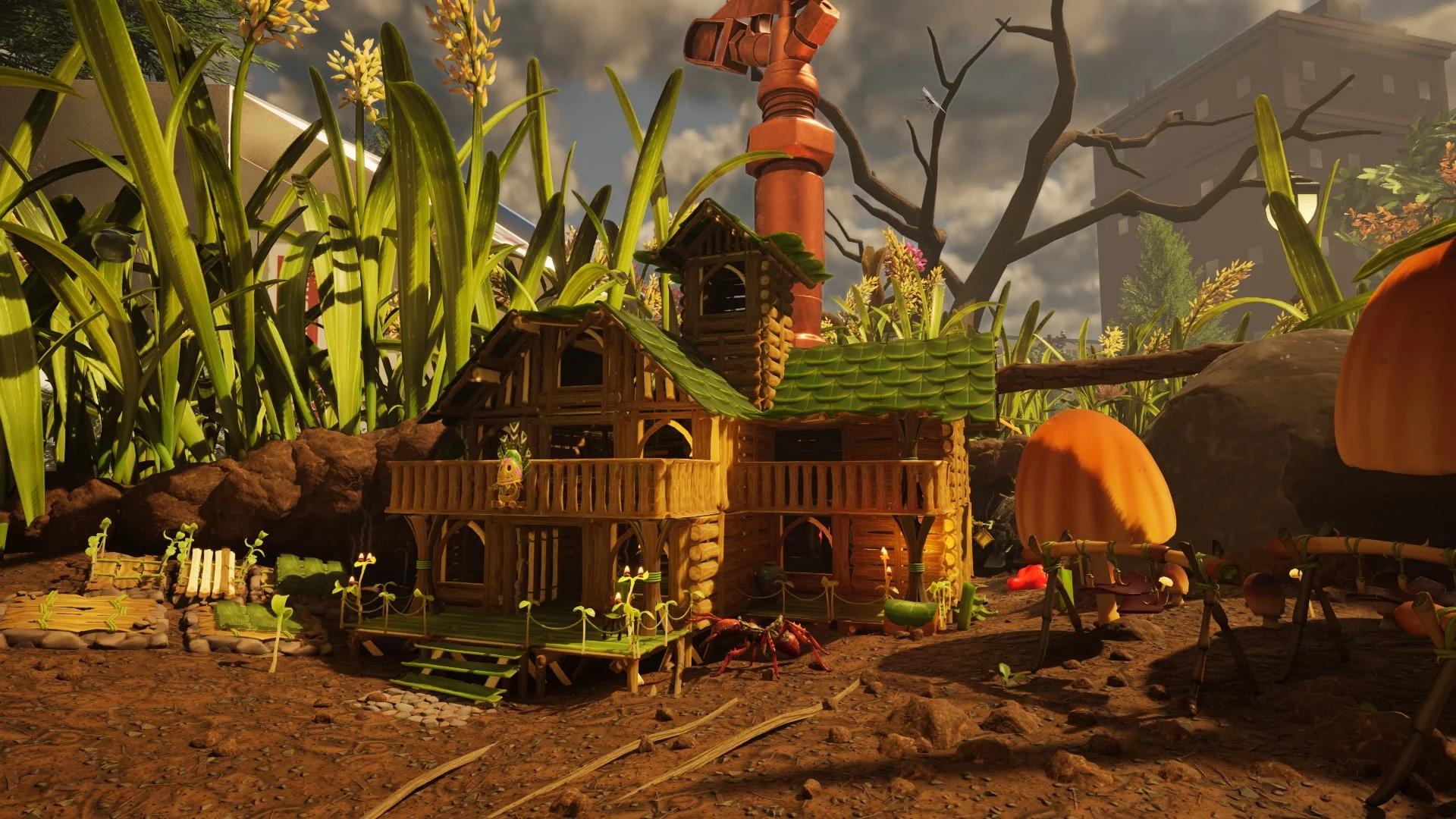
To fine-tune each parameter, you can select the values yourself to match your configuration. Below we explain what each setting does:
AntiAliasing — responsible for image smoothing. It removes the "jagged edges" effect on model borders. You don't need to change the r.AntiAliasingMethod option. However, you can lower TemporalAA.Quality to 2 or 1 if your graphics card does not meet the system requirements.
r.SSR.Quality — responsible for reflection quality. For Grounded 2, this is not a particularly important graphical feature, so you can safely lower it to 2 or 1.
r.MaxAnisotropy — anisotropic filtering improves the quality of textures at an angle. Most modern graphics cards handle this operation easily, so you can leave it as is.
r.ShadowQuality — shadow quality setting. If you have a weak graphics card, set it to 1.
r.AmbientOcclusionLevels — ambient occlusion technology. The configuration shown above is ideal and reduces the load on the system.
Set "High Priority" for Grounded 2 in the "Task Manager." Some users report getting a boost of 10 frames.
-
 Grounded 2 to Receive Major Update: New Biome, Return of Wasps and Ants, and a Combat Ladybug
 -
 Cyberpunk 2077 Romance and Sex Guide: Judy, Panam, River, Kerry, and Joytoys
 -
 Palworld 1.0 Best Pals for Early Game, Combat, Bases, and Mounts
 -
 All Elden Ring Endings Explained: How to Get Every Ending and Which Is Best
 -
 Valheim Save File Location: Where to Find Your Saves
 -
 Valheim Materials Guide: Where to Find Every Crafting Resource