
Battlefield 6 — Best Graphics Settings and Optimization Guide
 Vladyslav Shamshurov
The release of Battlefield 6 will take place in October, but you can already check it out during the beta test. Surprisingly, the pre-release version looks quite finished, and its visuals not only impress with their quality, but also with their technical state. However, many users who tried Battlefield 6 during the first wave of testing complained about the excessive number of settings, which not only worsen the image but literally interfere with enjoying multiplayer battles. In this guide, we’ll tell you how to tweak the graphics to get maximum performance while still having a beautiful and vibrant picture.
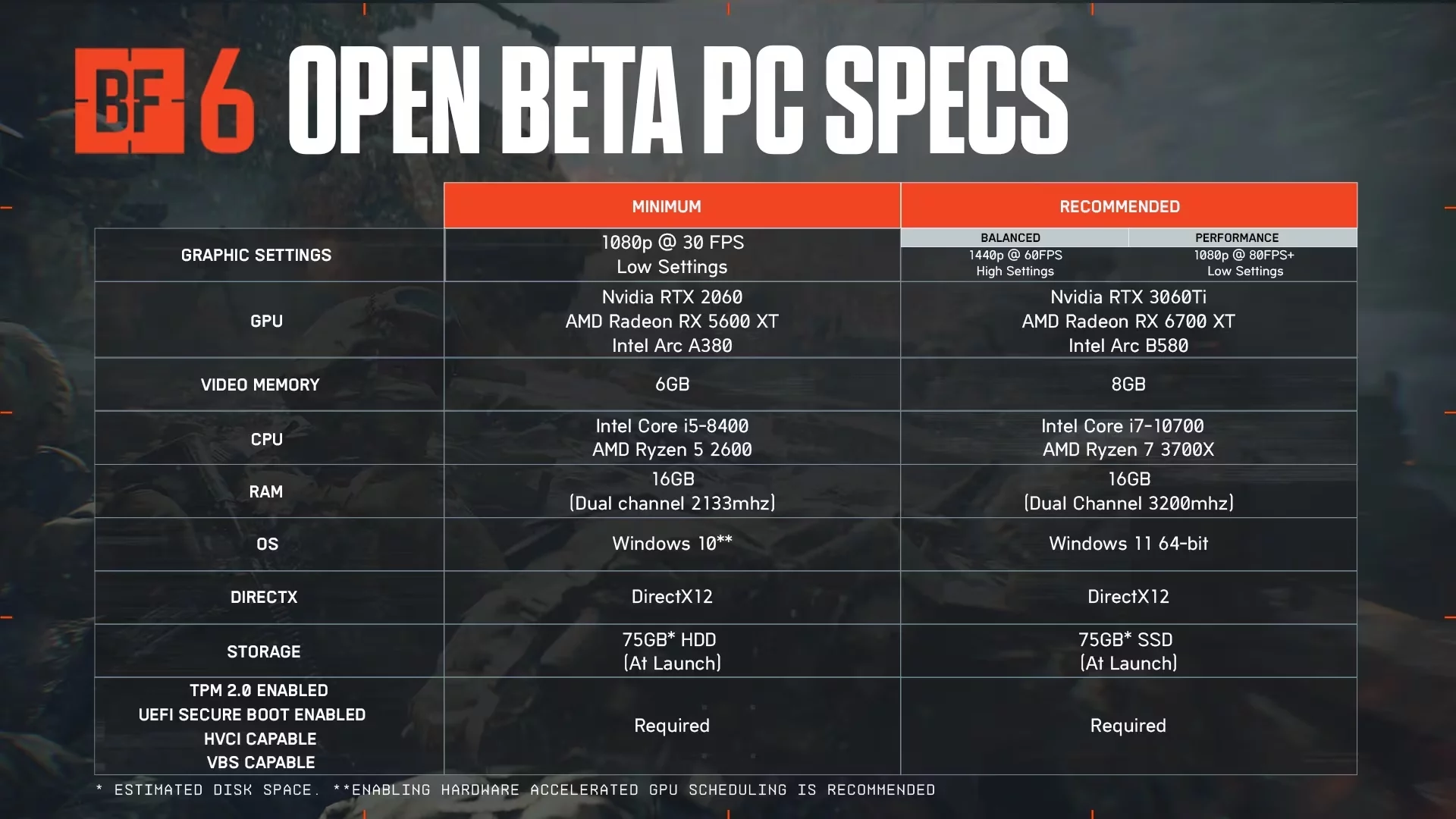
Battlefield 6 System Requirements. Will the Game Run on GTX Graphics Cards?
Below are the recommended system requirements from the developers. In reality, the minimum specs are greatly exaggerated, and the game performs well even on far from top-end builds. Thanks to the extensive list of available settings, you can easily run Battlefield 6 without buying expensive hardware. Players have already tested “the six” on “dinosaurs” — the GTX 1070 and 1080, and the result turned out to be much more optimistic than you might think. The game delivers 60–80 frames in 1080p on medium-low settings.
Best Graphics Settings in Battlefield 6
Battlefield 6 has a fairly flexible graphics settings system, which may seem overloaded to beginners. In addition, many important parameters are “scattered” across different tabs, making it easy to miss a crucial visual option. First, open the settings menu by clicking the gear icon at the top of the screen.
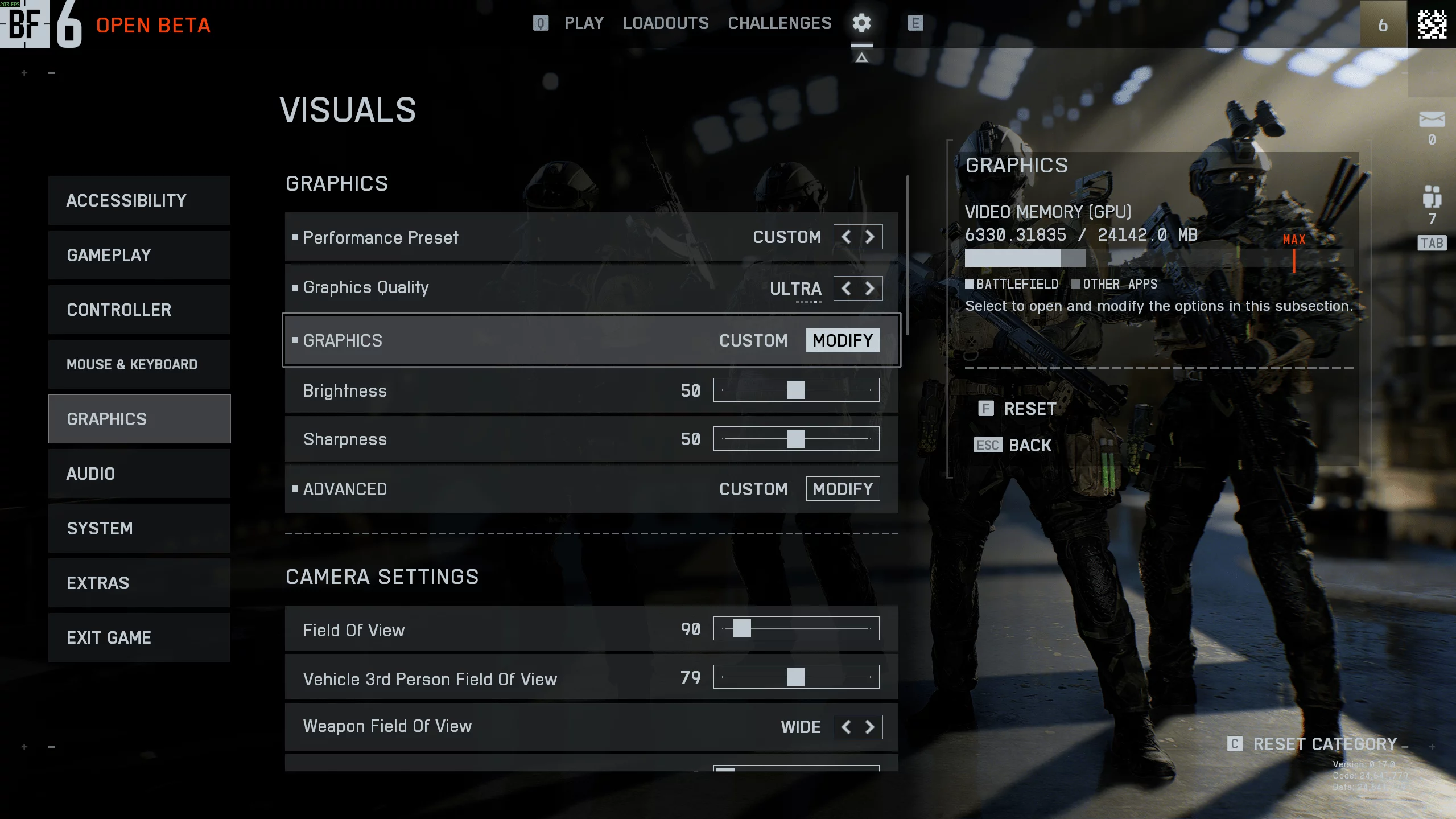
Select the Graphics section on the left side of the screen. Here you can change all general graphics settings, including resolution and monitor. These parameters are partly individual, so we’ll just leave recommendations.
Graphics (Basic Graphics Settings)
Performance Preset: The most important graphics setting, which you should switch first. Battlefield 6, on first launch, automatically sets the worst parameters, making the game look “very dirty.” Switch it to Custom and move on.
Graphics Quality: This is not a graphics setting, but a submenu with the main parameters. We’ll break it down below, but for now, set it to Modify.
Brightness: Brightness setting. Choose to your own taste. We recommend not touching this slider and leaving it at 50.
Sharpness: sharpness setting. We recommend not changing the value. On the other hand, if you use upscalers and frame generation, then this parameter will save you from a blurry image.
Advanced: advanced graphics settings. We will discuss this function in detail in a separate chapter. For now, set it to Modify.
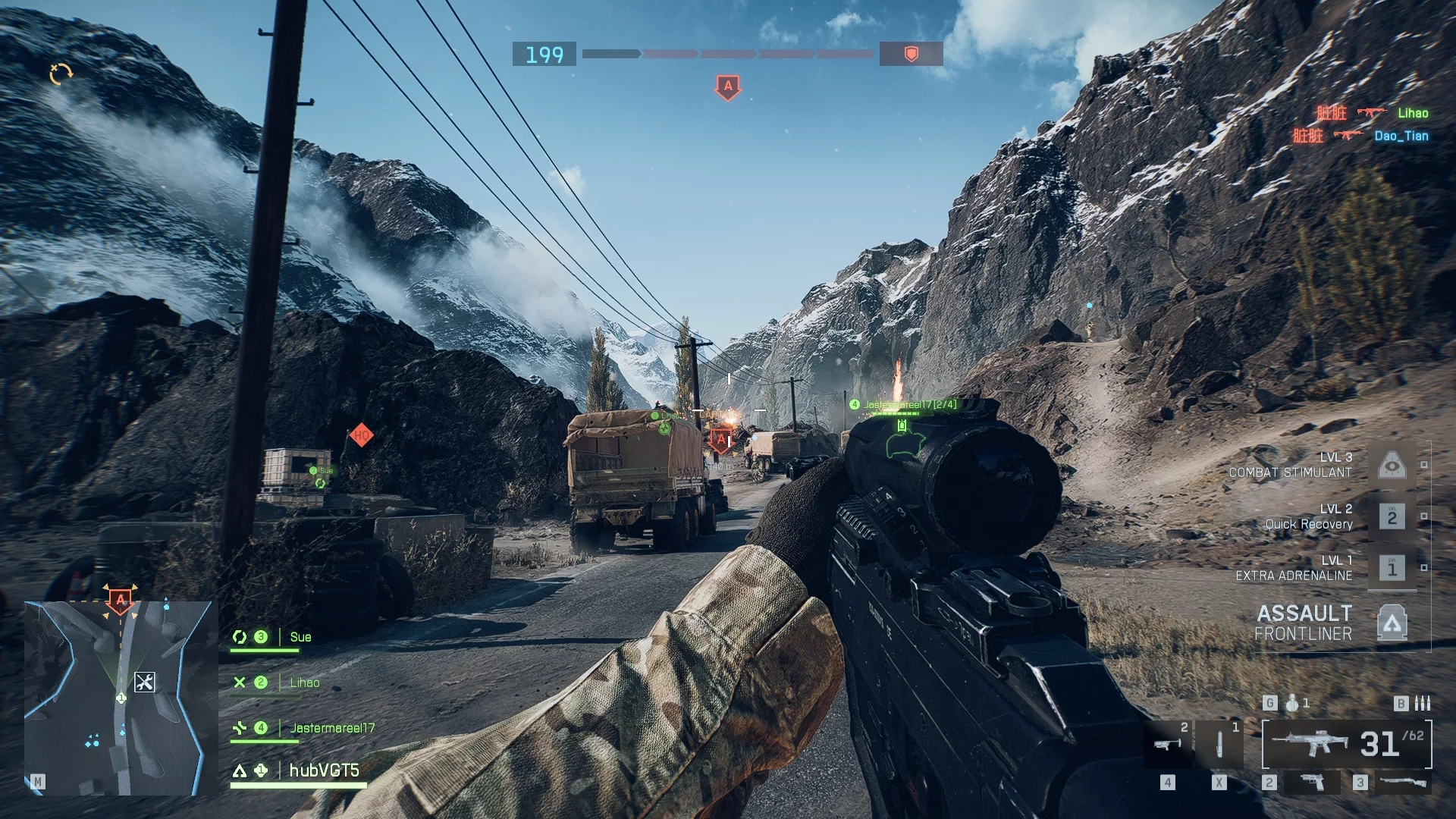
Camera Settings
Field of View: field of view setting. By default, it is set to 90, which is quite enough for comfortable gameplay. Yes, increasing the FOV gives you more visibility and control, but in this case, you’ll have to sacrifice performance. You can turn the slider up to 100 and lose 5–10 frames, but we don’t recommend going higher.
Vehicle 3rd Person FOV: third-person field of view for vehicles. Used when operating vehicles. It doesn’t provide much advantage on the battlefield, as enemy models will be barely visible. Leave it at 79.
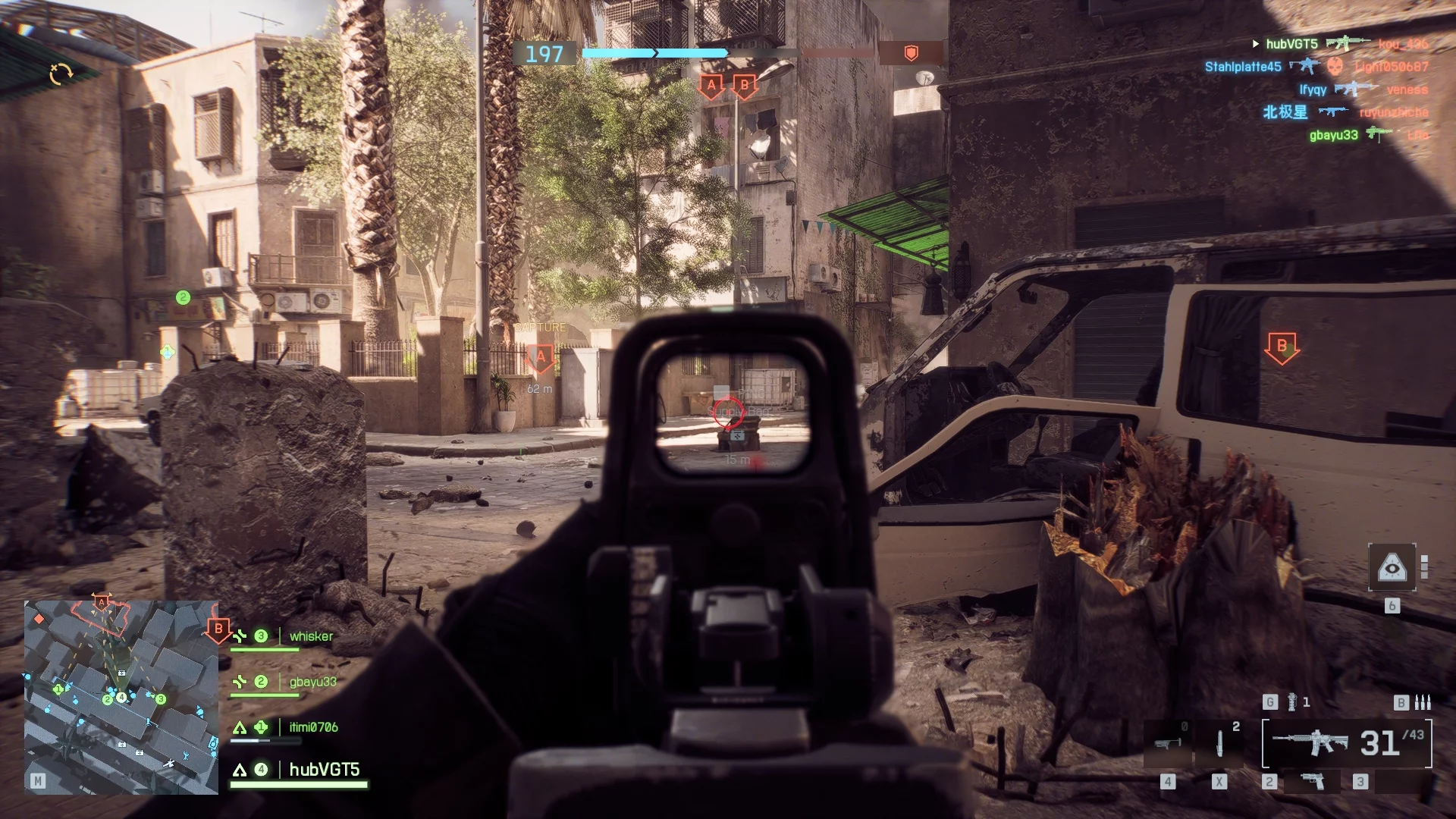
Camera Effects
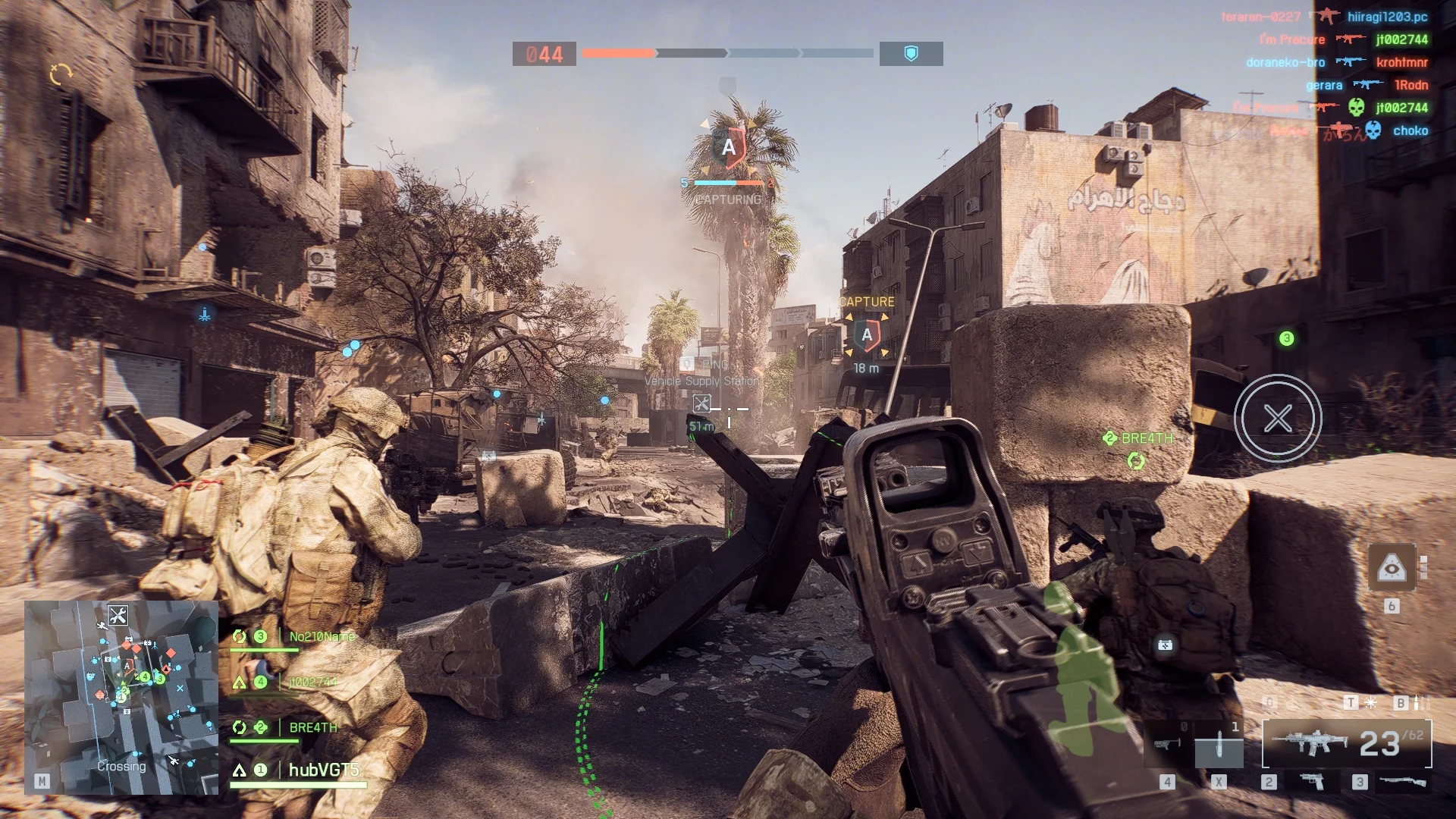
World Motion Blur: blurs the image and makes it more cinematic. For a single-player campaign, it’s a good effect, but in multiplayer it will only get in the way. Feel free to switch it to Off.
Weapon Motion Blur: creates a blur effect on weapons during movement and reloading. Absolutely useless feature. Set it to Off.
Camera Shake Amount: camera shake intensity. Another cinematic effect that is not needed for multiplayer. There are constant explosions and loud noises in the game, causing wild shaking that interferes with aiming. Set it to 20 (lowest).
Chromatic Aberration: makes the image blurry and models and objects unclear. Set it to Off and don’t ruin your eyesight.
Vignette: darkens the edges of the screen so you won’t notice enemies. Set it to Off and make your life easier.
Film Grain: graininess that creates a “dirty image” effect. Disable it (Off) first of all.
Display
Fullscreen Mode: classic screen mode setting. Set to Fullscreen so the game isn’t distracted by background processes. If you plan to switch between tabs, then choose Borderless.
Fullscreen Device: a setting for those with two or more monitors on one system.
Fullscreen Resolution: resolution setting. Set to Native to get the best quality.
Vertical Sync: vertical sync setting. Eliminates screen tearing, but creates noticeable input delay, resulting in input lag. Set to Off. You won’t notice any major issues with the image.
Graphics — Detailed Graphics Settings
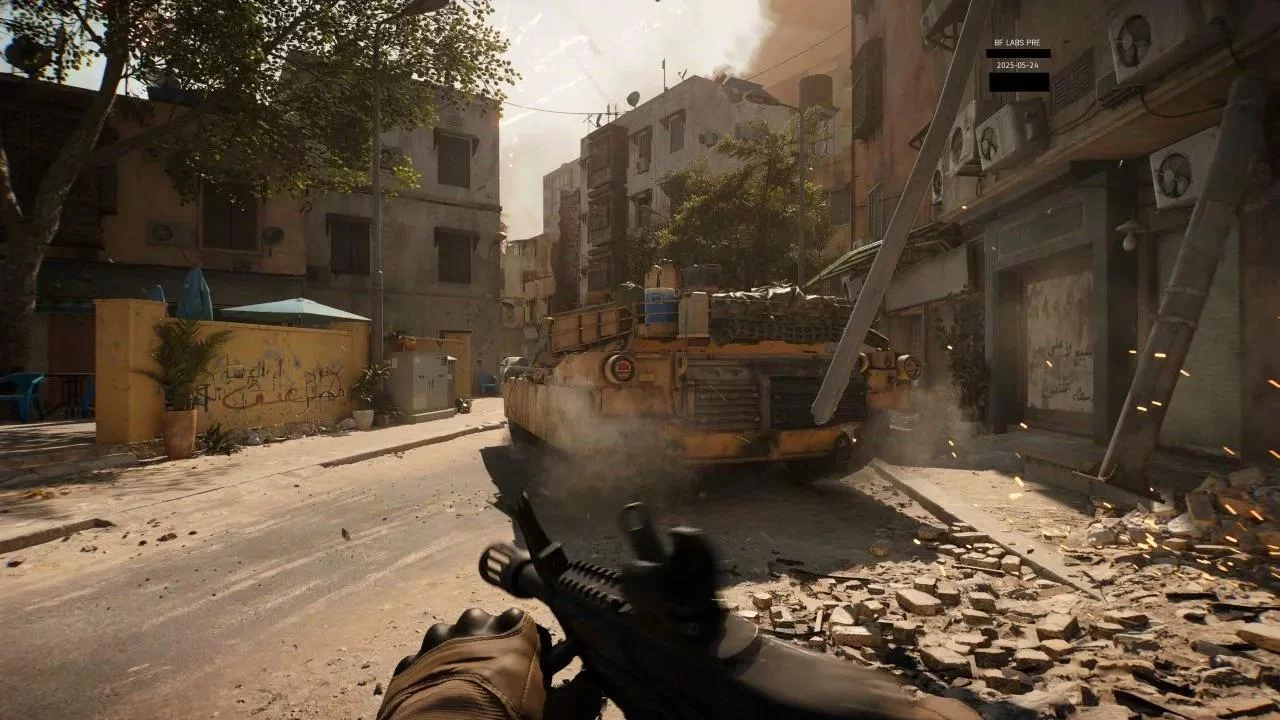
Texture Quality: The ideal option is, of course, High. You won’t notice much difference from Ultra, but you’ll save 3–5 frames in especially intense scenes. For graphics cards with 6 GB of VRAM, it’s better to choose Medium or Low to avoid drops that will often occur due to overloaded scenes.
Texture Filtering: Standard texture filtering that isn’t particularly demanding on system requirements. Choose Ultra if you have a PC with an RTX 2060 or higher. For owners of older cards, we recommend setting it to High.
Mesh Quality: Affects the level of detail of models. Set to Ultra if you’re playing in 1080p. In other cases — High. For weak PCs and those meeting minimum requirements — only Low, as this setting gives a significant FPS boost.
Terrain Quality: Terrain and environment detail setting. A very resource-intensive parameter. Set it to High to avoid sudden FPS drops. The difference from Ultra can only be seen with a magnifying glass. For owners of weak hardware — only Low.
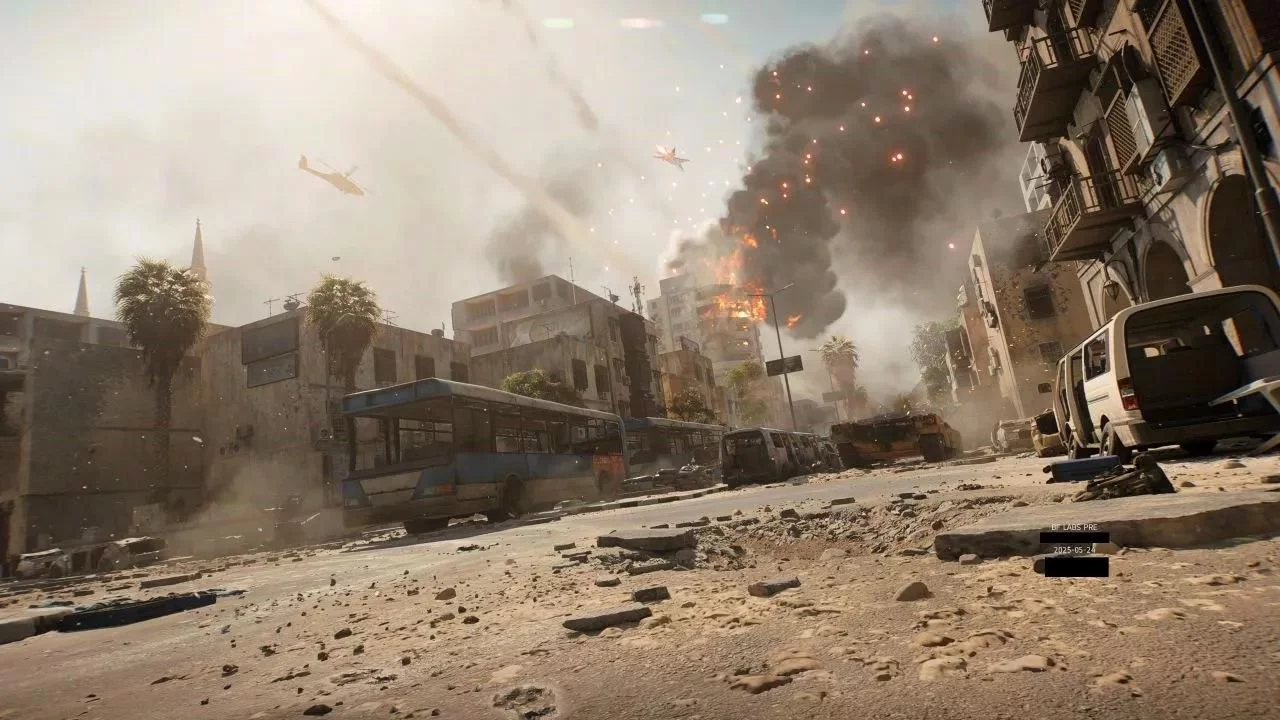
Undergrowth Quality: Quality and amount of vegetation. This setting is very ambiguous. If you need good visibility and minimal visual noise, set it to Low. For a beautiful image, choose High. It’s also worth noting that this is a very demanding parameter, so if you’re short on FPS, it’s better to lower vegetation to a minimum.
Effects Quality: Affects the quality of effects. The game has a lot of juicy and colorful explosions, so definitely set it to High. Switching to Ultra can affect performance during massive battles. We noticed sharp FPS drops of 10–15 frames. For weak hardware, Medium is enough.
Volumetric Quality: Responsible for the quality of volumetric particles. Lowering the quality spoils the overall visuals, so set it to High. For minimal builds, you can set it to Medium.
Lighting Quality: Lighting quality level. Lighting plays an important role in visuals, so set it to High. We do not recommend setting it to Ultra due to significant performance loss. For owners of weak hardware, set it to Low.
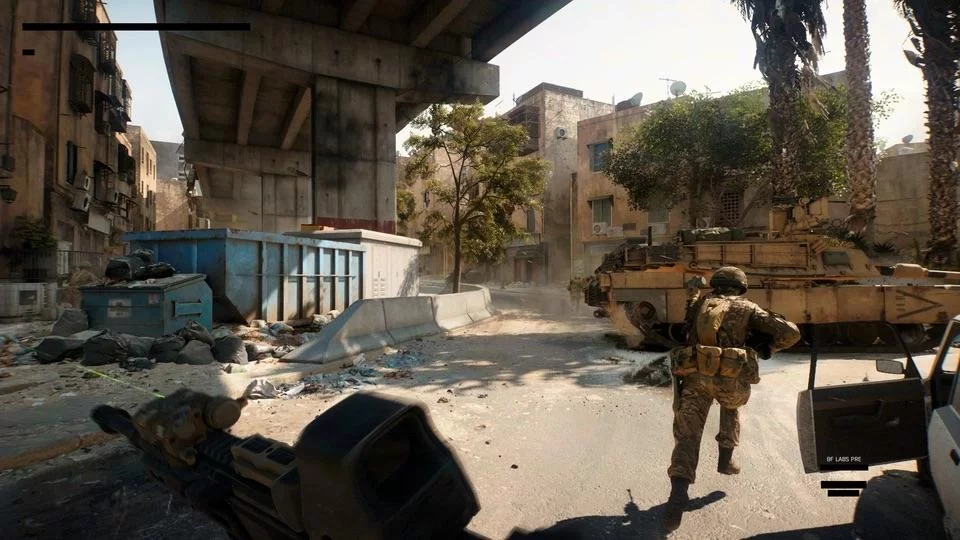
Local Light & Shadow Quality: Responsible for local light sources and shadow quality in closed spaces. A resource-intensive parameter, so set it to High. For low-end builds — Low.
Sun Shadow Quality: Determines the quality of global shadowing. This feature is well-optimized, so you can safely set it to Ultra. On low-end builds, you can set it to High.
Shadow Filtering: Filtering makes shadows more natural. A very demanding parameter. Choose PCF for a sharper image and higher FPS. If you want a better picture, choose PCSS.
Reflection Quality: responsible for the quality of reflections. There are very few places in the game where this technology is used to its full extent, so choose High. For minimal builds — Medium.
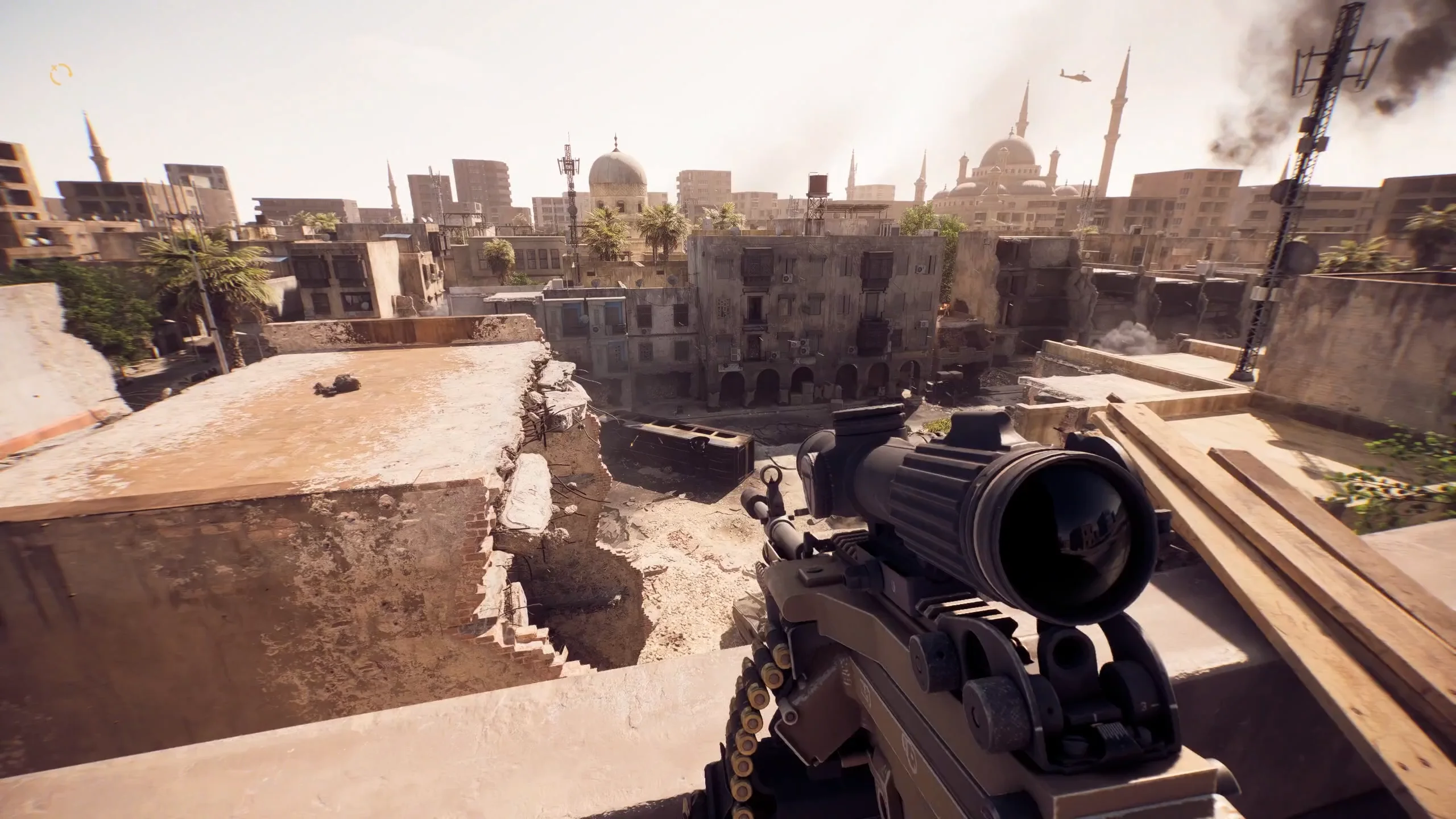
Screen Space Reflections: makes reflections more realistic. One of the most demanding settings, which affects performance but doesn’t have much impact on the overall picture. Set it to Off and enjoy high FPS.
Post Process Quality: affects the level of post-processing. Set it to High.
Screen Space AO & GI: another resource-intensive feature that simulates global illumination. The game will have more realistic shadows and good lighting in enclosed spaces. Set it to GTAO for a beautiful image. If you experience drops of more than 10 frames, then switch to SSGI.
High Fidelity Objects Amount: responsible for the level of object detail at a distance. We recommend setting to Ultra or High for good visibility at long distances. For systems at minimum specs, you can try High.
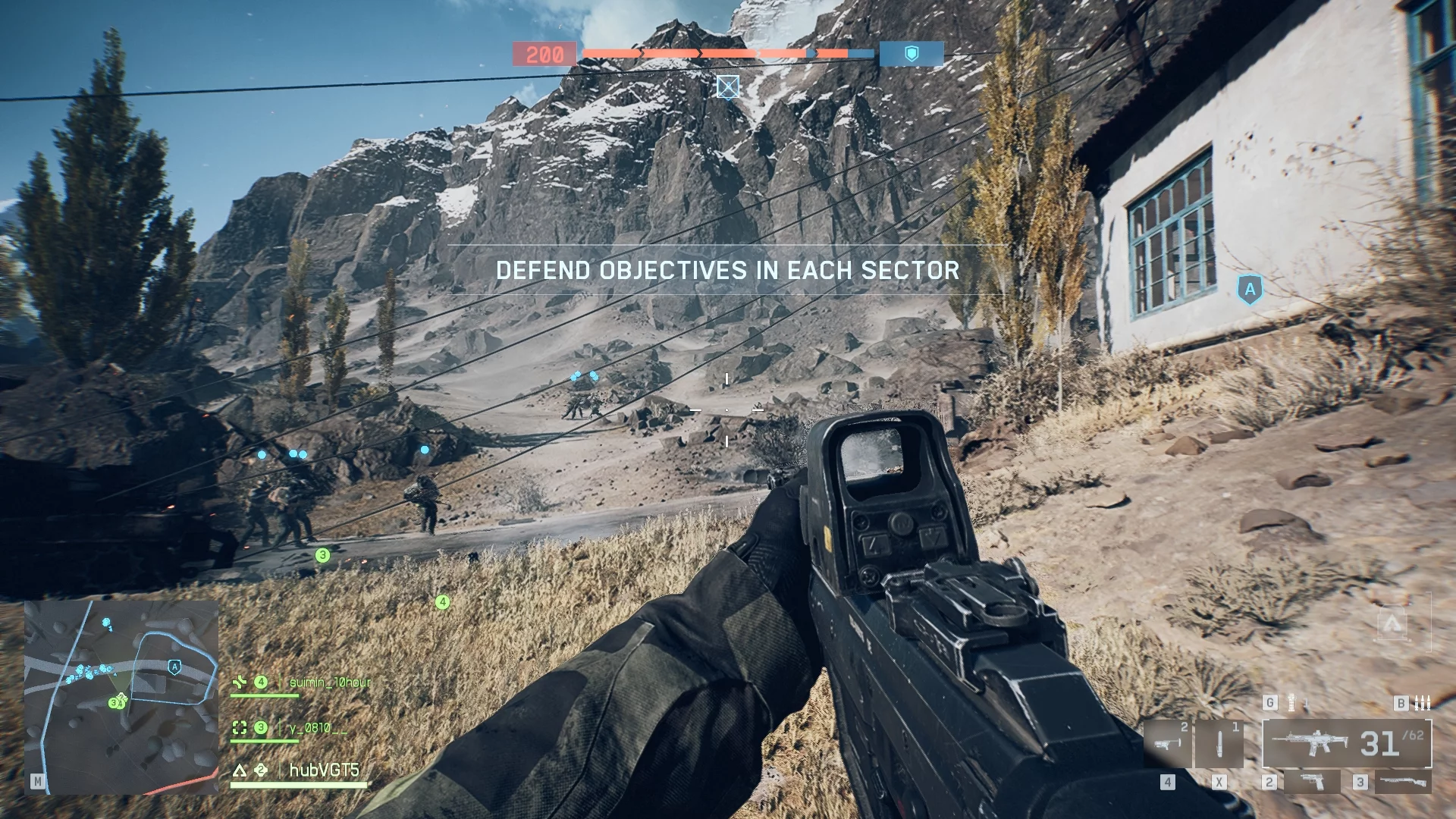
Advanced — Additional Graphics Settings
Fixed Resolution Scale: responsible for the overall image quality. We advise lowering it below 100 only for those whose PC can’t maintain 60 FPS. For everyone else — leave it at 100.
Frame Rate Limiter: frame rate limit. Set to Off.
Dynamic Resolution Scale: responsible for dynamic resolution. By default, set it to Off so the image in the game doesn’t break up into pixels.
NVIDIA Reflex Low Latency: a technology that reduces latency in games and makes the process smoother. A rather controversial feature for competitive games. It really does make the image more stable and reduces the delay between pressing a key and the action, but in many projects it doesn’t work very stably. In Battlefield 6, the mouse behaves very strangely. There’s a feeling of input lag and excessive smoothness while aiming. It’s hard to say for sure right now if NVIDIA Reflex is to blame, as more testing is needed, but we recommend disabling this feature if you have a sufficiently powerful processor. In other cases, try Enabled + Boost.
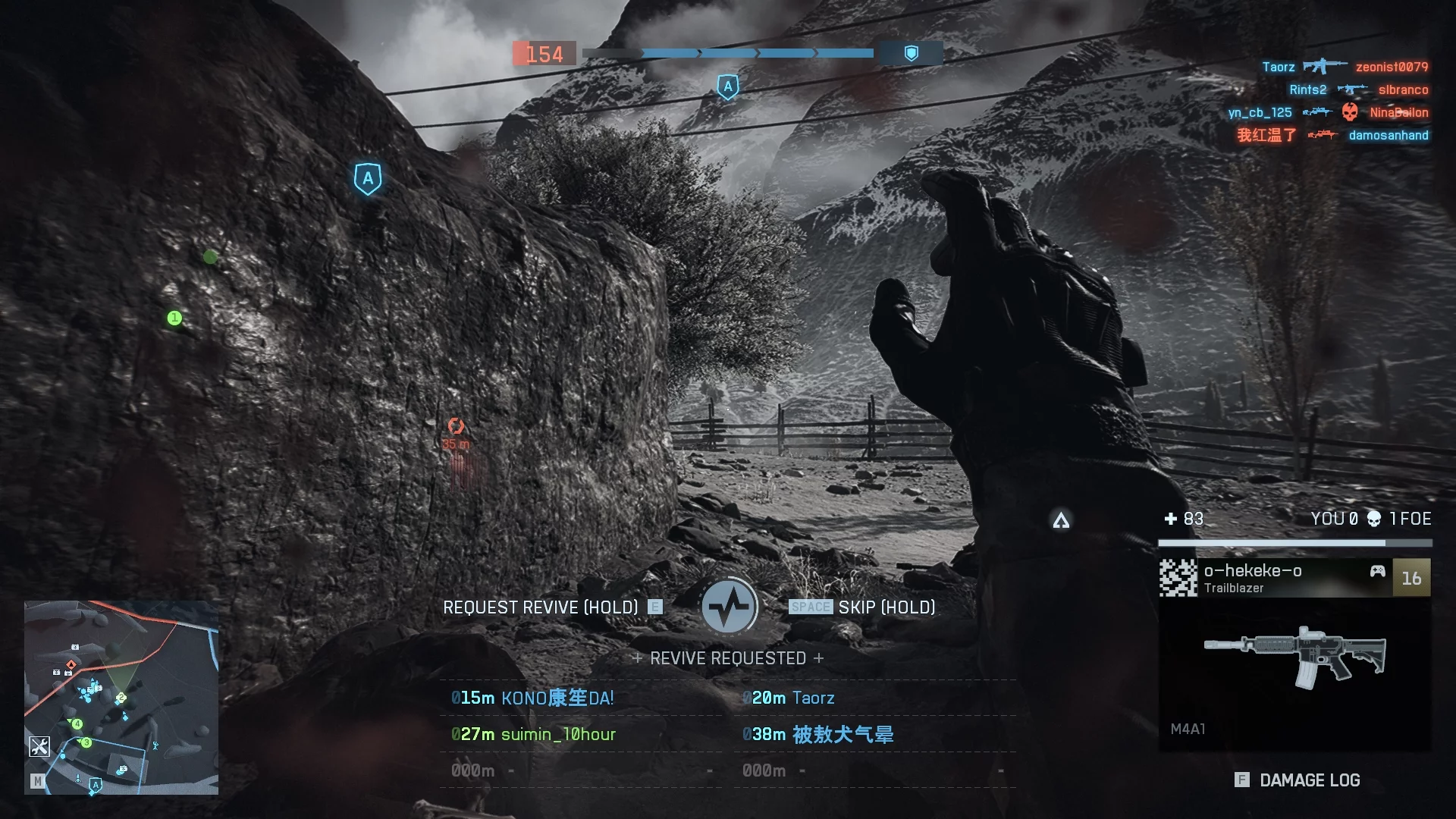
Anti-Aliasing: a method for smoothing sharp edges on objects and eliminating the “jagged” effect. The basic TTA makes the image very “dirty.” We recommend disabling this setting (Off).
Upscaling Technique: choose the upscaling technology. Choose the one that fits your graphics card. We recommend not disabling this feature to get maximum performance.
Upscaling Quality: responsible for the quality of the upscaled image. Select DLAA to get the best picture and excellent anti-aliasing. If you notice significant drops in performance, then set it to Quality.
AMD FSR Frame Generation or Nvidia Frame Generation: modern frame generation technologies. Disable them (Off) by default, as they are not suitable for multiplayer games. Fake frames will lead to very noticeable input lag.
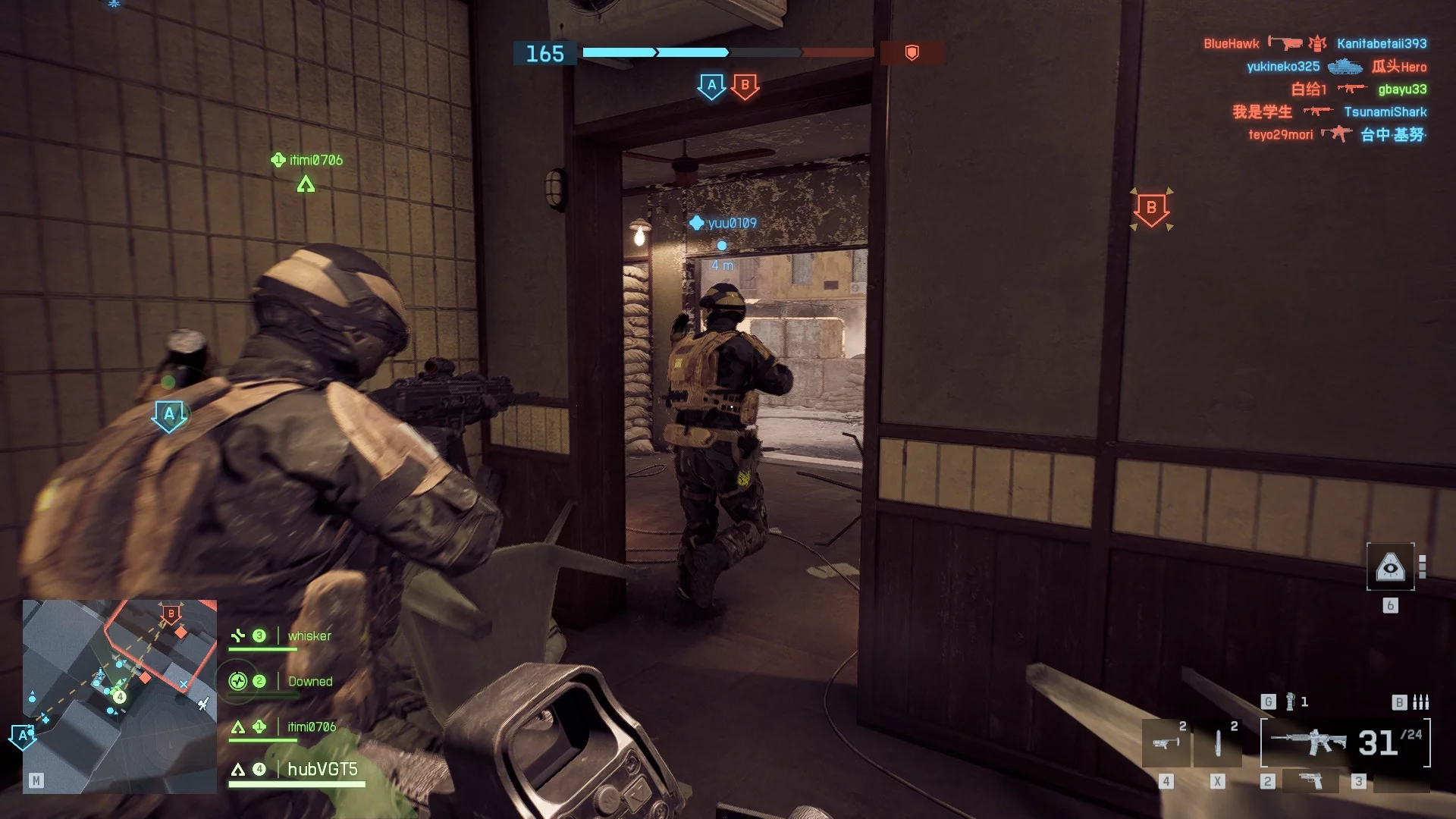
Future Frame Rendering: another feature with intermediate frame generation. Disable it (Off) when you first launch the game.
Performance Overlay: displays performance counters for the game. At first, you can enable it to track frame rate and video memory usage. Later, it’s best to disable it so as not to spoil the overall visuals with unnecessary information.
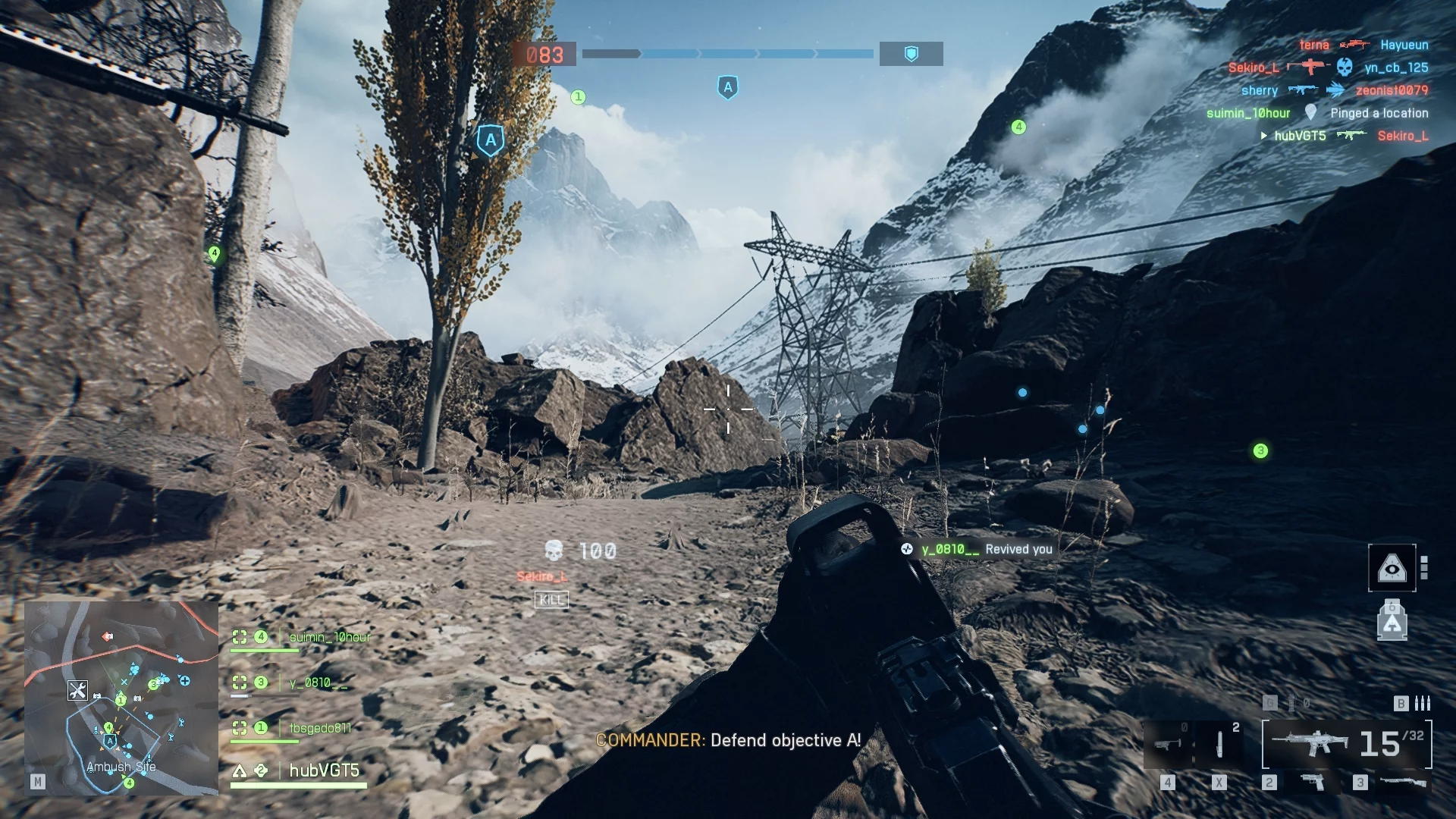
Additional Settings for Responsive Gameplay
Battlefield 6 has quite a lot of flexible settings that make the gameplay more responsive and understandable. In this chapter, we’ll focus on the most important parameters that need to be adjusted to get comfortable gameplay. This information is especially useful for newcomers who haven’t played the Battlefield series before.
First of all, you need to disable “standard infantry aim sensitivity,” which makes the controls feel sluggish. Open the settings and go to the Mouse & Keyboard tab. Switch to the Control Settings tab by clicking Modify. Disable the UNIFORM INFANTRY AIMING option.
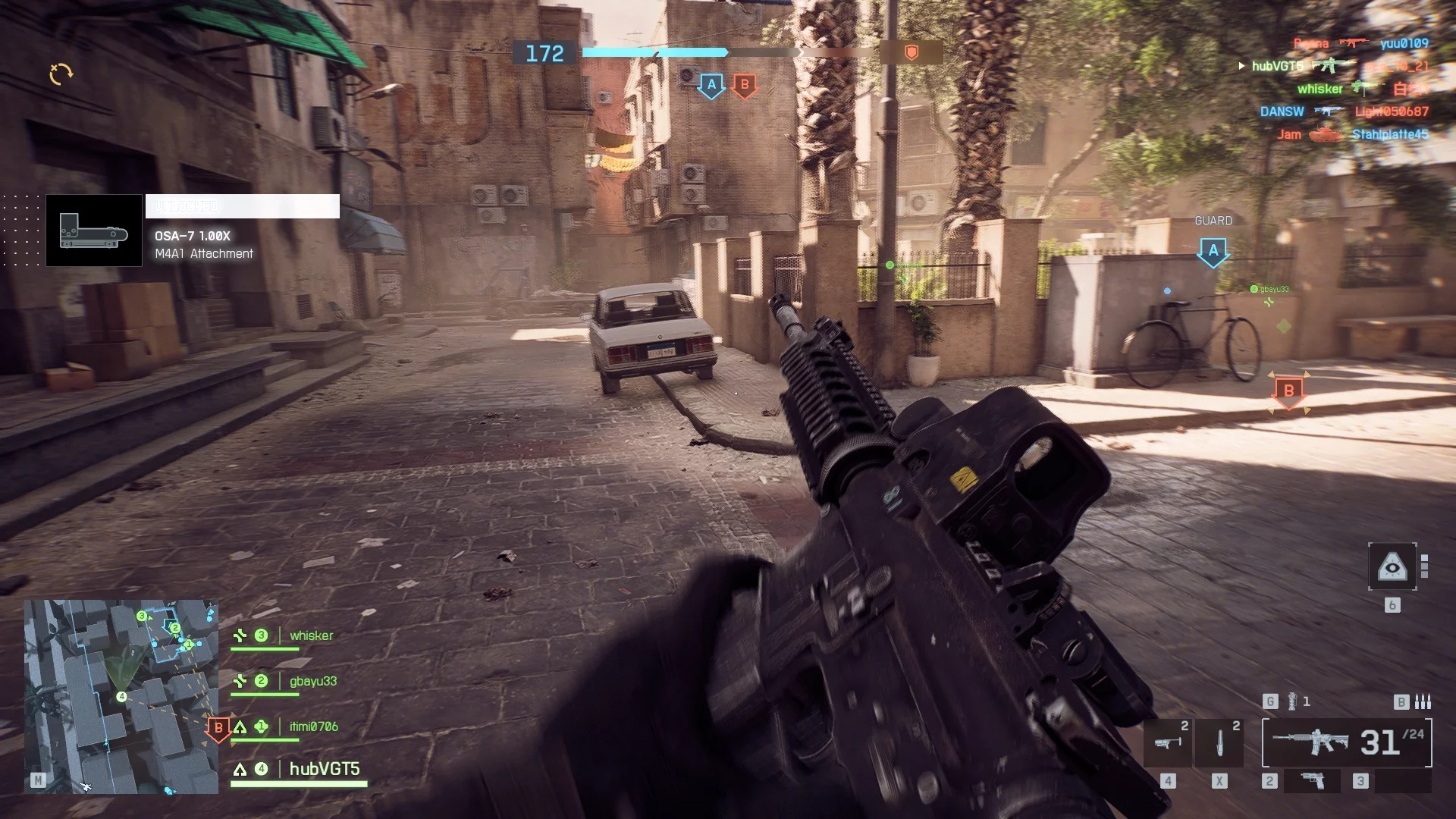
Next, you need to set up your HUD. To do this, open the settings and the Graphics tab, then scroll down to Interface & HUD.
Soldier HUD Motion: turn off so your interface doesn’t distract you while running and jumping, giving you maximum visibility.
Vehicle HUD Motion: turn off so the interface doesn’t shake while driving vehicles.
Show Vehicle Seat: enable so you can instantly switch seats in vehicles.
Show Soldier Overlays: enable so you know about all effects applied to your character.
Show Vehicle Overlays: leave enabled to see all effects happening to vehicles.
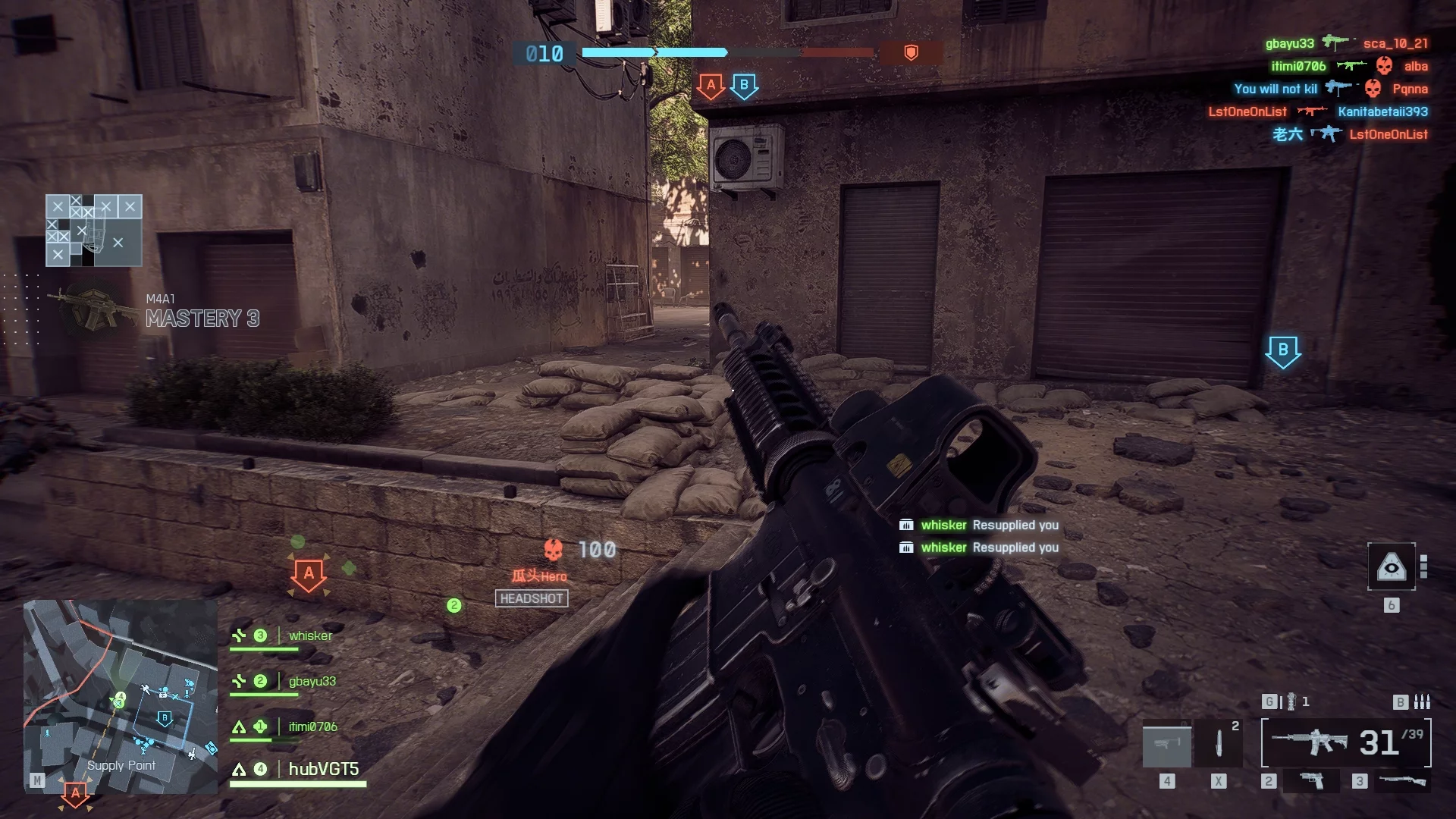
Show Outlines on Allies: definitely enable so you can clearly distinguish between allies and enemies.
SOVIS Filter: definitely enable so enemies stand out more against the environment.
Other guides
 Battlefield 6: Ultimate NVO-228E Assault Rifle Loadout Guide
 Battlefield 6: How to Set Up the Best Crosshair Settings
 Battlefield 6 Range Finder Guide: How to Unlock and Use Effectively
 Battlefield 6 Dog Tags Guide — How to Collect All Dog Tags in the Game
 Battlefield 6: Healing Missions Not Tracking — How to Fix
 Battlefield 6: Vehicle Repair Missions Not Tracking — How to Fix
-
 Battlefield 6: All Weapon Unlock Requirements and Methods
 -
 How to Enable Secure Boot on Any Motherboard to Play Battlefield 6
 -
 Best Weapons Guide for Every Class in Battlefield 6
 -
 Battlefield 6 Phantom Edition Rewards Not Received — How to Fix
 -
 All Elden Ring Endings Explained: How to Get Every Ending and Which Is Best
 -
 Battlefield 6 Enters Second Open Beta — Now Featuring New York Map
 -
 Large Maps Confirmed for Battlefield 6 — Dataminers Leak Layouts of Mirak Valley and Eastwood