
Palworld Errors and Fixes: Crashes, Launch Issues, and Server Problems
 Vladyslav Shamshurov
Palworld is preparing to leave early access, but players may still run into technical issues: crashes, black screens, connection errors, server failures, and co-op bugs. For example, some players get a black screen on launch, others crash with an Unreal Engine error, and some users cannot connect to a world or a dedicated server. In this guide, we have collected possible problems and errors, as well as ways to fix them.

After major updates and the release of version 1.0, some old errors may return due to the influx of players, network changes, and heavy server load. Before trying more complicated fixes, first check the server status, game updates, and file integrity.
System Requirements
Before launching Palworld, check the system requirements and make sure the game is installed on an SSD. If your system does not meet the minimum requirements, the game may not run correctly or may fail to launch at all. Check this before looking for other ways to solve the problem.
Minimum Requirements
- Operating system: Windows 10 or 11 (64-bit).
- Processor: i5-3570K 3.4 GHz or higher.
- Memory: 16 GB RAM.
- Graphics card: GeForce GTX 1050 (2 GB).
- DirectX: Version 11.
- Network: Broadband internet connection.
- Storage: 40 GB.
- Additional notes: SSD required.
Recommended Requirements
- Operating system: Windows 10 or 11 (64-bit).
- Processor: i9-9900K 3.6 GHz or higher.
- Memory: 32 GB RAM.
- Graphics card: GeForce RTX 2070.
- DirectX: Version 11.
- Network: Broadband internet connection.
- Storage: 40 GB.
- Additional notes: SSD required.
Not Found Session 91 Error
The Not Found Session 91 error code can appear when a player tries to connect to a server that no longer exists, a closed world, or a session where multiplayer is not enabled. You can fix it by connecting to a different server or contacting the host and asking them to check the co-op settings.
Make Sure Multiplayer Is Enabled
If you have confirmed that the server you are trying to connect to is running and stable, check whether the Multiplayer option is enabled for that server.
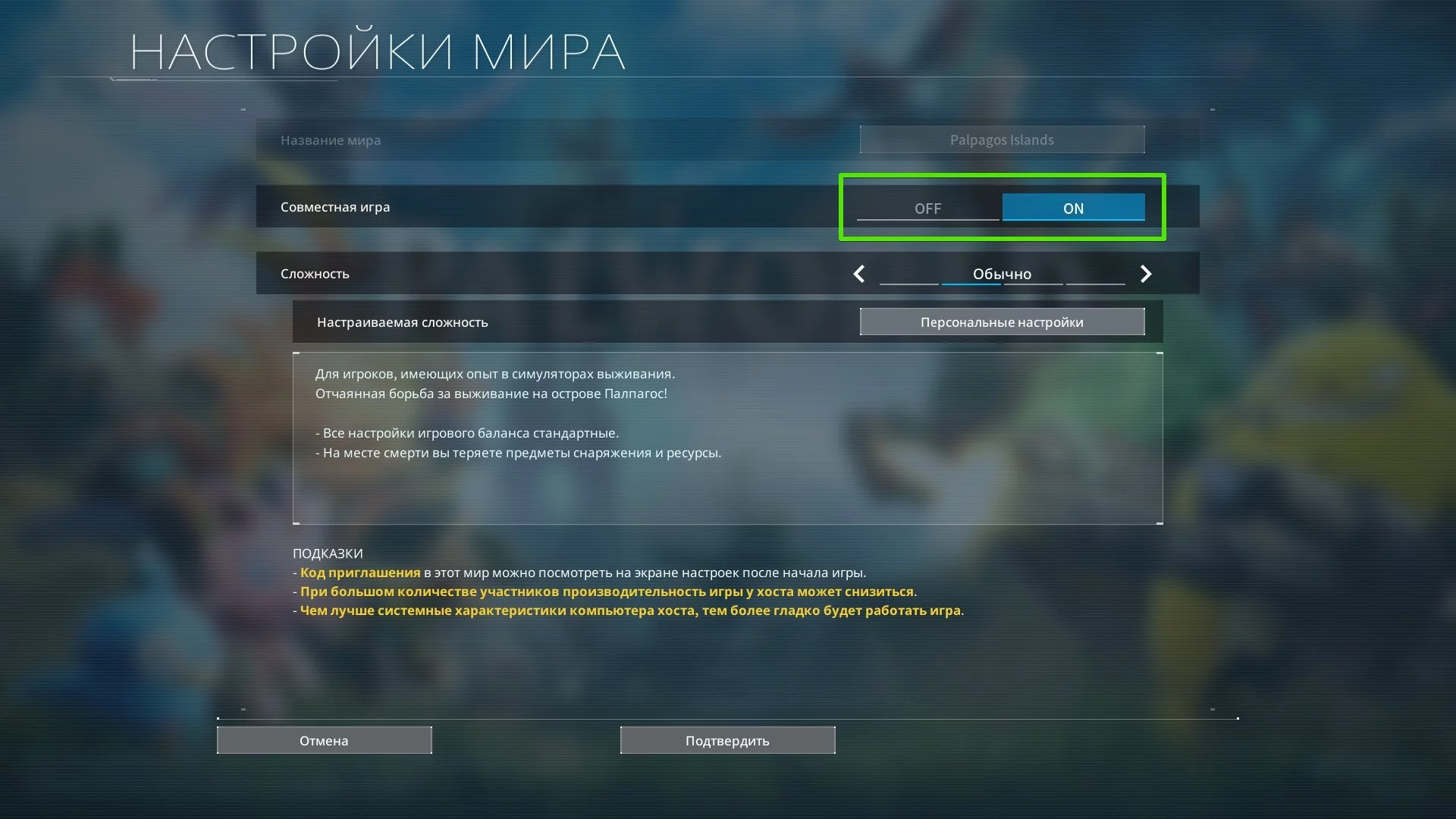
Check Your Network Connection Settings
If Multiplayer is enabled but the error still appears, check your network connection.
If you are connected to the internet through Wi-Fi, we recommend switching to a wired connection and checking whether the problem still occurs. Otherwise, try restarting your modem or router to restore the default connection state.
Failed to Host Multiplayer Session Error
Xbox players in Palworld who try to return to worlds they created may encounter the "Failed to Host Multiplayer Session" error. In most cases, it is related to the network session or multiplayer settings. As a temporary workaround, you can disable multiplayer for that world and try entering it again.

- In the World Select menu, highlight the affected world and press the Change World Settings button in the lower-left corner of the screen.
- From there, switch Multiplayer to OFF before trying to return to the world.
Character Spawns Under the Map or in Water: What to Do
Sometimes, after joining a world again, your character may spawn in water under the map. In this state, you will not be able to get back to shore and will remain stuck in the water. To fix the problem, simply end the game session and try launching it again. If that does not help, turn the Multiplayer setting on or off in the world settings. You can also try re-entering the game.
Pals at the Base Stay in Combat Mode: What to Do
Your camp will be attacked by enemies regularly, but sometimes Pals do not leave combat mode even after the fight ends. They may simply freeze in place while the red icon above them keeps flashing. Below, we explain why this happens, how to avoid it, and what to do if you have already encountered the bug.
Why Does This Happen?
Based on our observations, the bug can happen if you quit the game during a raid. This lets you avoid the battle itself, but when you return to the game, you may run into this problem. The Pals will just stand still and stop doing their jobs. In this state, they may not even be able to reach the feed box to satisfy their hunger.
Conclusion: do not quit the game during a raid. It is better to put all your Pals into the Palbox and use fast travel to the nearest fast travel point. The enemies will have no one to attack, spend some time at the base, and eventually leave.
How to Fix the Bug
If this has already happened, first try putting the stuck Pals into the Palbox, returning them to the base, restarting the world, and checking whether buildings or the path to the feed box are blocking them. If nothing helps, you can try the last-resort option: destroy the Palbox. Along with it, some objects will be removed from the camp, such as rest areas and other Pal-related structures. If the bug persists even after restarting the world and moving your Pals, check whether a new patch is available, and try moving base structures or temporarily disabling base raids in the world settings.
OnCreateSession Complete Delegate bWasSuccessful == false Error
The "OnCreateSession Complete Delegate bWasSuccessful == false" error is usually related to creating or connecting to a network session. As a temporary workaround, you can disable Multiplayer in the world settings and enter in single-player mode. If you are playing on a server, also check its availability, game version, and connection settings.
Black Screen on Palworld Launch
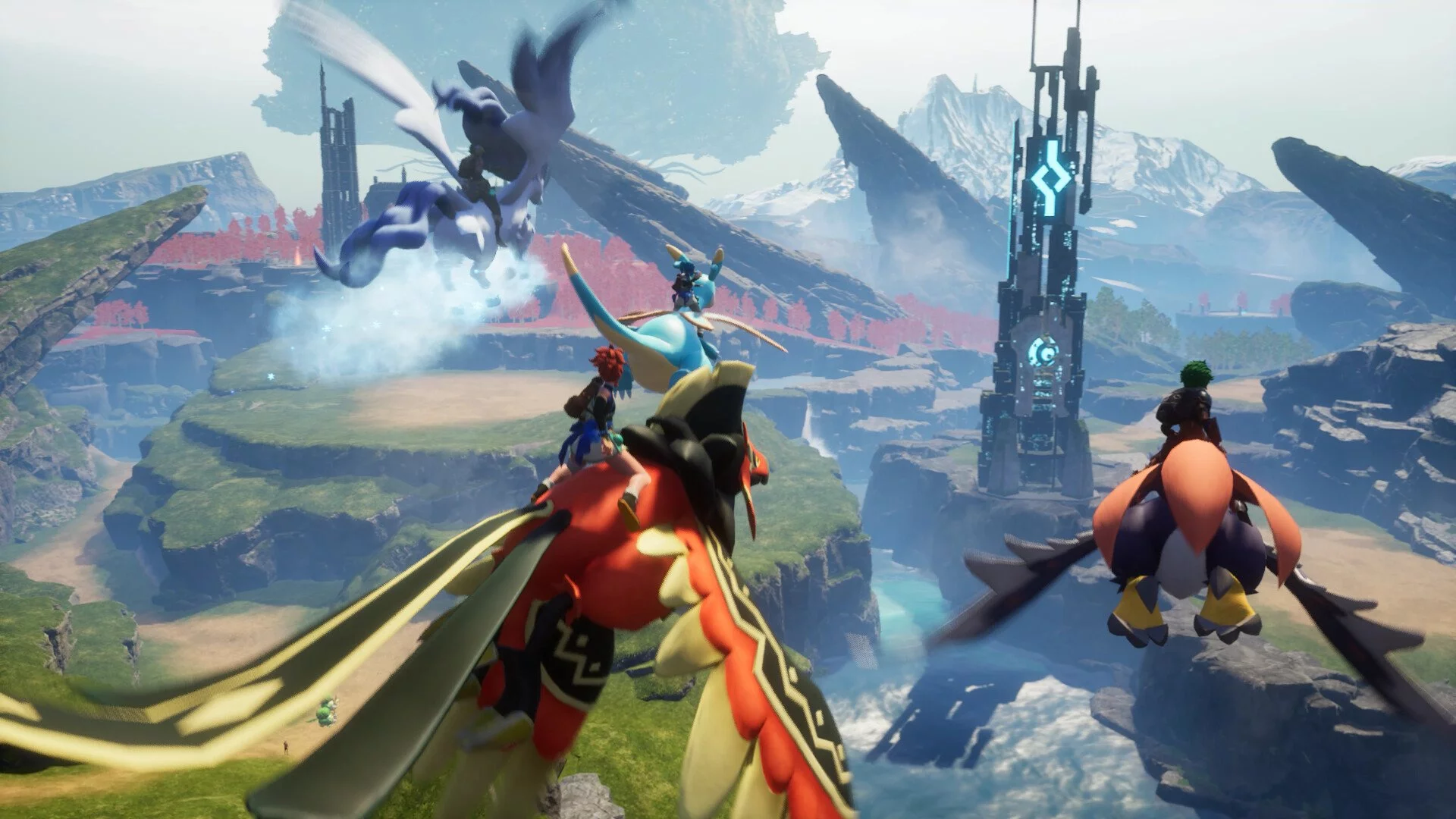
Some users encounter a black screen when launching the game. Nothing happens afterward: there are no crashes or error messages. According to player reports, the issue is more common in the PC version of the game. To fix this problem, you can try some of the tips listed below.
Wait a Few Minutes
Sometimes, during the first launch, the game may stay on a black screen for a long time. Wait a few minutes, especially if Palworld is installed on an SSD and is launching after an update. If the screen does not change for too long, move on to the next methods.
Disable Fullscreen Optimizations and Run as Administrator
In the Steam version on PC, changing compatibility settings can sometimes help. Here is what to do:
- Open Steam, find the game, and go to the root folder: Manage, then Browse local files.
- Right-click the Palworld.exe launch file and select Properties.
- Go to the Compatibility tab.
- Check Disable fullscreen optimizations.
- Also check Run this program as an administrator.
- Try launching the game.
Verify the Integrity of Game Files
If the previous recommendations do not help fix the black screen when launching Palworld, you may need to verify the integrity of the game files in Steam. To do this:
- Find Palworld in your Steam library.
- Right-click it and open Properties.
- Go to the Installed Files tab.
- Click Verify integrity of game files.
Reinstall Palworld on an SSD
Another way to get rid of the problem is to reinstall the game on an SSD. Completely uninstall Palworld from your computer through Steam, then choose an SSD as the installation location.
Update Your Graphics Card Driver
The final recommendation that can help fix the black screen on launch is to install the latest graphics card driver or completely reinstall the driver.
You can also check for updates using NVIDIA GeForce Experience or AMD Software: Adrenalin Edition. To do this, launch one of the apps, go to the Driver tab, and click Check for updates.
UE Pal: Exception Access Violation Crash

A small number of PC players get the "UE Pal Crashed — Exception Access Violation" error while playing Palworld. In most cases, this error is followed by a crash to desktop, meaning the game crashes and closes. There is no universal fix for this error, but it is usually best to start by verifying game files, updating your graphics card driver, disabling overclocking, and fully reinstalling Palworld. File verification and repair are available in both the Steam version of Palworld and the Xbox/Game Pass version on PC.
BP Class Human Error Pop Up
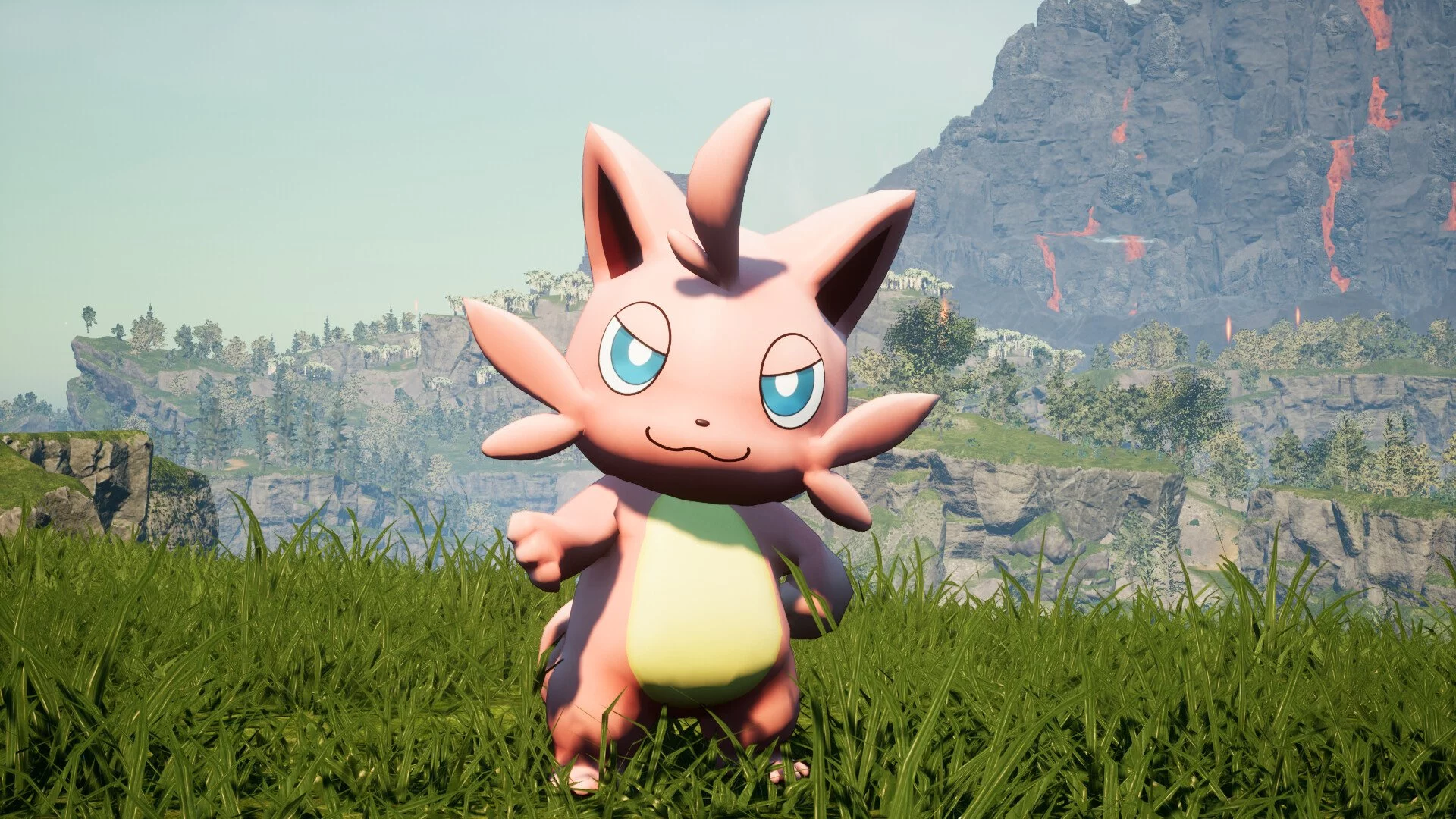
The BP Class Human Error Pop Up may appear after you catch a Syndicate Thug, then approach him and try to view detailed information. In practice, the error is harmless, since all you need to do is press OK to close the dialog window. After closing the window, the Syndicate Thug model may disappear.
No password has been entered Error
Many Palworld players have encountered the "No password has been entered" error when trying to connect to a co-op server, even while using the password set by the server owner. The issue has been known since the early access period.
If the error still appears, check whether the password is correct, make sure the server and client versions match, and try temporarily switching the server to community server mode if that works for your game. This workaround lets you play with friends on a password-protected server until an official fix arrives.
General Troubleshooting Tips
Connection issues in Palworld are most often related to an unstable internet connection, different client and server versions, port settings, or temporary server load. Before playing, make sure your internet connection is stable. If you are using Wi-Fi and run into problems, try a wired connection through an Ethernet cable.
Verify File Integrity After Installing Updates
If you are playing on PC and errors appear after installing updates, verify the integrity of the game files.
- For Steam: right-click the game and select Properties, then Installed Files, then Verify integrity of game files.
- For Xbox (Game Pass): select Palworld in your library, then "...", Manage, Files, and Verify and repair.
Check Whether Your PC Meets the Dedicated Server Requirements
Dedicated server requirements:
- Processor: 4 cores or more.
- Memory: 16 GB RAM, but more than 32 GB is better for stable operation.
- Network: UDP port 8211 by default. Port forwarding is required.
- Storage: fast SSD.
If you want to play on private servers in Palworld, first read the official technical guide from the developer. It describes the full requirements for creating a dedicated server. If you have setup problems on PC, check whether your computer meets these requirements. The same guide also contains instructions for port forwarding.
Other guides
 Palworld 1.0 Best Pals for Early Game, Combat, Bases, and Mounts
 Palworld Legendary Pals: All Locations and How to Get Them
 Palworld Cryogenic Coolant — How to Get and Use It
 Palworld Mythical Wood Guide: Where to Find and Farm It
 Palworld Hexolite Quartz Guide: Where to Find and Farm It
 Palworld World Tree Holy Water Guide: Where to Find and Farm It
-
 Palworld Ancient Civilization Core: How to Get and Farm It
 -
 Palworld Ancient Bone Guide: Where to Find and Farm It
 -
 Palworld Coralum Ore Guide: Where to Find and Farm It
 -
 Palworld Chromite Guide: How to Find and Mine It
 -
 Palworld Gold Coins Guide: How to Get, Farm, and Spend Them
 -
 Palworld Paldium Fragment Guide: How to Get and Craft Pal Spheres
 -
 Palworld: How to Get Wool and Craft Cloth
 -
 Palworld Food Guide: How to Cook Meals and Feed Your Pals