
A role-playing action game in a pseudo-open world set in deep space, with a focus on detailed, immersive quests that offer high replayability on every playthrough... Read more
Players:
Steam:
Metacritic:
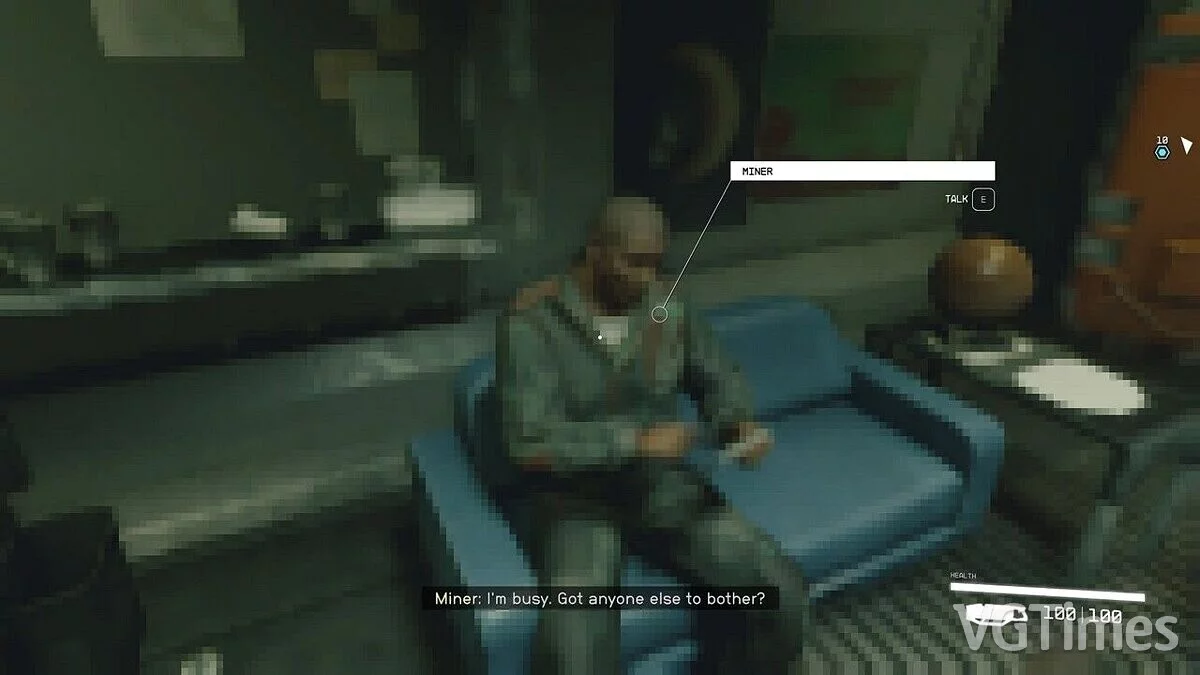
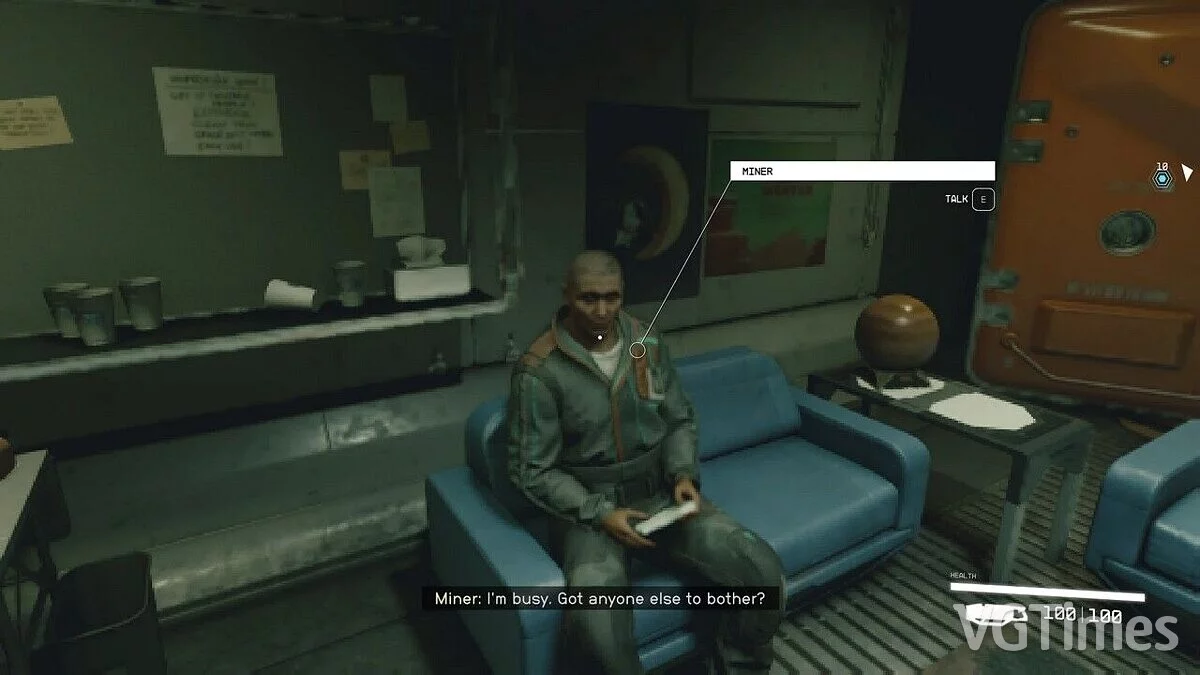
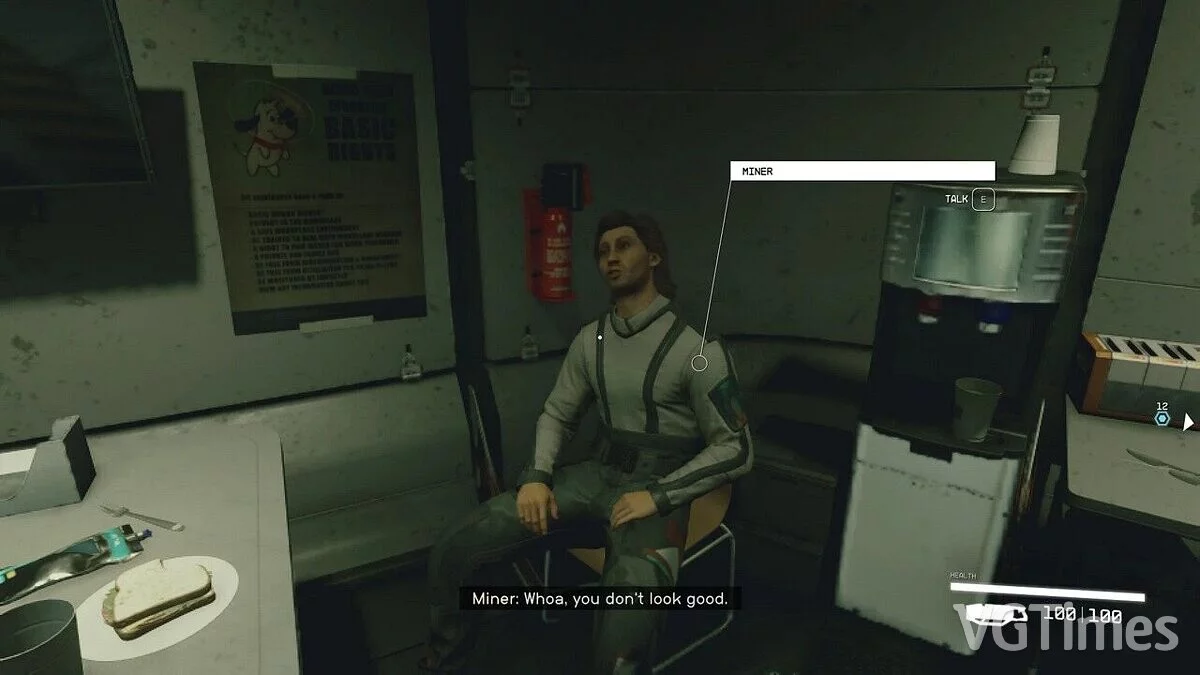
Graphics Like on PlayStation 1

Author:
FrancisLouis
Uploaded by:

Size:
564 байт
Date:
September 2, 2023, 04:28 AM
Downloads:
1156
-
Download (564 байт)September 2, 2023, 04:28 AMПлохой картофельgrafika-kak-na-playstation-1_1693618113_705964.7z
-
Download (564 байт)September 2, 2023, 04:28 AMДостойный картофельgrafika-kak-na-playstation-1_1693618113_620861.7z
-
Download (564 байт)September 2, 2023, 04:28 AMХороший картофельgrafika-kak-na-playstation-1_1693618113_69311.7z
-
Download (564 байт)September 2, 2023, 04:28 AMПиксельный райgrafika-kak-na-playstation-1_1693618113_110219.7z
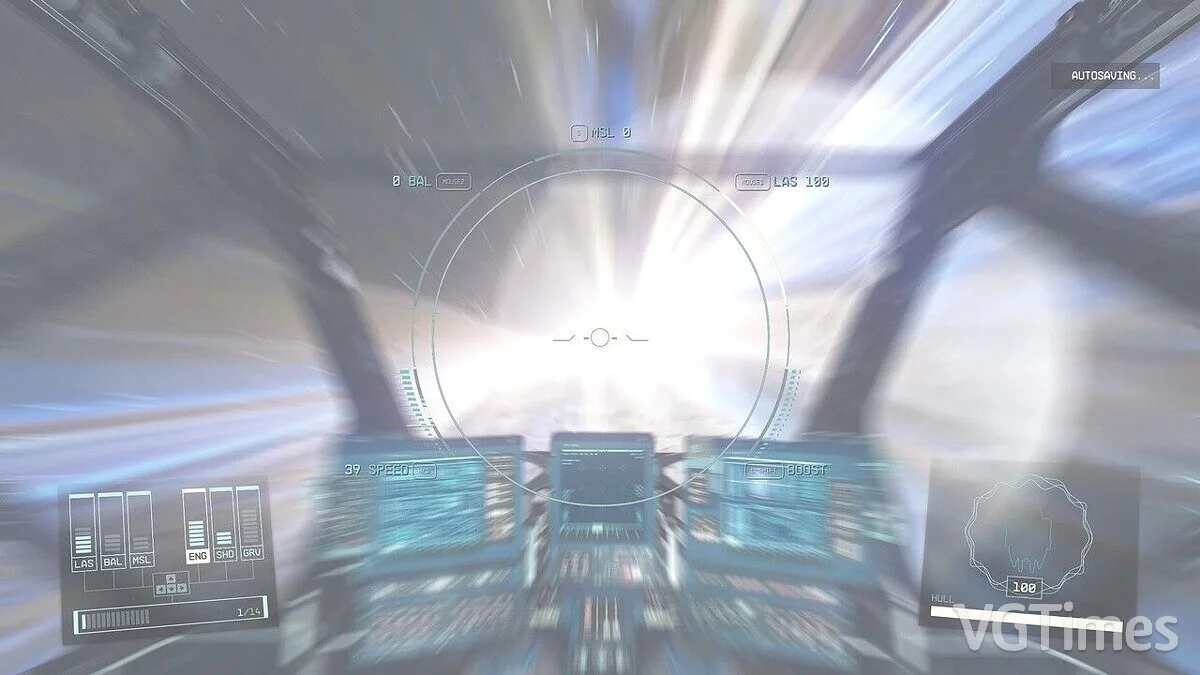
Transforms the game graphics into potato quality for improved performance or just for the enjoyment of pixels.
How to run:
- After downloading the mod, you need to move it to the Documents/My Games/Starfield folder and replace the StarfieldPrefs.ini file.
- Right-click on it, select properties, and check the 'read-only' box so the game cannot change the graphics to default settings.
- Before this, open the .ini file and find the line uDifficulty=0.
- Change it to match the difficulty level: 0 - very easy, 4 - very hard.
The file name and description have been translated Show original
(RU)Show translation
(EN)
Графика как на PlayStation 1
Превращает игровую графику в картошку для повышения производительности или просто для удовольствия от пикселей.
Как запустить:
- После загрузки мода необходимо переместить его в папку Documents/My Games/Starfield и заменить файл StarfieldPrefs.ini.
- Щелкнуть на нем правой кнопкой мыши, выбрать свойства и установите флажок «только для чтения», чтобы игра не могла изменить графику на настройки по умолчанию.
- Перед этим открыть файл.ini и найти строку uDifficulty=0.
- Изменить ее так, чтобы она соответствовала уровню сложности: 0 — очень легко, 4 — очень трудно.
Useful links:
![Starfield — Table for Cheat Engine [UPD: 18.06.2025]](https://files.vgtimes.com/download/posts/2025-06/thumbs/tablica-dlja-cheat-engine-upd-18-06-2025_1750319351_261529.webp)
![Starfield — Cheat Engine Table [UPD: 13.09.2023: GamePass]](https://files.vgtimes.com/download/posts/2023-09/thumbs/tablica-dlja-cheat-engine-upd-13-09_1694695992_909037.webp)
![Starfield — Table for Cheat Engine [1.15.22]](https://files.vgtimes.com/download/posts/2025-08/thumbs/tablica-dlja-cheat-engine-1-15-22_1756623903_937214.webp)