
How to Capture Screenshots in Hytale — Easy Tutorial
 Vladyslav Shamshurov
Hytale lets you dive into a magical pixel world where you can do just about anything. Build a cozy house with a garden, or gear up in the best cobalt equipment and set off to face hordes of the undead in distant lands. In this guide, we’ll explain how to easily take a screenshot and where to find your saved images.
How to Take a Screenshot
Most of the time, to take a screenshot, you just need to press the PrtScr (Print Screen) key on your keyboard. This key is usually in the upper right corner. When you press it, your screen image is copied to the clipboard. You can then paste it as a picture into any window or app that supports image files, such as Paint, Monosnap, or the Snipping Tool.

If you try to take a screenshot in Hytale using the classic method, you’ll probably just capture the pause menu. Of course, you can run the game in windowed mode, but then you’ll have to crop out parts of your desktop from the image.

Luckily, the developers have included an in-game screenshot tool that works in the menu, during gameplay, inventory view, or while using workbenches. Just press F12 (Take Screenshot). You’ll see a quick camera flash animation on the screen. We’ll explain where to find your screenshots in the last section of this article.
How to Hide the Interface in Hytale
If you want a clean screenshot without the interface, press F8 (Switch HUD Visibility). Pressing it again will also make your character put away any tools or items they’re holding. To bring everything back, just press the button once more to toggle the interface visibility.
How to Take a Third-Person Screenshot
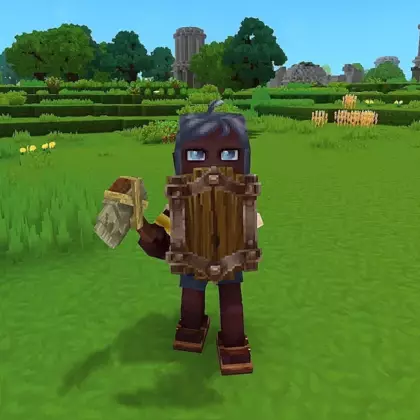
The game lets you quickly switch to third-person view to capture your character against the landscape. To do this, hold down the “C” key (Activate Camera Rotation). The camera will focus on your character’s face in the center of the screen. Rotate it to change the angle. You can also hide the interface in this mode by pressing F8.

Where to Find Your Hytale Screenshots
All screenshots are automatically saved in a dedicated Hytale Screenshots folder, which is created during game installation. To find your screenshots, go to one of these locations:
- Explorer/Pictures/Hytale Screenshots
- C:/Users/User/Pictures/Hytale Screenshots
Other guides


-
 Hytale Portal Guide: How to Build and Use Teleports
 -
 Hytale Guide for Beginners: Essential Tips and Tricks
 -
 How to Create Windows in Hytale — Easy Tutorial
 -
 Third-Person Camera in Hytale — How to Activate and Use
 -
 All Elden Ring Endings Explained: How to Get Every Ending and Which Is Best
 -
 Valheim Save File Location: Where to Find Your Saves
 -
 Valheim Materials Guide: Where to Find Every Crafting Resource